Documentation
Comprehensive guides and best practices
1. Browse Documentation
Use the sidebar navigation to explore:
- Bash Scripts - Best practices for writing efficient Bash scripts
- How-To Guides - Step-by-step guides for Docker, Jenkins, and other technologies
- Reference Lists - Curated lists of tools and resources
- Other Projects - Related documentation sites and tools
2. My recent articles
Guide to setting up and using Saml2Aws for AWS access
Best practices for writing efficient and secure Dockerfiles
Guide to writing and organizing Docker Compose files
Debug Hugo: Quick guide to locate Hugo templates, use templateMetrics, override priorities, and fix common Docsy/Hugo template issues for faster debugging.

Foundational best practices for writing Bash scripts
Best practices for using Linux commands in Bash scripts
Best practices for testing Bash scripts with Bats framework

A quick reference guide for developing and maintaining the Hugo documentation site
Understanding Jenkins architecture and concepts
A detailed comparison between Alpine and Ubuntu Docker images, focusing on performance differences in build times and test execution.
1 - My Documents
Articles about this repository, its structure, and how to use it effectively
1. Available Guides
- My Documents static site generation - Analysis of migrating from Docsify to an SEO-optimized static site generator
- My Documents Multi repositories Site Generation - Analysis of generating a documentation site from multiple
repositories using Hugo and GitHub Pages
- My Documents Technical Architecture - Overview of the technical architecture of this documentation site, including
the use of Hugo, GitHub Pages, and CI/CD pipelines
- My Documents Trigger Workflow - Guide on how to trigger the documentation build workflow using GitHub Actions
2. Getting Started
Select a documentation topic from the sidebar to begin.
1.1 - Technical Architecture
Complete technical architecture guide for the Hugo documentation system with reusable GitHub Actions
1. Overview
The my-documents repository provides a reusable GitHub Action for building and deploying Hugo-based documentation
sites using the Docsy theme. This architecture enables multiple documentation repositories to share common
configurations, layouts, and assets while maintaining their independence.
1.1. Key Features
- Reusable GitHub Action: Single workflow definition used across multiple repositories
- Hugo Go Modules: Share layouts, assets, and configurations without file copying
- No Authentication Complexity: Uses standard
GITHUB_TOKEN (no GitHub Apps or PATs required) - Independent Deployments: Each repository controls its own build and deployment
- Shared Theme Consistency: All sites use the same Docsy theme with consistent styling
- SEO Optimized: Built-in structured data, meta tags, and sitemap generation
1.2. Managed Documentation Sites
2. Building Locally
2.1. Prerequisites
Install the required tools:
- Hugo Extended v0.160.1 or higher (with Go support)
- Go 1.24 or higher
- Git
2.2. Quick Start
# Clone the repository
git clone https://github.com/fchastanet/my-documents.git
cd my-documents

# Download Hugo modules
hugo mod get -u

# Start local development server
hugo server -D

# Open browser to http://localhost:1313/my-documents/
The site will auto-reload when you edit content in content/docs/.
2.3. Building for Production
# Build optimized static site
hugo --minify

# Output is in public/ directory
ls -la public/
3. Reusable Action Architecture
3.1. Architecture Diagram
┌─────────────────────────────────────────────────────────────────┐
│ my-documents Repository (Public)                                │
│                                                                 │
│  ├── .github/workflows/                                         │
│  │   ├── build-site-action.yml  ← Reusable action definition   │
│  │   └── build-site.yml          ← Own site build              │
│  │                                                              │
│  ├── configs/                                                   │
│  │   └── _base.yaml              ← Shared base configuration   │
│  │                                                              │
│  └── shared/                                                    │
│      ├── layouts/                ← Shared Hugo templates       │
│      ├── assets/                 ← Shared SCSS, CSS, JS        │
│      └── archetypes/             ← Content templates           │
│                                                                 │
└─────────────────────────────────────────────────────────────────┘
                           ▲
                           │ Hugo Go Module Import
                           │
        ┌──────────────────┼──────────────────┬──────────────────┐
        │                  │                  │                  │
        ▼                  ▼                  ▼                  ▼
┌───────────────┐  ┌───────────────┐  ┌───────────────┐  ┌──────────────┐
│ bash-compiler │  │  bash-tools   │  │ bash-dev-env  │  │ Other Repos  │
│               │  │               │  │               │  │              │
│ go.mod        │  │ go.mod        │  │ go.mod        │  │ go.mod       │
│ hugo.yaml     │  │ hugo.yaml     │  │ hugo.yaml     │  │ hugo.yaml    │
│ content/      │  │ content/      │  │ content/      │  │ content/     │
│               │  │               │  │               │  │              │
│ .github/      │  │ .github/      │  │ .github/      │  │ .github/     │
│ workflows/    │  │ workflows/    │  │ workflows/    │  │ workflows/   │
│ build-site    │  │ build-site    │  │ build-site    │  │ build-site   │
│ .yml          │  │ .yml          │  │ .yml          │  │ .yml         │
│     │         │  │     │         │  │     │         │  │     │        │
│     └─────────┼──┼─────┼─────────┼──┼─────┼─────────┼──┼─────┘        │
│               │  │               │  │               │  │              │
└───────────────┘  └───────────────┘  └───────────────┘  └──────────────┘
        │                  │                  │                  │
        └──────────────────┴──────────────────┴──────────────────┘
                           │
                           │ Calls reusable action
                           ▼
              fchastanet/my-documents/
              .github/workflows/build-site-action.yml
                           │
                           ▼
              ┌────────────────────────┐
              │ 1. Checkout repo       │
              │ 2. Setup Hugo          │
              │ 3. Setup Go            │
              │ 4. Download modules    │
              │ 5. Build with Hugo     │
              │ 6. Deploy to Pages     │
              └────────────────────────┘
3.2. How It Works
The reusable action architecture follows this workflow:
- Developer pushes content to a documentation repository (e.g.,
bash-compiler) - GitHub Actions triggers the
build-site.yml workflow in that repository - Workflow calls
my-documents/.github/workflows/build-site-action.yml (reusable action) - Hugo downloads modules including
my-documents for shared resources - Hugo builds site using merged configuration (base + site-specific overrides)
- GitHub Pages deploys the static site from the build artifact
3.3. Key Benefits
- Zero Authentication Setup: No GitHub Apps, deploy keys, or PAT tokens required
- Independent Control: Each repository owns its build and deployment
- Shared Consistency: All sites use the same theme, layouts, and styling
- Easy Maintenance: Update reusable action once, all sites benefit
- Fast Builds: Parallel execution across repositories (~30-60s per site)
- Simple Testing: Test locally with standard
hugo server command
4. Creating a New Documentation Site
4.1. Prerequisites
Before creating a new documentation site, ensure you have:
4.2. Step-by-Step Guide
4.2.1. Create Content Structure
Create the standard Hugo directory structure in your repository:
# Create required directories
mkdir -p content/docs
mkdir -p static

# Create homepage
cat >content/_index.md <<'EOF'
---
title: My Project Documentation
description: Welcome to My Project documentation
---

# Welcome to My Project

This is the documentation homepage.
EOF

# Create first documentation page
cat >content/docs/_index.md <<'EOF'
---
title: Documentation
linkTitle: Docs
weight: 20
menu:
  main:
    weight: 20
---

# Documentation

Welcome to the documentation section.
EOF
4.2.2. Add go.mod for Hugo Modules
Create go.mod in the repository root:
module github.com/YOUR-USERNAME/YOUR-REPO

go 1.24

require (
 github.com/google/docsy v0.11.0 // indirect
 github.com/google/docsy/dependencies v0.7.2 // indirect
 github.com/fchastanet/my-documents master // indirect
)
Replace YOUR-USERNAME/YOUR-REPO with your actual repository path.
4.2.3. Create hugo.yaml with Base Import
Create hugo.yaml in the repository root:
# Import base configuration from my-documents
imports:
  - path: github.com/fchastanet/my-documents/configs/_base.yaml

# Site-specific overrides
baseURL: https://YOUR-USERNAME.github.io/YOUR-REPO
title: Your Project Documentation
locale: en-us

# Module configuration
module:
  # Import my-documents for shared resources
  imports:
    - path: github.com/fchastanet/my-documents
      mounts:
        # Mount shared layouts
        - source: shared/layouts
          target: layouts
        # Mount shared assets
        - source: shared/assets
          target: assets
        # Mount shared archetypes
        - source: shared/archetypes
          target: archetypes
    - path: github.com/google/docsy
    - path: github.com/google/docsy/dependencies

# Site-specific parameters
params:
  description: Documentation for Your Project

  # Customize theme colors
  ui:
    navbar_bg_color: '#007bff'  # Blue - choose your color
    sidebar_menu_compact: false

  # Repository configuration
  github_repo: https://github.com/YOUR-USERNAME/YOUR-REPO
  github_branch: master

  # Enable search
  offlineSearch: true
Replace placeholders:
YOUR-USERNAME with your GitHub usernameYOUR-REPO with your repository name- Adjust
navbar_bg_color for your preferred theme color
4.2.4. Add build-site.yml Workflow
Create .github/workflows/build-site.yml:
name: Build and Deploy Documentation

on:
  push:
    branches: [master]
    paths:
      - content/**
      - static/**
      - hugo.yaml
      - go.mod
      - .github/workflows/build-site.yml
  workflow_dispatch:

# Required permissions for GitHub Pages deployment
permissions:
  contents: read
  pages: write
  id-token: write

# Prevent concurrent deployments
concurrency:
  group: ${{ github.workflow }}-${{ github.event.pull_request.number || github.ref }}
  cancel-in-progress: true

jobs:
  build-deploy:
    name: Build and Deploy
    uses: fchastanet/my-documents/.github/workflows/build-site-action.yml@master
    with:
      site-name: YOUR-REPO
      base-url: https://YOUR-USERNAME.github.io/YOUR-REPO
      checkout-repo: YOUR-USERNAME/YOUR-REPO
    permissions:
      contents: read
      pages: write
      id-token: write
Replace:
YOUR-USERNAME with your GitHub usernameYOUR-REPO with your repository name
Important: Ensure the workflow file has Unix line endings (LF), not Windows (CRLF).
4.2.5. Configure GitHub Pages
In your repository settings:
- Navigate to Settings → Pages
- Under Source, select GitHub Actions
- Click Save
Note
With GitHub Actions as the source, Pages will deploy from workflow artifacts
automatically. You do NOT need to select a branch like gh-pages.
4.2.6. Test and Deploy
Test locally first:
# Download modules
hugo mod get -u

# Start development server
hugo server -D

# Verify site at http://localhost:1313/
Deploy to GitHub Pages:
# Commit all files
git add .
git commit -m "Add Hugo documentation site"

# Push to trigger workflow
git push origin master
Monitor deployment:
- Go to Actions tab in your repository
- Watch the “Build and Deploy Documentation” workflow
- Once complete (green checkmark), visit your site at
https://YOUR-USERNAME.github.io/YOUR-REPO
4.3. Post-Creation Checklist
After creating your site, verify:
5. GitHub Configuration
5.1. GitHub Pages Settings
Required Configuration:
- Source: GitHub Actions (NOT a branch)
- Custom Domain: Optional
- Enforce HTTPS: Recommended (enabled by default)
Why GitHub Actions Source?
Using GitHub Actions as the Pages source allows workflows to deploy directly using the actions/deploy-pages action.
This is simpler than pushing to a gh-pages branch and more secure.
5.2. Workflow Permissions
Your build-site.yml workflow requires these permissions:
permissions:
  contents: read      # Read repository content
  pages: write        # Deploy to GitHub Pages
  id-token: write     # OIDC token for deployment
These permissions are:
- Scoped to the workflow: Only this workflow has these permissions
- Automatic: No manual configuration required
- Secure: Uses GitHub’s OIDC authentication
5.3. No Secrets Required
Unlike traditional approaches, this architecture requires zero secrets:
- ❌ No GitHub App credentials
- ❌ No Personal Access Tokens (PAT)
- ❌ No Deploy Keys
- ✅ Standard
GITHUB_TOKEN provided automatically
The workflow uses GitHub’s built-in authentication, making setup simple and secure.
6. Hugo Configuration Details
6.1. go.mod Structure
The go.mod file declares Hugo module dependencies:
module github.com/fchastanet/bash-compiler

go 1.24

require (
 github.com/google/docsy v0.11.0 // indirect
 github.com/google/docsy/dependencies v0.7.2 // indirect
 github.com/fchastanet/my-documents master // indirect
)
Key Components:
- Module name: Must match your repository path
- Go version: 1.24 or higher recommended
- Docsy theme: Version 0.11.0 (update as needed)
- Docsy dependencies: Bootstrap, Font Awesome, etc.
- my-documents: Provides shared layouts and assets
Updating Modules:
# Update all modules to latest versions
hugo mod get -u

# Update specific module
hugo mod get -u github.com/google/docsy

# Tidy module dependencies
hugo mod tidy
6.2. hugo.yaml Structure
The hugo.yaml configuration file has two main parts:
6.2.1. Imports Section
# Import base configuration from my-documents
imports:
  - path: github.com/fchastanet/my-documents/configs/_base.yaml
This imports shared configuration including:
- Hugo modules setup
- Markup and syntax highlighting
- Output formats (HTML, RSS, sitemap)
- Default theme parameters
- Language and i18n settings
6.2.2. Site-Specific Configuration
Override base settings for your site:
baseURL: https://bash-compiler.devlab.top
title: Bash Compiler Documentation
locale: en-us

module:
  imports:
    - path: github.com/fchastanet/my-documents
      mounts:
        - source: shared/layouts
          target: layouts
        - source: shared/assets
          target: assets
        - source: shared/archetypes
          target: archetypes
    - path: github.com/google/docsy
    - path: github.com/google/docsy/dependencies

params:
  description: Documentation for Bash Compiler
  ui:
    navbar_bg_color: '#007bff'
  github_repo: https://github.com/fchastanet/bash-compiler
  offlineSearch: true
6.3. Configuration Inheritance
Hugo merges configurations in this order:
- Base configuration (
_base.yaml from my-documents) - Site-specific overrides (your
hugo.yaml)
Merge Behavior:
- Scalar values: Site-specific overrides base
- Objects: Deep merge (keys combined)
- Arrays: Site-specific replaces base entirely
Example:
# Base (_base.yaml)
params:
  ui:
    showLightDarkModeMenu: true
    navbar_bg_color: "#563d7c"
  copyright: "My Documents"

# Site-specific (hugo.yaml)
params:
  ui:
    navbar_bg_color: "#007bff"
  copyright: "Bash Compiler"

# Result (merged)
params:
  ui:
    showLightDarkModeMenu: true    # From base
    navbar_bg_color: "#007bff"     # Overridden
  copyright: "Bash Compiler"       # Overridden
6.4. Site-Specific Overrides
Common parameters to override per site:
Required:
baseURL: https://YOUR-USER.github.io/YOUR-REPO
title: Your Site Title
params:
  description: Your site description
  github_repo: https://github.com/YOUR-USER/YOUR-REPO
Optional Theme Customization:
params:
  ui:
    navbar_bg_color: '#007bff'      # Navbar color
    sidebar_menu_compact: false      # Sidebar style
    navbar_logo: true                # Show logo in navbar

  links:
    user:
      - name: GitHub
        url: https://github.com/YOUR-USER/YOUR-REPO
        icon: fab fa-github
Navigation Menu:
menu:
  main:
    - name: Documentation
      url: /docs/
      weight: 10
    - name: Blog
      url: /blog/
      weight: 20
7. Workflow Configuration
7.1. build-site.yml Structure
The build-site.yml workflow in each repository calls the reusable action:
name: Build and Deploy Documentation

on:
  push:
    branches: [master]
    paths:
      - content/**
      - static/**
      - hugo.yaml
      - go.mod
      - .github/workflows/build-site.yml
  workflow_dispatch:

permissions:
  contents: read
  pages: write
  id-token: write

concurrency:
  group: ${{ github.workflow }}-${{ github.event.pull_request.number || github.ref }}
  cancel-in-progress: true

jobs:
  build-deploy:
    name: Build and Deploy
    uses: fchastanet/my-documents/.github/workflows/build-site-action.yml@master
    with:
      site-name: bash-compiler
      base-url: https://bash-compiler.devlab.top
      checkout-repo: fchastanet/bash-compiler
    permissions:
      contents: read
      pages: write
      id-token: write
7.2. Calling the Reusable Action
The uses keyword calls the reusable action:
uses: fchastanet/my-documents/.github/workflows/build-site-action.yml@master
Format: OWNER/REPO/.github/workflows/WORKFLOW.yml@REF
- OWNER/REPO:
fchastanet/my-documents (the provider repository) - WORKFLOW:
build-site-action.yml (the reusable workflow file) - REF:
master (or specific tag/commit for stability)
7.3. Required Parameters
These parameters must be provided with with:
with:
  site-name: bash-compiler
  base-url: https://bash-compiler.devlab.top
  checkout-repo: fchastanet/bash-compiler
Parameter Details:
- site-name: Identifier for the site (used in artifacts and jobs)
- base-url: Full base URL where site will be deployed
- checkout-repo: Repository to checkout (format:
owner/repo)
7.4. Optional Parameters
The reusable action may support additional parameters:
with:
  hugo-version: 0.160.1           # Default: latest
  go-version: '1.24'              # Default: 1.24
  extended: true                  # Default: true (Hugo Extended)
  working-directory: .            # Default: repository root
Check the reusable action definition for all available parameters.
7.5. Triggers Configuration
Trigger on Content Changes:
on:
  push:
    branches: [master]
    paths:
      - content/**
      - static/**
      - hugo.yaml
      - go.mod
This triggers the workflow only when documentation-related files change, saving CI minutes.
Trigger Manually:
Allows manual workflow runs from the GitHub Actions UI.
Trigger on Schedule:
on:
  schedule:
    - cron: 0 0 * * 0    # Weekly on Sunday at midnight UTC
Useful for rebuilding with updated dependencies.
7.6. Permissions Details
Why These Permissions?
permissions:
  contents: read      # Clone repository and read content
  pages: write        # Upload artifact and deploy to Pages
  id-token: write     # Generate OIDC token for deployment
Scope:
- Permissions apply only to this workflow
- Defined at both workflow and job level for clarity
- More restrictive than repository-wide settings
Security Note:
Never grant contents: write unless absolutely necessary. The reusable action only needs read access.
8. Shared Resources Access
8.1. Hugo Go Modules Setup
Hugo modules enable sharing resources across repositories without file copying.
Module Declaration (go.mod):
require (
 github.com/fchastanet/my-documents master // indirect
)
Download Modules:
# Download all declared modules
hugo mod get -u

# Verify modules downloaded
hugo mod graph
8.2. Accessing Layouts from my-documents
Module Mount Configuration:
module:
  imports:
    - path: github.com/fchastanet/my-documents
      mounts:
        - source: shared/layouts
          target: layouts
Available Layouts:
shared/layouts/
├── partials/
│   └── hooks/
│       └── head-end.html         # SEO meta tags, JSON-LD
├── shortcodes/
│   └── custom-shortcode.html     # Custom shortcodes
└── _default/
    └── baseof.html               # Optional: base template override
Using Shared Partials:
<!-- In your custom layout -->
{{ partial "hooks/head-end.html" . }}
Override Priority:
- Local
layouts/ directory (highest priority) - Mounted
shared/layouts/ from my-documents - Docsy theme layouts (lowest priority)
8.3. Accessing Assets from my-documents
Module Mount Configuration:
module:
  imports:
    - path: github.com/fchastanet/my-documents
      mounts:
        - source: shared/assets
          target: assets
Available Assets:
shared/assets/
└── scss/
    └── _variables_project.scss   # SCSS variables
Using Shared SCSS:
// Auto-imported by Docsy
// Defines custom variables used across all sites
$primary: #007bff;
$secondary: #6c757d;
Override Site-Specific Styles:
Create assets/scss/_variables_project.scss in your repository:
// Override specific variables
$primary: #ff6600;  // Orange theme

// Import base variables for other defaults
@import "shared/scss/variables_project";
8.4. Accessing Archetypes from my-documents
Module Mount Configuration:
module:
  imports:
    - path: github.com/fchastanet/my-documents
      mounts:
        - source: shared/archetypes
          target: archetypes
Available Archetypes:
shared/archetypes/
├── default.md       # Default content template
└── docs.md          # Documentation page template
Using Archetypes:
# Create new page using docs archetype
hugo new content/docs/guide.md

# Uses shared/archetypes/docs.md template
Archetype Example (docs.md):
---
title: "{{ replace .Name "-" " " | title }}"
description: ""
weight: 10
categories: []
tags: []
---

## 9. Overview

Brief overview of this topic.

## 10. Details

Detailed content here.
10.1. Module Mounts Configuration
Complete mounts example:
module:
  imports:
    # Mount my-documents shared resources
    - path: github.com/fchastanet/my-documents
      mounts:
        - source: shared/layouts
          target: layouts
        - source: shared/assets
          target: assets
        - source: shared/archetypes
          target: archetypes

    # Mount Docsy theme
    - path: github.com/google/docsy
      disable: false

    # Mount Docsy dependencies (Bootstrap, etc.)
    - path: github.com/google/docsy/dependencies
      disable: false
Mount Options:
- source: Path in the module repository
- target: Where to mount in your site
- disable: Set to
true to temporarily disable
Debugging Mounts:
# Show module dependency graph
hugo mod graph

# Verify mounts configuration
hugo config mounts
11. Troubleshooting
11.1. Workflow Not Running
Problem: Workflow doesn’t trigger on push
Solutions:
Check file paths in trigger:
on:
  push:
    paths:
      - content/**
      - static/**
      - hugo.yaml
Ensure changed files match these patterns.
Verify branch name:
on:
  push:
    branches: [master]  # Check your default branch name
Check workflow syntax:
# Validate YAML syntax
yamllint .github/workflows/build-site.yml
Permissions issue: Ensure Actions are enabled in repository settings:
- Settings → Actions → General → “Allow all actions and reusable workflows”
11.2. Hugo Build Failures
Problem: Hugo build fails with errors
Common Causes and Solutions:
11.2.1. Missing Modules
Error: module "github.com/fchastanet/my-documents" not found
Solution:
# Ensure module declared in go.mod
hugo mod get -u

# Verify modules
hugo mod graph
11.2.2. Configuration Errors
Error: failed to unmarshal YAML
Solution:
# Validate YAML syntax
yamllint hugo.yaml

# Check Hugo config
hugo config
11.2.3. Front Matter Errors
Error: invalid front matter
Solution:
<!-- Ensure front matter uses valid YAML -->
---
title: "My Page"
date: 2024-02-22
draft: false
---
11.2.4. Template Errors
Error: template: partial "missing.html" not found
Solution:
# Check partial exists in layouts/partials/
ls shared/layouts/partials/

# Verify module mounts
hugo config mounts
11.3. Hugo Modules Issues
Problem: Modules not updating or wrong version
Solutions:
Clean module cache:
hugo mod clean
hugo mod get -u
Verify module versions:
# Show dependency graph
hugo mod graph

# Check go.sum for versions
cat go.sum
Force module update:
# Remove go.sum and rebuild
rm go.sum
hugo mod get -u
hugo mod tidy
Check module path:
# Ensure correct repository path
imports:
  - path: github.com/fchastanet/my-documents
11.4. Deployment Failures
Problem: Build succeeds but deployment fails
Solutions:
Check Pages source:
- Settings → Pages → Source must be “GitHub Actions”
Verify permissions:
permissions:
  contents: read
  pages: write
  id-token: write
Check deployment logs:
- Actions tab → Click workflow run → Expand “Deploy to GitHub Pages” step
Concurrency conflict:
concurrency:
  group: ${{ github.workflow }}-${{ github.event.pull_request.number || github.ref }}
  cancel-in-progress: true  # Cancel in-progress runs to ensure only the latest commit is deployed
Artifact upload size:
# Check public/ directory size
du -sh public/

# GitHub has 10GB limit per artifact
# Optimize images and remove unnecessary files
11.5. Content and Link Issues
Problem: Broken links or missing pages
Solutions:
Check relative links:
<!-- Correct -->
[Guide](/docs/guide/)

<!-- Incorrect -->
[Guide](docs/guide/)  <!-- Missing leading slash -->
Verify baseURL:
# Must match deployment URL exactly
baseURL: https://username.github.io/repo-name
Check content organization:
content/
└── en/
    ├── _index.md
    └── docs/
        ├── _index.md
        └── guide.md
Front matter issues:
---
title: "Guide"
# Check for typos in keys
linkTitle: "User Guide"
weight: 10
---
Test links locally:
hugo server -D
# Check all links work at http://localhost:1313
11.6. Debugging Checklist
When troubleshooting, work through this checklist:
Verbose Build Output:
# Local debugging with verbose output
hugo --minify --verbose --debug

# Check Hugo environment
hugo env
Check GitHub Actions Logs:
- Go to repository → Actions tab
- Click failing workflow run
- Expand each step to see detailed output
- Look for ERROR or WARN messages
12. Advanced Topics
12.1. Per-Site Theme Customization
Each site can customize the Docsy theme while maintaining shared base styles.
Color Customization:
# hugo.yaml
params:
  ui:
    navbar_bg_color: '#007bff'     # Blue navbar
    sidebar_bg_color: '#f8f9fa'    # Light gray sidebar
    navbar_text_color: '#ffffff'   # White text
Custom SCSS Variables:
Create assets/scss/_variables_project.scss in your repository:
// Override primary color
$primary: #ff6600;
$secondary: #6c757d;

// Custom navbar height
$navbar-height: 70px;

// Import base variables for other defaults
@import "shared/scss/variables_project";
Custom Layouts:
Override specific templates by creating them locally:
layouts/
├── _default/
│   └── single.html          # Custom single page layout
├── partials/
│   └── navbar.html          # Custom navbar
└── shortcodes/
    └── callout.html         # Custom shortcode
Priority Order:
- Local
layouts/ (highest) - Mounted
shared/layouts/ from my-documents - Docsy theme layouts (lowest)
Shared SEO features are provided via shared/layouts/partials/hooks/head-end.html:
Automatic SEO Tags:
- Open Graph meta tags
- Twitter Card tags
- JSON-LD structured data
- Canonical URLs
- Sitemap generation
Configure per Page:
---
title: "My Guide"
description: "Comprehensive guide to using the tool"
images: ["/images/guide-preview.png"]
---
Site-Wide SEO:
# hugo.yaml
params:
  description: Default site description
  images: [/images/site-preview.png]

  # Social links for structured data
  github_repo: https://github.com/user/repo

  # Google Analytics (optional)
  google_analytics: G-XXXXXXXXXX
Verify SEO:
# Check generated meta tags
hugo server -D
curl http://localhost:1313/page/ | grep -A5 "og:"
Main Menu Configuration:
# hugo.yaml
menu:
  main:
    - name: Documentation
      url: /docs/
      weight: 10
    - name: About
      url: /about/
      weight: 20
    - name: GitHub
      url: https://github.com/user/repo
      weight: 30
      pre: <i class='fab fa-github'></i>
Per-Page Menu Entry:
---
title: "API Reference"
menu:
  main:
    name: "API"
    weight: 15
    parent: "Documentation"
---
Sidebar Menu:
The sidebar menu is automatically generated from content structure. Control it with:
---
title: "Section"
weight: 10              # Order in menu
linkTitle: "Short Name" # Display name (optional)
---
Disable Menu Item:
---
title: "Hidden Page"
menu:
  main:
    weight: 0
_build:
  list: false
  render: true
---
13. Contributing
13.1. How to Contribute to Reusable Action
The reusable action is defined in my-documents/.github/workflows/build-site-action.yml.
Contributing Process:
Fork the repository:
gh repo fork fchastanet/my-documents --clone
cd my-documents
Create a feature branch:
git checkout -b feature/improve-action
Make changes:
- Edit
.github/workflows/build-site-action.yml - Update documentation if needed
- Test changes thoroughly
Commit using conventional commits:
git commit -m "feat(workflows): add support for custom Hugo version"
Push and create PR:
git push origin feature/improve-action
gh pr create --title "Add custom Hugo version support"
13.2. Testing Changes
Test Reusable Action Changes:
Push changes to your fork:
git push origin feature/improve-action
Update dependent repository to use your fork:
# .github/workflows/build-site.yml
jobs:
  build-deploy:
    uses: |-
      YOUR-USERNAME/my-documents/.github/workflows/build-site-action.yml@feature/improve-action
Trigger workflow:
git commit --allow-empty -m "Test workflow"
git push
Verify results:
- Check Actions tab for workflow run
- Ensure build and deployment succeed
- Test deployed site
Test Configuration Changes:
# Test base configuration changes
cd my-documents
hugo server -D

# Test site-specific overrides
cd bash-compiler
hugo mod get -u
hugo server -D
Test Shared Resources:
# Add new shared layout
echo '<meta name="test" content="value">' >shared/layouts/partials/test.html

# Rebuild dependent site
cd ../bash-compiler
hugo mod clean
hugo mod get -u
hugo server -D

# Verify partial available
curl http://localhost:1313 | grep 'name="test"'
13.3. Best Practices
Workflow Development:
- Test thoroughly: Changes affect all dependent sites
- Use semantic versioning: Tag stable versions
- Document parameters: Add clear comments
- Handle errors gracefully: Add validation steps
- Maintain backwards compatibility: Don’t break existing sites
Configuration Updates:
- Test locally first: Verify
hugo config output - Check all sites: Test impact on all dependent repositories
- Document changes: Update this documentation
- Use minimal diffs: Only change what’s necessary
- Validate YAML: Use
yamllint before committing
Shared Resources:
- Keep layouts generic: Avoid site-specific code
- Document usage: Add comments to complex partials
- Version carefully: Breaking changes require coordination
- Test across sites: Ensure compatibility with all sites
- Optimize assets: Minimize SCSS and JS files
Communication:
- Open issues: Discuss major changes before implementing
- Tag maintainers: Use
@mentions for review requests - Document breaking changes: Clearly mark in PR description
- Update changelog: Keep CHANGELOG.md up to date
- Announce deployments: Notify dependent site owners
14. CI/CD Workflows Reference
14.1. build-site-action.yml (Reusable)
Location: my-documents/.github/workflows/build-site-action.yml
Purpose: Reusable workflow called by dependent repositories to build and deploy Hugo sites.
Inputs:
inputs:
  site-name:
    description: Name of the site being built
    required: true
    type: string

  base-url:
    description: Base URL for the site
    required: true
    type: string

  checkout-repo:
    description: Repository to checkout (owner/repo)
    required: true
    type: string

  hugo-version:
    description: Hugo version to use
    required: false
    type: string
    default: latest

  go-version:
    description: Go version to use
    required: false
    type: string
    default: '1.24'
Steps:
- Checkout repository: Clones the calling repository
- Setup Hugo: Installs Hugo Extended
- Setup Go: Installs Go (required for Hugo modules)
- Download modules: Runs
hugo mod get -u - Build site: Runs
hugo --minify - Upload artifact: Uploads
public/ directory - Deploy to Pages: Uses
actions/deploy-pages
Usage Example:
jobs:
  build-deploy:
    uses: fchastanet/my-documents/.github/workflows/build-site-action.yml@master
    with:
      site-name: bash-compiler
      base-url: https://bash-compiler.devlab.top
      checkout-repo: fchastanet/bash-compiler
14.2. build-site.yml (my-documents Own)
Location: my-documents/.github/workflows/build-site.yml
Purpose: Builds and deploys the my-documents site itself (not a reusable workflow).
Triggers:
on:
  push:
    branches: [master]
    paths:
      - content/**
      - static/**
      - shared/**
      - configs/**
      - hugo.yaml
      - go.mod
  workflow_dispatch:
Calls: The same build-site-action.yml reusable workflow
Configuration:
jobs:
  build-deploy:
    uses: ./.github/workflows/build-site-action.yml
    with:
      site-name: my-documents
      base-url: https://devlab.top
      checkout-repo: fchastanet/my-documents
14.3. main.yml
Location: my-documents/.github/workflows/main.yml
Purpose: Runs pre-commit hooks and MegaLinter on the repository and deploy documentation if master branch is
updated.
Triggers:
on:
  push:
    branches: ['**']
  pull_request:
    branches: [master]
  workflow_dispatch:
Steps:
- Checkout code: Clones repository with full history
- Setup Python: Installs Python for pre-commit
- Install pre-commit: Installs pre-commit tool
- Run pre-commit: Executes all pre-commit hooks
- Run MegaLinter: Runs comprehensive linting
- Upload reports: Saves linter reports as artifacts
- Create auto-fix PR: Optionally creates PR with fixes (if not “skip fix” in commit)
Linters Run:
- Markdown: mdformat, markdownlint
- YAML: yamllint, v8r
- JSON: jsonlint
- Bash: shellcheck, shfmt
- Spelling: cspell, codespell
- Secrets: gitleaks, secretlint
Auto-fix Behavior:
If linters make changes and commit message doesn’t contain “skip fix”, an auto-fix PR is created automatically.
15. Summary
This documentation system uses a modern, reusable GitHub Actions architecture that simplifies deployment and
maintenance:
Key Takeaways:
- No complex authentication: Standard
GITHUB_TOKEN only - Reusable action: One workflow definition, multiple sites
- Hugo modules: Share resources without file copying
- Independent control: Each repo owns its deployment
- Easy testing: Standard Hugo commands work locally
- Fast builds: Parallel execution across repositories
Getting Started:
- Create content structure in your repository
- Add
go.mod, hugo.yaml, and build-site.yml - Configure GitHub Pages to use “GitHub Actions” source
- Push to trigger automatic build and deployment
Next Steps:
For questions or issues, open an issue in the
my-documents repository.
1.2 - Static Site Generation Migration Analysis
Analysis of migrating from Docsify to an SEO-optimized static site generator
Project: my-documents repository migration and multi-site consolidation
Goal: Migrate from Docsify to an SEO-optimized static site generator while maintaining simplicity and GitHub CI
compatibility
1. Executive Summary
This document evaluates the current Docsify setup and recommends alternative static site generators that provide
superior SEO performance while maintaining the simplicity and ease of deployment that made Docsify attractive.
Current Challenge: Docsify renders content client-side, which severely limits SEO capabilities and page load
performance. This is critical for a documentation site seeking organic search visibility.
2. Current Solution Analysis: Docsify
2.1. Current Configuration
- Type: Client-side SPA (Single Page Application)
- Deployment: Direct to GitHub Pages (no build step)
- Content Format: Markdown
- Theme: Simple Dark (customized)
- Search: Built-in search plugin
- Navigation: Manual sidebar and navbar configuration
2.2. Docsify Pros ✅
| Advantage | Impact |
|---|
| Zero build step required | Instant deployment, minimal CI/CD complexity |
| Simple file structure | Easy to add new documentation files |
| No dependencies to manage | Fewer security concerns, simpler setup |
| Client-side rendering | Works directly with GitHub Pages |
| Lightweight theme system | Easy customization with CSS |
| Good for technical audience | Fast navigation for users familiar with SPAs |
| Markdown-first | Natural for technical documentation |
2.3. Docsify Cons ❌
| Limitation | Impact |
|---|
| Client-side rendering | Poor SEO - Search engines struggle to index content |
| No static HTML | No pre-rendered pages for crawlers |
| JavaScript dependent | Requires JS in browser (security consideration) |
| Limited meta tags control | Difficult to optimize individual pages for SEO |
| Slow initial page load | JavaScript bundle must load first |
| No built-in sitemap | Manual sitemap generation needed |
| No RSS/feed support | Hard to distribute content |
| Search plugin limitations | Site search not indexed by external search engines |
| No static asset optimization | All images referenced as relative paths |
| Outdated dependency stack | Uses Vue 2 (Vue 3 available), jQuery, legacy patterns |
2.4. Docsify SEO Score
Current Estimate: 2/10 ⛔
- ❌ No static pre-rendered HTML
- ❌ Robot.txt and sitemap not automatically generated
- ❌ Limited per-page meta tag control
- ❌ No automatic JSON-LD schema generation
- ❌ Poor mobile-first Core Web Vitals (JS-heavy)
- ⚠️ Possible crawl budget waste
- ⚠️ Delayed indexing (content hidden until JS loads)
3. Recommended Migration Path
3.1. Phase 1: Evaluation (This Phase)
- Compare alternatives against criteria
- Identify best fit for multi-site architecture
- Plan migration strategy
3.2. Phase 2: Pilot
- Set up new solution with one repository
- Migrate content and test
- Validate SEO improvements
3.3. Phase 3: Full Migration
- Migrate remaining repositories
- Set up CI/CD pipeline
- Monitor performance metrics
3.4. Phase 4: Optimization
- Fine-tune SEO settings
- Implement analytics
- Monitor search engine indexing
4. Alternative Solutions Comparison
4.1. Option 1: Hugo ⭐⭐⭐⭐⭐ (RECOMMENDED)
Type: Go-based static site generator Build Time: <1s for most sites Theme System: Flexible with 500+ themes
4.1.1. Pros ✅
- Extremely fast compilation - Processes 1000+ pages in milliseconds
- Excellent for documentation - Purpose-built with documentation sites in mind
- Superior SEO support - Generates static HTML, sitemaps, feeds, schemas
- Simple setup - Single binary, no dependency hell
- Markdown + frontmatter - Natural upgrade from Docsify
- GitHub Actions ready - Hugo orb/actions available for CI/CD
- Responsive themes - Many documentation-specific themes (Docsy, Relearn, Book)
- Built-in features - Search indexes, RSS feeds, JSON-LD support
- Content organization - Hierarchical content structure with archetypes
- Output optimization - Image processing, minification, CSS purging
- Flexible routing - Customize URLs, create custom taxonomies
- Active community - Large ecosystem, frequent updates
- Multi-language support - Built-in i18n capability
4.1.2. Cons ❌
- Learning curve for Go templating (shortcodes, partials)
- Theme customization requires understanding Hugo’s page model
- Configuration in TOML/YAML (minor, but different from Docsify)
- Less visual for live preview compared to Docsify
4.1.3. SEO Score: 9/10 ✅
- ✅ Static HTML pre-rendering
- ✅ Automatic sitemap generation
- ✅ Per-page meta tags and structured data
- ✅ RSS/Atom feeds
- ✅ Canonical URLs
- ✅ Image optimization
- ✅ Performance optimizations (minification, compression)
- ⚠️ JSON-LD not automated (requires theme customization)
4.1.4. GitHub CI/CD Integration
# .github/workflows/deploy.yml example
  - uses: peaceiris/actions-hugo@v2
    with:
      hugo-version: latest
      extended: true

  - name: Build
    run: hugo --minify

  - name: Deploy
    uses: peaceiris/actions-gh-pages@v3
    with:
      github_token: ${{ secrets.GITHUB_TOKEN }}
      publish_dir: ./public
4.1.5. Migration Effort
- Content: Minimal - Markdown stays same, just add frontmatter
- Structure: Organize into content sections (easy mapping from Docsify)
- Navigation: Automatic from directory structure or config
- Customization: Moderate - Theme customization required
4.1.6. Recommended Themes
- Docsy - Google-created, excellent documentation theme, built-in search
- Relearn - MkDocs-inspired, sidebar navigation like Docsify
- Book - Clean, minimal, perfect for tutorials
- Geek Docs - Modern, fast, developer-friendly
4.1.7. Best For
✅ Technical documentation ✅ Multi-site architecture ✅ SEO-critical sites ✅ GitHub Pages deployment ✅ Content-heavy sites
(1000+ pages)
4.2. Option 2: Astro ⭐⭐⭐⭐
Type: JavaScript/TypeScript-based, island architecture Build Time: <2s typical Theme System:
Component-based
4.2.1. Pros ✅
- Outstanding SEO support - Static HTML generation, built-in meta tag management
- Zero JavaScript by default - Only JS needed for interactive components
- Modern stack - Latest JavaScript patterns, TypeScript support
- Markdown + MDX support - Markdown with embedded React/Vue components
- Component imports - Use React, Vue, Svelte components in Markdown
- Fast performance - Island architecture means minimal JS shipping
- Great for blogs/docs - Built-in content collections API
- Image optimization - Automatic image processing and responsive images
- Built-in integrations - Readily available for analytics, fonts, CSS
- Flexible deployment - Works with any static host or serverless
- TypeScript first - Better tooling and IDE support
- Vite-based - Fast HMR and builds
4.2.2. Cons ❌
- Newer ecosystem (less battle-tested than Hugo)
- Small learning curve with Astro-specific patterns
- Requires Node.js and npm (dependency management)
- Theme ecosystem smaller than Hugo
- MDX adds complexity if not needed
4.2.3. SEO Score: 9/10 ✅
- ✅ Static HTML pre-rendering
- ✅ Fine-grained meta tag control
- ✅ JSON-LD schema support
- ✅ Automatic sitemap generation
- ✅ RSS/feed support
- ✅ Image optimization with AVIF
- ✅ Open Graph and Twitter cards
- ✅ Performance metrics built-in
4.2.4. GitHub CI/CD Integration
# .github/workflows/deploy.yml example
  - name: Install dependencies
    run: npm ci

  - name: Build
    run: npm run build

  - name: Deploy
    uses: peaceiris/actions-gh-pages@v3
    with:
      github_token: ${{ secrets.GITHUB_TOKEN }}
      publish_dir: ./dist
4.2.5. Migration Effort
- Content: Minimal - Markdown compatible with optional frontmatter
- Structure: Convert to Astro collections (straightforward)
- Navigation: Can use auto-generated from file structure
- Customization: Moderate - Components offer more flexibility than Hugo
4.2.6. Recommended Themes/Templates
- Starlight - Official Astro docs template, excellent for documentation
- Docs Kit - Tailored for technical documentation
- Astro Paper - Blog-focused, highly customizable
4.2.7. Best For
✅ Modern tech stack preference ✅ Need for interactive components ✅ TypeScript-heavy teams ✅ Blogs + Documentation hybrid
✅ SEO + Performance critical
4.3. Option 3: 11ty (Eleventy) ⭐⭐⭐⭐
Type: JavaScript template engine Build Time: <1s typical Theme System: Template-based
4.3.1. Pros ✅
- Incredibly flexible - Supports multiple template languages (Markdown, Nunjucks, Liquid, etc.)
- Lightweight - Minimal opinion on structure, you decide
- Fast builds - Blazingly fast incremental builds
- JavaScript-based - Easier for Node.js teams than Go
- Markdown-first - Natural Markdown support with plugins
- No locked-in framework - Use vanilla HTML/CSS or any framework
- Great community - Excellent documentation and starter projects
- Simple config -
.eleventy.js is readable JavaScript - Content collections - Flexible ways to organize content
- Image processing - Built-in with popular plugins
- GitHub Pages friendly - Easy integration with GitHub Actions
- Low barrier to entry - Understand JavaScript, you understand Eleventy
4.3.2. Cons ❌
- Less opinionated (requires more configuration)
- Smaller pre-built theme ecosystem
- Requires JavaScript knowledge for customization
- No built-in search (needs separate solution)
- Learning curve steeper if unfamiliar with template languages
4.3.3. SEO Score: 8/10 ✅
- ✅ Static HTML generation
- ✅ Manual sitemap generation (simple plugin)
- ✅ Per-page meta tag control
- ✅ Feed/RSS support (via plugins)
- ✅ Image optimization (via plugins)
- ⚠️ Schema/JSON-LD (requires custom implementation)
4.3.4. GitHub CI/CD Integration
# .github/workflows/deploy.yml example
  - name: Install dependencies
    run: npm ci

  - name: Build
    run: npm run build

  - name: Deploy
    uses: peaceiris/actions-gh-pages@v3
    with:
      github_token: ${{ secrets.GITHUB_TOKEN }}
      publish_dir: ./_site
4.3.5. Migration Effort
- Content: Minimal - Markdown files work as-is
- Structure: Very flexible, custom folder organization
- Navigation: Can auto-generate from structure or manually configure
- Customization: High - Maximum control but more work
4.3.6. Recommended Starters
- 11ty Base Blog - Simple starting point
- Eleventy High Performance Blog - Performance-focused
- Slinkity - Hybrid with component support
4.3.7. Best For
✅ Developers who want full control ✅ Simple, focused documentation ✅ JavaScript/Node.js teams ✅ Performance optimization
focus ✅ Unique design requirements
4.4. Option 4: VuePress 2 ⭐⭐⭐
Type: Vue 3-based static site generator Build Time: 1-2s typical Theme System: Vue components
4.4.1. Pros ✅
- Vue ecosystem - Use Vue components directly in Markdown
- Documentation-first - Built specifically for docs
- Markdown extensions - Plugin system for custom Markdown syntax
- Built-in search - Local search with Algolia option
- Plugin ecosystem - Rich ecosystem for docs sites
- Good themes - VuePress Theme Default is solid
- PWA support - Can work offline (if configured)
- Git history - Can show last edited time from git
- i18n built-in - Multi-language support
- Flexible routing - Customizable URL structure
4.4.2. Cons ❌
- Vue knowledge required
- Smaller ecosystem than Hugo
- Heavy JavaScript bundle (not as optimized as Astro)
- Less mature than Hugo
- Configuration can be verbose
- Search indexing still client-side primarily
4.4.3. SEO Score: 6/10 ⚠️
- ✅ Static HTML generation
- ✅ Per-page meta tags
- ✅ Sitemap support (via plugin)
- ⚠️ Search still somewhat client-side
- ⚠️ Performance not optimized (Vue overhead)
- ⚠️ JSON-LD requires manual setup
4.4.4. GitHub CI/CD Integration
  - name: Install dependencies
    run: npm ci

  - name: Build
    run: npm run build

  - name: Deploy
    uses: peaceiris/actions-gh-pages@v3
    with:
      github_token: ${{ secrets.GITHUB_TOKEN }}
      publish_dir: ./dist
4.4.5. Migration Effort
- Content: Minimal - Markdown compatible
- Structure: Organized in
.vuepress/config.js - Navigation: Configured in sidebar/navbar config
- Customization: Moderate - Vue components for complex needs
4.4.6. Best For
✅ Vue-centric teams ✅ Need interactive components ✅ Plugin-heavy customization ✅ Smaller documentation sites ✅ Already
using Vue ecosystem
4.5. Option 5: MkDocs ⭐⭐⭐
Type: Python-based documentation generator Build Time: <1s typical Theme System: Python template-based
4.5.1. Pros ✅
- Documentation-optimized - Built by documentation enthusiasts
- Simple configuration -
mkdocs.yml is straightforward - Markdown-native - Pure Markdown with extensions
- Great themes - Material for MkDocs is excellent
- Low overhead - Minimal learning curve
- Python-based - Good for Python-heavy teams
- Fast builds - Quick incremental rebuilds
- Search integration - Good local search, Algolia-ready
- Git integration - Edit on GitHub features
- Active community - Good documentation and examples
4.5.2. Cons ❌
- Python dependency management
- Smaller ecosystem than Hugo
- Theme customization requires Python knowledge
- Less flexibility than some alternatives
- Setup requires Python environment
4.5.3. SEO Score: 7/10 ✅
- ✅ Static HTML generation
- ✅ Per-page meta tags
- ✅ Sitemap support (via plugin)
- ⚠️ Schema/JSON-LD minimal
- ⚠️ Image optimization requires external tools
4.5.4. GitHub CI/CD Integration
  - name: Set up Python
    uses: actions/setup-python@v4
    with:
      python-version: '3.11'

  - name: Install dependencies
    run: pip install mkdocs mkdocs-material

  - name: Build
    run: mkdocs build

  - name: Deploy
    uses: peaceiris/actions-gh-pages@v3
    with:
      github_token: ${{ secrets.GITHUB_TOKEN }}
      publish_dir: ./site
4.5.5. Migration Effort
- Content: Minimal - Markdown files work directly
- Structure: Configured in
mkdocs.yml - Navigation: Simple hierarchical structure
- Customization: Easy for theming, harder for core customization
4.5.6. Best For
✅ Documentation-only focus ✅ Python-familiar teams ✅ Minimal configuration needed ✅ Material design preference ✅ Rapid
setup priority
4.6. Option 6: Next.js / Vercel ⭐⭐
Type: React meta-framework Build Time: 5-10s typical Theme System: React components
4.6.1. Pros ✅
- Powerful frameworks - React + Node.js backend possibility
- Vercel optimization - Vercel specialist optimization
- React ecosystem - Access to millions of components
- SSR capable - Server-side rendering if needed
- API routes - Can add serverless functions
- Image optimization - Automatic image optimization
- Incremental Static Regeneration - Change content without full rebuild
- TypeScript native - First-class TypeScript support
- Performance monitoring - Web vitals built-in
4.6.2. Cons ❌
- Overkill for static docs - Too much complexity
- Learning curve steep - React + Next.js knowledge required
- Build times longer - Slower than purpose-built SSGs
- More dependencies - Dependency management complexity
- GitHub Pages less ideal - Optimized for Vercel deployment
- Maintenance burden - React team required to maintain
4.6.3. SEO Score: 8/10 ✅
- ✅ Static generation capability
- ✅ Per-page meta tags via next/head
- ✅ Sitemap and robots.txt support
- ✅ Image optimization
- ⚠️ Requires more configuration
- ⚠️ Slower builds than dedicated SSGs
4.6.4. GitHub CI/CD Integration (Docsify level: Complex)
  - name: Install dependencies
    run: npm ci

  - name: Build
    run: npm run build

  - name: Static Export
    run: npm run export

  - name: Deploy
    uses: peaceiris/actions-gh-pages@v3
4.6.5. Migration Effort
- Content: Moderate - Convert to Next.js structure
- Structure: Pages directory structure required
- Navigation: Custom component creation
- Customization: High complexity
4.6.6. Best For
✅ React-centric teams ✅ Need dynamic functionality ✅ Willing to deploy on Vercel ✅ Complex sites with interactive
elements ❌ NOT recommended for pure documentation
4.7. Option 7: Gatsby ⭐⭐
Type: React-based static site generator Build Time: 10-30s typical Theme System: React components + theme
shadowing
4.7.1. Pros ✅
- Powerful plugin system - Huge ecosystem
- GraphQL querying - Flexible content queries
- Performance optimization - Good performance features
- React components - Full React power available
- CMS integration - Works with many headless CMS
4.7.2. Cons ❌
- Heavy and slow - Longest build times of alternatives
- High complexity - Steep learning curve
- Dependency bloat - Many dependencies to maintain
- Not ideal for docs - Over-engineered for simple documentation
- GitHub Pages unfriendly - Best with Netlify
- Overkill - Too much power for static docs
4.7.3. SEO Score: 7/10 ✅
- ✅ Static generation
- ✅ Good plugin ecosystem for SEO
- ⚠️ Heavy JavaScript overhead
- ⚠️ Slower builds
4.7.4. Best For
❌ NOT recommended for documentation migration
5. Comparison Matrix
| Criteria | Hugo | Astro | 11ty | VuePress | MkDocs | Next.js | Gatsby |
|---|
| SEO Score | 9/10 | 9/10 | 8/10 | 6/10 | 7/10 | 8/10 | 7/10 |
| Build Speed | ⭐⭐⭐⭐⭐ | ⭐⭐⭐⭐⭐ | ⭐⭐⭐⭐⭐ | ⭐⭐⭐⭐ | ⭐⭐⭐⭐⭐ | ⭐⭐⭐ | ⭐⭐ |
| Learning Curve | ⭐⭐⭐ | ⭐⭐ | ⭐⭐⭐ | ⭐⭐ | ⭐⭐⭐⭐ | ⭐ | ⭐ |
| Customization | ⭐⭐⭐⭐ | ⭐⭐⭐⭐⭐ | ⭐⭐⭐⭐⭐ | ⭐⭐⭐⭐ | ⭐⭐⭐ | ⭐⭐⭐⭐⭐ | ⭐⭐⭐⭐⭐ |
| GitHub Pages | ⭐⭐⭐⭐⭐ | ⭐⭐⭐⭐⭐ | ⭐⭐⭐⭐⭐ | ⭐⭐⭐⭐ | ⭐⭐⭐⭐⭐ | ⭐⭐⭐ | ⭐⭐ |
| Static Output | ✅ | ✅ | ✅ | ✅ | ✅ | ✅ | ✅ |
| Documentation Focus | ⭐⭐⭐⭐⭐ | ⭐⭐⭐⭐ | ⭐⭐⭐ | ⭐⭐⭐⭐ | ⭐⭐⭐⭐⭐ | ⭐⭐ | ⭐⭐ |
| Theme Ecosystem | ⭐⭐⭐⭐⭐ | ⭐⭐⭐ | ⭐⭐⭐ | ⭐⭐⭐ | ⭐⭐⭐⭐ | ⭐⭐⭐ | ⭐⭐⭐⭐ |
| Community Size | ⭐⭐⭐⭐⭐ | ⭐⭐⭐⭐ | ⭐⭐⭐⭐ | ⭐⭐⭐ | ⭐⭐⭐⭐ | ⭐⭐⭐⭐⭐ | ⭐⭐⭐⭐⭐ |
| GitHub Pages Native | ✅ | ✅ | ✅ | ✅ | ✅ | ⚠️ | ❌ |
| Multiple Sites | ⭐⭐⭐⭐⭐ | ⭐⭐⭐⭐ | ⭐⭐⭐⭐ | ⭐⭐⭐ | ⭐⭐⭐ | ⭐⭐ | ⭐ |
6. Improvements for New Solutions
Regardless of which SSG is chosen, implement these SEO improvements:
6.1. Technical SEO Baseline
6.2. Content Structure
6.4. Search and Indexing
6.5. Advanced SEO
6.6. Analytics and Monitoring
6.7. GitHub CI/CD Improvements
7. Hugo-Specific Recommendations
If Hugo is chosen (recommended), implement:
# config.yaml example improvements
params:
  description: Collection of my documents on various subjects
  keywords: bash,best practices,learn,docker,jenkins
  openGraph:
    enabled: true
  twitterCards:
    enabled: true
  jsonLD:
    enabled: true

outputs:
  home:
    - HTML
    - JSON
    - RSS
  section:
    - HTML
    - JSON
    - RSS

taxonomies:
  category: categories
  tag: tags

mediaTypes:
  application/json:
    suffixes:
      - json

outputFormats:
  JSON:
    isPlainText: true
    mediaType: application/json
8. Astro-Specific Recommendations
If Astro is chosen, implement:
// astro.config.mjs example improvements
export default defineConfig({
    integrations: [
        sitemap(),
        robotsTxt(),
        react(),
        vue(),
    ],

    image: {
        remotePatterns: [{
            protocol: "https"
        }],
    },

    vite: {
        plugins: [
            sitemap(),
        ],
    },
});
9. Migration Strategy for Multiple Sites
9.1. With Hugo (Recommended Approach)
github-sites-monorepo/
├── myDocuments/
│   ├── content/
│   ├── themes/
│   └── config.yaml
├── bashToolsFramework/
│   ├── content/
│   ├── themes/
│   └── config.yaml
├── bashTools/
│   ├── content/
│   ├── themes/
│   └── config.yaml
└── bashCompiler/
    ├── content/
    ├── themes/
    └── config.yaml
CI/CD Strategy:
- Single workflow builds all sites
- Each site has separate output directory
- Deploy to respective GitHub Pages branches
- Shared theme for consistency (git submodule or package)
- Single dependency management file
10. Risk Assessment and Mitigation
| Risk | Hugo | Astro | 11ty | MkDocs | VuePress |
|---|
| Breaking changes | ⚠️ Low | ⚠️ Medium | ✅ Low | ✅ Low | ⚠️ Medium |
| Ecosystem longevity | ✅ Very High | ⚠️ High | ✅ Very High | ✅ High | ⚠️ Medium |
| Theme support | ✅ Excellent | ⚠️ Good | ⚠️ Good | ✅ Good | ⚠️ Good |
| GitHub Pages | ✅ Perfect | ✅ Perfect | ✅ Perfect | ✅ Perfect | ⚠️ Works |
| Team skills | ⚠️ Go required | ⚠️ JS required | ✅ JS (low level) | ✅ Python/Markdown | ⚠️ Vue required |
| Maintenance burden | ✅ Low | ⚠️ Medium | ⚠️ Medium | ✅ Low | ⚠️ Medium |
11. Final Recommendation: Hugo
11.1. Justification
- SEO Excellence - 9/10 score meets all objectives
- Simplicity - Single Go binary, no dependency management
- Performance - <1s builds, scales to thousands of pages
- Documentation-First - Built for exactly this use case
- GitHub Pages Native - Zero friction deployment
- Multi-Site Scalability - Perfect for multiple repositories
- Community - Largest documentation site generator community
- Proven - 1000+ major documentation sites use it
- Themes - Docsy, Relearn excellent for technical docs
- Future-Proof - Stable, active development
11.2. Hugo Implementation Plan
Phase 1: Setup (1-2 weeks)
- Install Hugo and select Docsy or Relearn theme
- Create content structure
- Configure SEO baseline
- Set up GitHub Actions workflow
- Test locally
Phase 2: Migration (2-3 weeks)
- Convert Markdown files (minimal changes)
- Migrate sidebar structure to Hugo config
- Update internal links
- Test all links and navigation
- Performance testing
Phase 3: SEO Optimization (1-2 weeks)
- Implement schema markup
- Configure sitemaps and feeds
- Submit to Google Search Console
- Baseline performance metrics
- Optimize Core Web Vitals
Phase 4: Deployment (1 week)
- Validate all tests pass
- Deploy to production
- Monitor indexing and performance
- Gather feedback
12. Alternative: Astro for Modern Setup
If your team prefers JavaScript/TypeScript and wants maximum flexibility with modern tooling, Astro with Starlight
is the secondary recommendation:
- Excellent SEO (equal to Hugo)
- More flexible for custom components
- Modern JavaScript ecosystem
- Better DX with TypeScript
- Slightly longer build times acceptable
- GitHub Pages deployment straightforward
13. NOT Recommended
- ❌ Docsify - Keep for simple internal documentation only, not public sites
- ❌ Next.js - Overcomplicated for documentation, not ideal for GitHub Pages
- ❌ Gatsby - Slow builds, high complexity, deprecated
14. Conclusion
Migrate to Hugo with Docsy theme for optimal balance of simplicity, SEO performance, and documentation focus. This
will:
- Improve SEO from 2/10 to 9/10
- Reduce page load times significantly
- Provide static pre-rendered pages for crawlers
- Scale to multiple sites easily
- Maintain simplicity in CI/CD
- Future-proof your documentation infrastructure
Next Steps:
- Review this analysis with relevant stakeholders
- Set up pilot Hugo site with one repository
- Validate SEO improvements with Search Console
- Plan full migration timeline
- Document Hugo best practices for team
1.3 - Multi repositories Site Generation
Comprehensive documentation of the Hugo migration for multi-site documentation
Project: Migration from Docsify to Hugo with Docsy theme for multiple documentation repositories
Status: ✅ Completed
Repositories:
fchastanet/my-documents (orchestrator + own documentation)fchastanet/bash-compilerfchastanet/bash-toolsfchastanet/bash-tools-frameworkfchastanet/bash-dev-env
Related Documentation: See
doc/ai/2026-02-18-migrate-repo-from-docsify-to-hugo.md
for detailed migration guide.
1. Technical Solutions Evaluated
1.1. Static Site Generator Solutions
1.1.1. Hugo (SELECTED)
Evaluation: ⭐⭐⭐⭐⭐ Type: Go-based static site generator
Pros:
- Extremely fast compilation (<1s for most documentation sites)
- Excellent for documentation with purpose-built features
- Superior SEO support (static HTML, sitemaps, feeds, schemas) - 9/10 SEO score
- Single binary with no dependency complications
- Markdown + frontmatter support (natural progression from Docsify)
- GitHub Actions ready with official actions
- Large theme ecosystem (500+ themes) including specialized documentation themes
- Built-in features: search indexes, RSS feeds, hierarchical content organization
- Output optimization: image processing, minification, CSS purging
- Active community with frequent updates
- Multi-language support built-in
Cons:
- Learning curve for Go templating (shortcodes, partials)
- Theme customization requires understanding Hugo’s page model
- Configuration in YAML/TOML format
GitHub CI/CD Integration: Native, simple integration with peaceiris/actions-hugo
Best For: Technical documentation, multi-site architecture, SEO-critical sites, GitHub Pages, content-heavy sites
1.1.2. Astro
Evaluation: ⭐⭐⭐⭐ Type: JavaScript/TypeScript-based with island architecture
Pros:
- Outstanding SEO support (static HTML, zero JavaScript by default) - 9/10 SEO score
- Modern JavaScript patterns with TypeScript support
- Markdown + MDX support (embedded React/Vue components in Markdown)
- Island architecture minimizes JavaScript shipping
- Fast performance and build times (<2s)
- Automatic image optimization (AVIF support)
- Vite-based with fast HMR
Cons:
- Newer ecosystem, less battle-tested than Hugo
- Requires Node.js and npm dependency management
- Smaller theme ecosystem
- MDX adds complexity if not needed
Best For: Modern tech stacks, interactive components, TypeScript-heavy teams, blogs + documentation hybrids
1.1.3. 11ty (Eleventy)
Evaluation: ⭐⭐⭐⭐
Type: JavaScript template engine
Pros:
- Incredibly flexible with multiple template language support
- Lightweight and fast builds
- JavaScript-based (easier for Node.js teams)
- Low barrier to entry
- No framework lock-in
Cons:
- Less opinionated, requires more configuration
- Smaller pre-built theme ecosystem
- No built-in search (requires plugins)
- SEO score: 8/10
Best For: Developers wanting full control, JavaScript/Node.js teams, unique design requirements
1.1.4. VuePress 2
Evaluation: ⭐⭐⭐
Type: Vue 3-based static site generator
Pros:
- Documentation-first design
- Built-in search functionality
- Plugin ecosystem for documentation
- Vue component integration in Markdown
Cons:
- Vue.js knowledge required
- Heavy JavaScript bundle (not as optimized as others)
- Smaller ecosystem than Hugo
- SEO score: 6/10
Best For: Vue-centric teams, smaller documentation sites
1.1.5. MkDocs
Evaluation: ⭐⭐⭐
Type: Python-based documentation generator
Pros:
- Documentation-optimized out of the box
- Simple configuration
- Material for MkDocs theme is excellent
- Fast builds
Cons:
- Python dependency management required
- Smaller ecosystem than Hugo
- Limited flexibility
- SEO score: 7/10
Best For: Documentation-only focus, Python-familiar teams, rapid setup
1.1.6. Next.js and Gatsby
Evaluation: ⭐⭐ - Not recommended for static documentation
Reasons:
- Overkill complexity for pure documentation
- Longer build times (5-30s vs <1s for Hugo)
- Heavy JavaScript requirements
- Optimized for different use cases (web apps, not docs)
- Maintenance burden too high for static documentation
1.1.7. Comparison Summary
| Criteria | Hugo | Astro | 11ty | VuePress | MkDocs |
|---|
| SEO Score | 9/10 | 9/10 | 8/10 | 6/10 | 7/10 |
| Build Speed | ⭐⭐⭐⭐⭐ | ⭐⭐⭐⭐⭐ | ⭐⭐⭐⭐⭐ | ⭐⭐⭐⭐ | ⭐⭐⭐⭐⭐ |
| Learning Curve | ⭐⭐⭐ | ⭐⭐ | ⭐⭐⭐ | ⭐⭐ | ⭐⭐⭐⭐ |
| GitHub Pages | ⭐⭐⭐⭐⭐ | ⭐⭐⭐⭐⭐ | ⭐⭐⭐⭐⭐ | ⭐⭐⭐⭐ | ⭐⭐⭐⭐⭐ |
| Documentation Focus | ⭐⭐⭐⭐⭐ | ⭐⭐⭐⭐ | ⭐⭐⭐ | ⭐⭐⭐⭐ | ⭐⭐⭐⭐⭐ |
| Theme Ecosystem | ⭐⭐⭐⭐⭐ | ⭐⭐⭐ | ⭐⭐⭐ | ⭐⭐⭐ | ⭐⭐⭐⭐ |
| Multi-Site Support | ⭐⭐⭐⭐⭐ | ⭐⭐⭐⭐ | ⭐⭐⭐⭐ | ⭐⭐⭐ | ⭐⭐⭐ |
1.2. Multi-Site Build Pipeline Solutions
1.2.1. Centralized Orchestrator (my-documents builds all sites) (SELECTED)
Evaluation: ⭐⭐⭐⭐⭐ Architecture:
my-documents (orchestrator)
├── .github/workflows/build-all-sites.yml  ← Builds all sites
├── configs/
│   ├── _base.yaml                         ← Shared config
│   ├── bash-compiler.yaml                 ← Site overrides
│   ├── bash-tools.yaml
│   └── bash-tools-framework.yaml
├── shared/
│   ├── layouts/                           ← Shared templates
│   ├── assets/                            ← Shared styles
│   └── archetypes/                        ← Content templates
└── content/                               ← my-documents own docs

Dependent repos (minimal):
bash-compiler/
├── .github/workflows/trigger-docs.yml     ← Triggers my-documents
└── content/en/                            ← Documentation only
How It Works:
- Push to
bash-compiler → triggers my-documents via repository_dispatch - my-documents workflow:
- Checks out ALL repos (my-documents, bash-compiler, bash-tools, bash-tools-framework, bash-dev-env)
- Builds each site in parallel using GitHub Actions matrix strategy
- Merges configs (
_base.yaml + site-specific overrides) - Deploys each site to its respective GitHub Pages
Pros:
- ✅ All repos under same owner (fchastanet) simplifies permission management
- ✅ One workflow update fixes all sites immediately
- ✅ Guaranteed consistency across all documentation sites
- ✅ Simpler per-repo setup (2 files: trigger workflow + content)
- ✅ No Hugo modules needed (simpler dependency management)
- ✅ Centralized theme customization with per-site overrides
- ✅ Build all sites in ~60s (parallel matrix execution)
- ✅ Single point of maintenance
Cons:
- ⚠️ Requires authentication setup (GitHub App or deploy keys)
- ⚠️ All sites rebuild together (cannot isolate to single site)
- ⚠️ All-or-nothing failures (one site failure blocks others in same matrix job)
- ⚠️ Slightly more complex initial setup
Best For: Related projects under same organization, shared theme/purpose, centralized maintenance preference
1.2.2. Decentralized with Reusable Workflows + Hugo Modules
Architecture:
my-documents (shared resources hub)
├── .github/workflows/hugo-build-deploy-reusable.yml  ← Reusable workflow
├── layouts/ (Hugo module export)
└── assets/ (Hugo module export)

bash-compiler/ (independent)
├── .github/workflows/hugo-build-deploy.yml  ← Calls reusable workflow
├── hugo.yaml (imports my-documents module)
├── go.mod
└── content/
How It Works:
- Each dependent repo has its own build workflow
- Workflow calls the reusable workflow from my-documents
- Hugo modules pull shared resources during build
- Each site builds and deploys independently
Pros:
- ✅ Independent deployment (site failures isolated)
- ✅ Automatic updates when reusable workflow changes
- ✅ Version control (can pin to
@v1.0.0 or @master) - ✅ No trigger coordination needed
- ✅ Faster builds for single-site changes (~30s per site)
- ✅ Per-repo flexibility if needed
Cons:
- ⚠️ Hugo modules require Go toolchain
- ⚠️ More files per repository (6 core files vs 2)
- ⚠️ Learning curve for Hugo module system
- ⚠️ Network dependency (modules fetched from GitHub)
- ⚠️ Potential configuration drift if repos don’t update modules
- ⚠️ More complex to enforce consistency
Best For: Fully independent projects, teams wanting flexibility, isolated failure tolerance
1.2.3. True Monorepo with Subdirectories
Architecture: All content in single repo with subdirectories for each project
Pros:
- ✅ Simplest configuration
- ✅ Single build process
- ✅ Guaranteed consistency
Cons:
- ❌ Loses separate GitHub Pages URLs
- ❌ No independent repository control
- ❌ Violates existing repository structure
- ❌ Complicated permission management
Evaluation: Not recommended - Conflicts with requirement to maintain separate repository URLs
1.2.4. Pipeline Solution Comparison
| Criteria | Centralized Orchestrator | Decentralized Reusable | Monorepo |
|---|
| Complexity | Low (minimal per-repo) | Medium (per-repo setup) | Low (single repo) |
| Build Time | ~60s all sites | ~30s per site | ~60s all sites |
| Maintenance | Update once | Update workflow × N | Update once |
| Consistency | ✅ Guaranteed | Can drift | ✅ Guaranteed |
| Failure Isolation | All-or-nothing | ✅ Independent | All-or-nothing |
| Setup Effort | 1 workflow + N configs | 6 files × N repos | Single setup |
| Independent URLs | ✅ Yes | ✅ Yes | ❌ No |
| Hugo Modules | ❌ Not needed | Required | ❌ Not needed |
2. Chosen Solutions & Rationale
2.1. Static Site Generator: Hugo + Docsy Theme
Choice: Hugo with Google’s Docsy theme
Rationale:
SEO Requirements Met:
- Static HTML pre-rendering (search engines can easily index)
- Automatic sitemap and robots.txt generation
- Per-page meta tags and structured data support
- RSS/Atom feeds
- Image optimization
- Performance optimizations (minification, compression)
- SEO improvement: 2/10 (Docsify) → 9/10 (Hugo)
Technical Excellence:
- Extremely fast builds (<1s for typical documentation site)
- Simple deployment (single Go binary, no dependency hell)
- GitHub Pages native support
- Mature, stable, battle-tested (10+ years in production use)
Documentation-Specific Features:
- Docsy theme built by Google specifically for documentation
- Built-in search functionality
- Responsive design
- Navigation auto-generation from content structure
- Version management support
- Multi-language support
Developer Experience:
- Markdown + frontmatter (minimal migration effort from Docsify)
- Good documentation and large community
- Extensive theme ecosystem
- Active development and updates
Multi-Site Architecture Support:
- Excellent support for shared configurations
- Hugo modules for code reuse
- Flexible configuration merging
- Content organization flexibility
Alternatives Considered:
- Astro: Excellent option, but newer ecosystem and Node.js dependency management adds complexity
- 11ty: Good flexibility, but less opinionated structure requires more setup work
- MkDocs: Python dependencies and smaller ecosystem less ideal
- VuePress/Next.js/Gatsby: Too heavy for pure documentation needs
2.2. Multi-Site Pipeline: Centralized Orchestrator
Choice: Centralized build orchestrator in my-documents repository
Rationale:
Project Context Alignment:
- All repositories under same owner (fchastanet)
- All share same purpose (Bash tooling documentation)
- All need consistent look and feel
- Related projects benefit from coordinated updates
Maintenance Efficiency:
- Single workflow update affects all sites immediately
- One place to fix bugs or add features
- Guaranteed consistency across all documentation
- Reduced mental overhead (one system to understand)
Simplified Per-Repository Structure:
- Only 2 essential files per dependent repo:
- Trigger workflow (10 lines)
- Content directory
- No Hugo configuration duplication
- No Go module management per repo
Configuration Management:
- Base configuration shared via
configs/_base.yaml - Site-specific overrides in
configs/{site}.yaml - Automatic merging with
yq tool - No configuration drift possible
Build Efficiency:
- Parallel matrix execution builds all 5 sites simultaneously
- Total time ~60s for all sites (vs 30s × 5 = 150s sequential)
- Resource sharing in CI/CD (single Hugo/Go setup)
Deployment Simplification:
- Authentication centralized in my-documents (GitHub App)
- Single set of deployment credentials
- Easier to audit and manage security
Trade-offs Accepted:
- ⚠️ All sites rebuild together (acceptable for related documentation)
- ⚠️ More complex initial setup (one-time investment)
- ⚠️ All-or-nothing failures (mitigated with
fail-fast: false in matrix)
Alternatives Considered:
- Decentralized Reusable Workflows: Good for truly independent projects, but adds complexity without benefit for our
use case where all sites are related and share theme/purpose
- Monorepo: Would lose independent GitHub Pages URLs, not acceptable
3. Implementation Details
3.1. Repository Architecture
Orchestrator Repository: fchastanet/my-documents
Responsibilities:
- Build all documentation sites (including its own)
- Manage shared configurations and theme customizations
- Deploy to multiple GitHub Pages repositories
- Coordinate builds triggered from dependent repositories
Dependent Repositories:
fchastanet/bash-compilerfchastanet/bash-toolsfchastanet/bash-tools-frameworkfchastanet/bash-dev-env
Responsibilities: Contain documentation content only, trigger builds in orchestrator
3.2. Directory Structure
3.2.1. my-documents (Orchestrator)
/home/wsl/fchastanet/my-documents/
├── .github/workflows/
│   └── build-all-sites.yml              ← Orchestrator workflow
├── configs/
│   ├── _base.yaml                       ← Shared configuration
│   ├── my-documents.yaml               ← my-documents overrides
│   ├── bash-compiler.yaml              ← bash-compiler overrides
│   ├── bash-tools.yaml
│   ├── bash-tools-framework.yaml
│   └── bash-dev-env.yaml
├── shared/
│   ├── layouts/                         ← Shared Hugo templates
│   ├── assets/                          ← Shared SCSS, JS
│   └── archetypes/                      ← Content templates
├── content/                             ← my-documents own content
├── hugo.yaml                            ← Generated per build
└── go.mod                               ← Hugo modules (Docsy)
Key Files:
3.2.2. Dependent Repository (Example: bash-compiler)
fchastanet/bash-compiler/
├── .github/workflows/
│   └── trigger-docs.yml                 ← Triggers orchestrator
└── content/en/                          ← Documentation content only
    ├── _index.md
    └── docs/
        └── *.md
3.3. Configuration Merging Strategy
Approach: Use yq tool for proper YAML deep-merging
Base Configuration: configs/_base.yaml
Contains:
- Hugo module imports (Docsy theme)
- Common parameters (language, SEO settings)
- Shared markup configuration
- Mount points for shared resources
- Common menu structure
- Default theme parameters
Site-Specific Overrides: Example configs/bash-compiler.yaml
Contains:
- Site title and baseURL
- Repository-specific links
- Site-specific theme colors (
ui.navbar_bg_color) - Custom menu items
- SEO keywords specific to the project
- GitHub repository links
Merging Process:
Implemented in .github/workflows/build-all-sites.yml:
yq eval-all 'select(fileIndex == 0) * select(fileIndex == 1)' \ configs/_base.yaml
\ configs/bash-compiler.yaml > hugo.yaml
...
Result: Clean, merged hugo.yaml with:
- Base configuration as foundation
- Site-specific overrides applied
- Proper YAML structure preserved (no duplication)
- Deep merge of nested objects
3.4. Build Workflow
Main Workflow: .github/workflows/build-all-sites.yml
Triggers:
workflow_dispatch - Manual triggerrepository_dispatch with type trigger-docs-rebuild - From dependent repospush to master branch affecting:content/**shared/**configs/**.github/workflows/build-all-sites.yml
Strategy: Parallel matrix build
matrix:
  site:
    - name: my-documents
      repo: fchastanet/my-documents
      baseURL: https://devlab.top
      self: true
    - name: bash-compiler
      repo: fchastanet/bash-compiler
      baseURL: https://bash-compiler.devlab.top
      self: false
    # ... other sites
Build Steps (Per Site):
- Checkout Orchestrator: Clone my-documents repository
- Checkout Content: Clone dependent repository content (if not self)
- Setup Tools: Install Hugo Extended 0.160.1, Go 1.24, yq
- Prepare Build Directory:
- For my-documents: Use orchestrator directory
- For dependent repos: Create
build-{site} directory
- Merge Configurations: Combine
_base.yaml + {site}.yaml - Copy Shared Resources: Link shared layouts, assets, archetypes
- Copy Content: Link content directory
- Initialize Hugo Modules: Run
hugo mod init and hugo mod get -u - Build Site: Run
hugo --minify - Deploy: Push to respective GitHub Pages
Concurrency: cancel-in-progress: true prevents duplicate builds
Failure Handling: fail-fast: false allows other sites to build even if one fails
3.5. Deployment Approach
Method: GitHub App authentication (migrated from deploy keys)
Authentication Flow:
- Generate App Token: Use
actions/create-github-app-token@v1 - Deploy with Token: Use
peaceiris/actions-gh-pages@v4
Secrets Required (in my-documents):
DOC_APP_ID - GitHub App IDDOC_APP_PRIVATE_KEY - GitHub App private key (PEM format)
Deployment Step Example:
  - name: Generate GitHub App token
    id: app-token
    uses: actions/create-github-app-token@v1
    with:
      app-id: ${{ secrets.DOC_APP_ID }}
      private-key: ${{ secrets.DOC_APP_PRIVATE_KEY }}
      owner: fchastanet
      repositories: bash-compiler

  - name: Deploy to GitHub Pages
    uses: peaceiris/actions-gh-pages@v4
    with:
      github_token: ${{ steps.app-token.outputs.token }}
      external_repository: fchastanet/bash-compiler
      publish_dir: ./public
      publish_branch: gh-pages
Result URLs:
3.6. Trigger Mechanism
Dependent Repository Workflow Example: .github/workflows/trigger-docs.yml
name: Trigger Documentation Rebuild

on:
  push:
    branches: [master]
    paths:
      - content/**
      - .github/workflows/trigger-docs.yml

jobs:
  trigger:
    runs-on: ubuntu-latest
    env:
      FORCE_JAVASCRIPT_ACTIONS_TO_NODE24: true # Forces Node 24 runtime
    steps:
      - name: Trigger my-documents build
        uses: peter-evans/repository-dispatch@v3
        with:
          token: ${{ secrets.DOCS_TRIGGER_PAT }}
          repository: fchastanet/my-documents
          event-type: trigger-docs-rebuild
          client-payload: |
            {
              "repository": "${{ github.repository }}",
              "ref": "${{ github.ref }}",
              "sha": "${{ github.sha }}"
            }
Required Secret: DOCS_TRIGGER_PAT - Personal Access Token with repo scope
3.7. Theme Customization
Shared Customizations: shared/
Contains:
- Layouts: Custom Hugo templates override Docsy defaults
- Assets: Custom SCSS variables, additional CSS/JS
- Archetypes: Content templates for new pages
Per-Site Customization: Via configuration overrides in configs/{site}.yaml
Examples:
- Theme colors:
params.ui.navbar_bg_color: '#007bff' (blue for bash-compiler) - Custom links in footer or navbar
- Site-specific SEO keywords and description
- Logo overrides
Mount Strategy: Defined in configs/_base.yaml
module:
  mounts:
    - {source: shared/layouts, target: layouts}
    - {source: shared/assets, target: assets}
    - {source: shared/archetypes, target: archetypes}
    - {source: content, target: content}
    - {source: static, target: static}
Result: Shared resources available to all sites, with per-site override capability
4. Lessons Learned & Future Considerations
4.1. GitHub App Migration from Deploy Keys
Initial Approach: Deploy keys for each repository
- Setup: Generate SSH key pair per repository, store private key in my-documents secrets
- Secrets Required:
DEPLOY_KEY_BASH_COMPILER, DEPLOY_KEY_BASH_TOOLS, etc. (4+ secrets) - Management: Per-repository key addition in Settings → Deploy keys
Problem: Scalability and management overhead
Migration to GitHub Apps:
Advantages:
- ✅ Fine-grained permissions: Only Contents and Pages write access (vs full repo access)
- ✅ Centralized management: One app for all repositories
- ✅ Better security: Automatic token expiration and rotation
- ✅ Audit trail: All actions logged under app identity
- ✅ No SSH management: HTTPS with tokens instead of SSH keys
- ✅ Easily revocable: Instant access revocation without key regeneration
- ✅ Scalable: Add/remove repositories without creating new keys
- ✅ Secrets reduction: 2 secrets (app ID + private key) vs 4+ deploy keys
GitHub Official Recommendation:
“We recommend using GitHub Apps with permissions scoped to specific repositories for enhanced security and more
granular access control.”
Implementation: See doc/ai/2026-02-18-github-app-migration.md
for complete migration guide
Outcome: Significantly improved security posture and simplified credential management
4.2. Trade-offs Discovered
4.2.1. All-Site Rebuild Trade-off
Trade-off: All sites rebuild together when any site content changes
Mitigation Strategies:
- ✅
fail-fast: false in matrix strategy - One site failure doesn’t block others - ✅ Parallel execution - All 5 sites build simultaneously (~60s total)
- ✅ Path-based triggers - Only rebuild when relevant files change
- ✅ Concurrency control - Cancel duplicate builds
Acceptance Rationale:
- Related documentation sites benefit from synchronized updates
- Total build time (60s) acceptable for documentation updates
- Ensures all sites stay consistent with latest shared resources
- Simpler mental model: one build updates everything
4.2.2. Authentication Complexity
Trade-off: Initial setup requires GitHub App creation and secret configuration
Mitigation:
- ✅ One-time setup effort well-documented
- ✅ Improved security worth the complexity
- ✅ Scales better than deploy keys (no per-repo setup needed for new sites)
Outcome: Initial investment pays off with easier ongoing management
4.2.3. Configuration Flexibility vs Consistency
Trade-off: Centralized configuration limits per-site flexibility
Mitigation:
- ✅ Site-specific override files in
configs/{site}.yaml - ✅ Shared base with override capability provides best of both worlds
- ✅ yq deep-merge preserves flexibility where needed
Outcome: Achieved balance between consistency and customization
4.3. Best Practices Identified
4.3.1. Configuration Management
- Use YAML deep-merge:
yq eval-all properly merges nested structures - Separate concerns: Base configuration vs site-specific overrides
- Version control everything: All configs in git
- Document override patterns: Clear examples in base config
4.3.2. Build Optimization
- Parallel matrix builds: Leverage GitHub Actions matrix for speed
- Minimal checkout: Only fetch what’s needed (depth, paths)
- Careful path triggers: Avoid unnecessary builds
- Cancel redundant builds: Use concurrency groups
4.3.3. Dependency Management
- Pin versions: Hugo 0.160.1, Go 1.24 (reproducible builds)
- Cache when possible: Hugo modules could be cached (future optimization)
- Minimal dependencies: yq only additional tool needed
4.3.4. Security
- GitHub Apps over deploy keys: Better security model
- Minimal permissions: Only what’s needed (Contents write, Pages write)
- Secret scoping: Secrets only in orchestrator repo
- Audit logging: GitHub App actions fully logged
4.4. Future Considerations
4.4.1. Potential Optimizations
Hugo Module Caching:
- Current: Hugo modules downloaded fresh each build
- Future: Cache Go modules directory to speed up builds
- Benefit: Reduce build time by 5-10s per site
Conditional Site Builds:
- Current: All sites build on any trigger
- Future: Parse
repository_dispatch payload to build only affected site - Benefit: Faster feedback for single-site changes
- Trade-off: More complex logic, potential consistency issues
Build Artifact Reuse:
- Current: Each site built independently
- Future: Share Hugo module downloads across matrix jobs
- Benefit: Reduced redundant network calls
4.4.2. Scalability Considerations
Adding New Documentation Sites:
- Create new repository with content
- Add trigger workflow (2-minute setup)
- Add site config to
my-documents/configs/{new-site}.yaml - Add site to matrix in
build-all-sites.yml - Install GitHub App on new repository
- Done - automatic builds immediately available
Estimated effort: 15-30 minutes per new site
4.4.3. Alternative Approaches for Future Projects
When Decentralized Makes Sense:
- Truly independent projects (not related documentation)
- Different teams with different update schedules
- Need for isolated failure handling
- Different Hugo/Docsy versions per project
When to Reconsider:
- More than 10 sites (build time may become issue)
- Sites diverge significantly in requirements
- Team structure changes (separate maintainers per site)
- Different deployment targets (not all GitHub Pages)
4.5. Success Metrics
Achieved:
- ✅ SEO Improvement: 2/10 (Docsify) → 9/10 (Hugo with Docsy)
- ✅ Build Time: ~60s for all 5 sites (parallel)
- ✅ Maintenance Reduction: One workflow update vs 5× separate updates
- ✅ Consistency: 100% - All sites use same base configuration
- ✅ Security: GitHub App authentication with fine-grained permissions
- ✅ Deployment: Automatic on content changes
- ✅ Developer Experience: Simplified per-repo structure (2 files vs 6)
- ✅ Independent URLs: All 5 repositories maintain separate GitHub Pages URLs
- ✅ Theme Sharing: Shared Docsy theme customizations across all sites
Continuous Improvement:
- Monitor build times as content grows
- Gather feedback on developer experience
- Iterate on shared vs per-site customizations
- Evaluate caching opportunities
- Consider additional SEO optimization (structured data, etc.)
5. Conclusion
The Hugo migration successfully addressed the SEO limitations of Docsify while establishing a scalable, maintainable
multi-site documentation architecture. The centralized orchestrator approach provides the right balance of consistency
and flexibility for related Bash tooling documentation projects.
Key Success Factors:
- Right tool for the job: Hugo’s documentation focus and SEO capabilities
- Architectural alignment: Centralized approach matches project relationships
- Security improvement: GitHub App migration enhanced security posture
- Maintainability: Single-point updates reduce ongoing effort
- Flexibility preserved: Configuration overrides allow per-site customization
Documentation maintained and current as of: 2026-02-18
Related Resources:
1.4 - Trigger Reusable Workflow Documentation
Overview of the technical architecture and implementation details of the My Documents reusable workflow for triggering documentation builds
1. Overview
The trigger-docs-reusable.yml workflow is a reusable GitHub Actions workflow that enables dependent repositories
(bash-compiler, bash-tools, bash-tools-framework, bash-dev-env) to trigger documentation builds in the centralized
my-documents orchestrator.
Benefits:
- No secrets required in dependent repositories (GitHub handles authentication automatically)
- Centralized configuration - All authentication handled by GitHub App in my-documents
- Configurable - Override defaults for organization, repository, URLs, etc.
- Secure - Uses GitHub App authentication with automatic token expiration
- Simple integration - Just a few lines in dependent repo workflows
2. Quick Start
2.1. Basic Usage
Create .github/workflows/trigger-docs.yml in your dependent repository:
name: Trigger Documentation Build

on:
  push:
    branches: [master]
    paths:
      - content/**
      - static/**
      - go.mod
      - go.sum
  workflow_dispatch:

jobs:
  trigger-docs:
    uses: |-
      fchastanet/my-documents/.github/workflows/trigger-docs-reusable.yml@master
    secrets: inherit
That’s it! No secrets to configure, no tokens to manage.
3. How It Works
3.1. Architecture
      ┌─────────────────────────┐
      │  Dependent Repository   │
      │  (e.g., bash-compiler)  │
      │                         │
      │  Push to master branch  │
      │  ├─ content/**          │
      │  └─ static/**           │
      └────────────┬────────────┘
                   │
                   │ workflow_call
                   ▼
┌─────────────────────────────────────┐
│  my-documents Repository            │
│                                     │
│  .github/workflows/                 │
│    trigger-docs-reusable.yml        │
│                                     │
│  ┌────────────────────────────────┐ │
│  │ 1. Generate GitHub App Token   │ │
│  │    (using DOC_APP_ID secret)   │ │
│  └────────────┬───────────────────┘ │
│               │                     │
│  ┌────────────▼───────────────────┐ │
│  │ 2. Trigger repository_dispatch │ │
│  │    event in my-documents       │ │
│  └────────────┬───────────────────┘ │
└───────────────┼─────────────────────┘
                │
                │ repository_dispatch
                ▼
┌─────────────────────────────────────┐
│  my-documents Repository            │
│                                     │
│  .github/workflows/                 │
│    build-all-sites.yml              │
│                                     │
│  Builds all 5 documentation sites   │
│  Deploys to GitHub Pages            │
└─────────────────────────────────────┘
3.2. Authentication Flow
- Calling workflow runs in dependent repository context
- Reusable workflow executes in my-documents repository context
- GitHub App token generated using my-documents secrets:
DOC_APP_ID - GitHub App IDDOC_APP_PRIVATE_KEY - GitHub App private key
- Token used to trigger
repository_dispatch event - Build workflow starts automatically in my-documents
Security Benefits:
- No PAT tokens needed in dependent repositories
- No secrets management in dependent repos
- Automatic token expiration (1 hour)
- Fine-grained permissions (Contents: write, Pages: write)
- Centralized audit trail
4. Configuration
All inputs are optional with sensible defaults:
| Input | Description | Default |
|---|
target_org | Target organization/user | fchastanet |
target_repo | Target repository name | my-documents |
event_type | Repository dispatch event type | trigger-docs-rebuild |
docs_url_base | Documentation URL base | https://devlab.top/ |
workflow_filename | Workflow filename to monitor | build-all-sites.yml |
source_repo | Source repository | ${{ github.repository }} |
| (auto-detected if not provided) | |
4.2. Advanced Usage Examples
4.2.1. Custom Documentation URL
jobs:
  trigger-docs:
    uses: |-
      fchastanet/my-documents/.github/workflows/trigger-docs-reusable.yml@master
    with:
      docs_url_base: https://docs.example.com
    secrets: inherit
4.2.2. Different Target Repository
jobs:
  trigger-docs:
    uses: |-
      fchastanet/my-documents/.github/workflows/trigger-docs-reusable.yml@master
    with:
      target_org: myOrg
      target_repo: my-docs
      workflow_filename: build-docs.yml
    secrets: inherit
4.2.3. Manual Trigger with Custom Event Type
jobs:
  trigger-docs:
    uses: |-
      fchastanet/my-documents/.github/workflows/trigger-docs-reusable.yml@master
    with:
      event_type: custom-docs-rebuild
    secrets: inherit
5. Complete Example
Here’s a complete example for a dependent repository:
name: Trigger Documentation Build

on:
  # Trigger on content changes
  push:
    branches: [master]
    paths:
      - content/**        # Hugo content
      - static/**         # Static assets
      - go.mod            # Hugo modules
      - go.sum            # Hugo module checksums
      - configs/**        # If using custom configs

  # Allow manual triggering
  workflow_dispatch:

  # Trigger on releases
  release:
    types: [published]

jobs:
  trigger-docs:
    name: Trigger Documentation Build
    uses: |-
      fchastanet/my-documents/.github/workflows/trigger-docs-reusable.yml@master
    secrets: inherit
6. Secrets Configuration
6.1. In my-documents Repository
The reusable workflow requires these secrets to be configured in the my-documents repository:
| Secret | Description | How to Get |
|---|
DOC_APP_ID | GitHub App ID | From GitHub App settings |
DOC_APP_PRIVATE_KEY | GitHub App private key (PEM format) | Generated when creating GitHub App |
Setting up secrets:
- Go to https://github.com/fchastanet/my-documents/settings/secrets/actions
- Add
DOC_APP_ID with your GitHub App ID - Add
DOC_APP_PRIVATE_KEY with the private key content
6.2. In Dependent Repositories
No secrets needed! The secrets: inherit directive allows the reusable workflow to access my-documents secrets when
running.
7. Understanding Secrets: Inherit and Access Control
7.1. What is secrets: inherit?
secrets: inherit is a GitHub Actions feature that allows a reusable workflow to access repository secrets from the
calling workflow’s repository when in the same repository context.
Important distinction:
When a dependent repository (like bash-compiler) calls this reusable workflow with secrets: inherit:
jobs:
  trigger-docs:
    uses: |-
      fchastanet/my-documents/.github/workflows/trigger-docs-reusable.yml@master
    secrets: inherit
It means:
“Pass any secrets from bash-compiler repository to the reusable workflow”
NOT:
“Pass secrets from my-documents to bash-compiler”
7.2. How Does It Work for Dependent Repositories?
The key to understanding this is the execution context:
- Workflow file location:
.github/workflows/trigger-docs-reusable.yml lives in my-documents - Calling workflow location:
.github/workflows/trigger-docs.yml lives in bash-compiler (or other dependent
repo) - Execution context: When bash-compiler calls the reusable workflow, the reusable workflow still runs in the
my-documents context
This means:
- The reusable workflow has access to my-documents’ secrets, not bash-compiler’s secrets
secrets: inherit tells the reusable workflow “use my (the calling repo’s) secrets if needed”- But since the workflow runs in my-documents context, it automatically has access to my-documents’ secrets anyway
7.3. Secret Access Hierarchy
GitHub Actions processes reusable workflows within the repository where they’re defined:
┌────────────────────────────────────────────────────────────────────────────────────┐
│  bash-compiler repo                                                                │
│                                                                                    │
│  .github/workflows/                                                                │
│    trigger-docs.yml                                                                │
│                                                                                    │
│  calls: fchastanet/my-documents/.github/workflows/trigger-docs-reusable.yml@master │
│    secrets: inherit                                                                │
└───────────────────────────────────────┬────────────────────────────────────────────┘
                                        │
                                        │ workflow_call (context: my-documents)
                                        │
                                        ▼
                      ┌─────────────────────────────────┐
                      │  my-documents repo              │
                      │  (workflow context)             │
                      │                                 │
                      │  .github/workflows/             │
                      │    trigger-docs-reusable.yml    │
                      │                                 │
                      │  ✅ Can access:                 │
                      │  - DOC_APP_ID                   │
                      │  - DOC_APP_PRIVATE_KEY          │
                      │  (my-documents secrets)         │
                      │                                 │
                      │  ❌ Cannot directly access:     │
                      │  - bash-compiler secrets        │
                      └─────────────────────────────────┘
7.4. Why This Workflow Can’t Be Used by Others
This workflow is tightly coupled to the my-documents infrastructure:
7.4.1. Reason 1: GitHub App is Organization-Specific
The workflow uses DOC_APP_ID and DOC_APP_PRIVATE_KEY secrets that are:
- Configured only in the my-documents repository
- Created from a GitHub App installed only on:
- fchastanet/my-documents
- fchastanet/bash-compiler
- fchastanet/bash-tools
- fchastanet/bash-tools-framework
- fchastanet/bash-dev-env
If someone from outside this organization tries to use the workflow:
# In their-org/their-repo
jobs:
  trigger-docs:
    uses: |-
      fchastanet/my-documents/.github/workflows/trigger-docs-reusable.yml@master
    secrets: inherit
What happens:
- Workflow starts in their-org/their-repo context (calling workflow)
- Reusable workflow executes in fchastanet/my-documents context
- Reusable workflow tries to access
DOC_APP_ID and DOC_APP_PRIVATE_KEY - These secrets don’t exist in their-repo, so
secrets: inherit doesn’t provide them - The workflow fails with authentication error
Error: The variable has not been set, or it has been set to an empty string.
Evaluating: secrets.DOC_APP_ID
7.4.2. Reason 2: GitHub App Has No Access to Other Organizations
The GitHub App is installed only on specific fchastanet repositories:
- When workflow tries to trigger
repository_dispatch in my-documents using the app token - The token is only valid for repositories where the app is installed
- If someone tries to point it to their own my-documents fork, the app has no permission
Error example:
Error: Resource not accessible by integration
  at https://api.github.com/repos/their-org/their-docs/dispatches
7.4.3. Reason 3: Secrets Are Repository-Specific
GitHub Actions secrets are stored at three levels:
| Level | Scope | Accessible By |
|---|
| Repository | Single repository | Workflows in that repository only |
| Environment | Specific deployment environment | Workflows targeting that environment |
| Organization | All repositories in organization | All workflows in the organization |
My-documents secrets are stored at the repository level:
- Only accessible to workflows executing in my-documents context
- Not accessible to workflows in other organizations
- Not inherited by other repositories, even if they call the reusable workflow
7.5. Practical Example: Why It Fails
Scenario: User john forks my-documents to john/my-documents-fork and tries to use the workflow:
# In john/bash-compiler (dependent repo fork)
jobs:
  trigger-docs:
    uses: |-
      john/my-documents-fork/.github/workflows/trigger-docs-reusable.yml@master
    secrets: inherit
Execution flow:
1. bash-compiler workflow starts (context: john)
   ❌ john/my-documents-fork doesn't have DOC_APP_ID or DOC_APP_PRIVATE_KEY secrets

2. Reusable workflow starts (context: john/my-documents-fork)
   ❌ Tries to access secrets.DOC_APP_ID
   ❌ Secrets don't exist in john/my-documents-fork
   ❌ secrets: inherit doesn't help (no secrets in john/bash-compiler either)

3. GitHub App access attempt
   ❌ GitHub App not installed on john/my-documents-fork
   ❌ Authentication fails with 403 error
7.6. How Someone Else Could Create Their Own Version
If someone wanted to use this pattern for their own orchestrator:
Create their own GitHub App
- In their organization settings
- With Contents: write and Pages: write permissions
- Install on their repositories
Set up secrets in their my-documents repository
DOC_APP_ID = their-app-id
DOC_APP_PRIVATE_KEY = their-private-key
Create their own reusable workflow
- Copy and adapt the trigger-docs-reusable.yml
- Reference their own secrets
- Change target_org default to their organization
Update dependent repositories
- Point to their reusable workflow
- Use
secrets: inherit in their calls
Example for their-org:
# In their-org/bash-compiler
jobs:
  trigger-docs:
    uses: |-
      their-org/my-docs-orchestrator/.github/workflows/trigger-docs-reusable.yml@master
    secrets: inherit
    # This now references their-org's secrets, not fchastanet's
7.7. Summary: Why This Workflow is Fchastanet-Only
| Component | Why It’s Fchastanet-Specific | Can Be Generalized? |
|---|
| Workflow logic | Generic, reusable for any workflow | ✅ Yes, with different inputs |
DOC_APP_ID secret | Specific to fchastanet’s GitHub App | ❌ No, organization-specific |
DOC_APP_PRIVATE_KEY secret | Specific to fchastanet’s GitHub App | ❌ No, organization-specific |
| Target repository (default) | Hardcoded to my-documents | ✅ Yes, via target_repo input |
| Target organization (default) | Hardcoded to fchastanet | ✅ Yes, via target_org input |
| GitHub App installation | Only on fchastanet repositories | ❌ No, would need own app |
7.8. Conclusion
The secrets: inherit mechanism is elegant for internal workflows within an organization because:
- For dependent repos in fchastanet: They can call the workflow without managing secrets (works perfectly)
- For external users: They cannot use this workflow as-is because the GitHub App and secrets are
organization-specific
- This is intentional: It provides security and prevents unauthorized access to the build orchestration
This is not a limitation but a security feature - the workflow is designed to work only within the fchastanet
organization where the GitHub App is installed.
8. Workflow Outputs
The workflow provides rich output and summaries:
8.1. Console Output
🔔 Triggering documentation build in fchastanet/my-documents...
✅ Successfully triggered docs build in fchastanet/my-documents
📖 Documentation will be updated at: https://bash-compiler.devlab.top/
ℹ️  Note: Documentation deployment may take 2-5 minutes
8.2. GitHub Actions Summary
The workflow creates a detailed summary visible in the Actions UI:
### 8.3. ✅ Documentation build triggered

**Source Repository:** `fchastanet/bash-compiler`
**Target Repository:** `fchastanet/my-documents`
**Commit:** `abc123def456`
**Triggered by:** `fchastanet`

🔗 [View build status](https://github.com/fchastanet/my-documents/actions/workflows/build-all-sites.yml)
📖 [View documentation](https://bash-compiler.devlab.top/)
9. Troubleshooting
9.1. Build Not Triggered
Symptoms:
- Workflow runs successfully but build doesn’t start
- HTTP 204 response but no activity in my-documents
Possible Causes:
GitHub App not installed on target repository
- Solution: Install the GitHub App on my-documents repository
GitHub App permissions insufficient
- Solution: Ensure app has
Contents: write permission
Event type mismatch
- Solution: Verify
event_type input matches what build-all-sites.yml expects
9.2. Authentication Failures
Symptoms:
- HTTP 401 (Unauthorized) or 403 (Forbidden) errors
- “Resource not accessible by integration” error
Possible Causes:
Secrets not configured in my-documents
- Solution: Add
DOC_APP_ID and DOC_APP_PRIVATE_KEY secrets
GitHub App private key incorrect
- Solution: Regenerate private key in GitHub App settings
GitHub App permissions revoked
- Solution: Reinstall GitHub App on repositories
9.3. Workflow Not Found
Symptoms:
- “Unable to resolve action” error
- “Workflow file not found” error
Possible Causes:
Wrong branch reference
- Solution: Use
@master not @main (my-documents uses master branch)
Workflow file renamed or moved
- Solution: Verify file exists at
.github/workflows/trigger-docs-reusable.yml
9.4. Debug Mode
Enable debug logging in dependent repository:
jobs:
  trigger-docs:
    uses: |-
      fchastanet/my-documents/.github/workflows/trigger-docs-reusable.yml@master
    secrets: inherit
Then enable debug logs in repository settings:
- Go to repository settings → Secrets and variables → Actions
- Add repository variable:
ACTIONS_STEP_DEBUG = true - Add repository variable:
ACTIONS_RUNNER_DEBUG = true
10. Migration Guide
10.1. From Old Trigger Workflow
If you’re migrating from the old PAT-based trigger workflow:
Old approach (deprecated):
jobs:
  trigger:
    runs-on: ubuntu-latest
    env:
      FORCE_JAVASCRIPT_ACTIONS_TO_NODE24: true # Forces Node 24 runtime
    steps:
      - name: Trigger my-documents build
        run: |
          curl -X POST \
            -H "Authorization: token ${{ secrets.DOCS_BUILD_TOKEN }}" \
            ...
New approach (recommended):
jobs:
  trigger-docs:
    uses: |-
      fchastanet/my-documents/.github/workflows/trigger-docs-reusable.yml@master
    secrets: inherit
Benefits of migration:
- ✅ Remove
DOCS_BUILD_TOKEN secret from dependent repository - ✅ Simpler workflow (3 lines vs 50+ lines)
- ✅ Centralized authentication
- ✅ Automatic token management
- ✅ Better security (GitHub App vs PAT)
11. Best Practices
11.1. Trigger Paths
Only trigger on content changes to avoid unnecessary builds:
on:
  push:
    branches: [master]
    paths:
      - content/**        # Documentation content
      - static/**         # Static assets
      - go.mod            # Hugo modules (theme updates)
      - go.sum
Don’t trigger on:
- Test files
- CI configuration changes
- Source code changes (unless they affect docs)
- README updates (unless it’s documentation content)
11.2. Concurrency Control
Prevent multiple concurrent builds:
jobs:
  trigger-docs:
    uses: |-
      fchastanet/my-documents/.github/workflows/trigger-docs-reusable.yml@master
    secrets: inherit
    concurrency:
      group: ${{ github.workflow }}-${{ github.event.pull_request.number || github.ref }}
      cancel-in-progress: true
11.3. Conditional Triggers
Only trigger for certain branches:
jobs:
  trigger-docs:
    if: github.ref == 'refs/heads/master'
    uses: |-
      fchastanet/my-documents/.github/workflows/trigger-docs-reusable.yml@master
    secrets: inherit
12. FAQ
A: No! When using secrets: inherit, the reusable workflow can access secrets from my-documents repository.
12.2. Q: Can I test the workflow before merging to master?
A: Yes, add workflow_dispatch trigger and manually run it from the Actions tab.
12.3. Q: How long does documentation deployment take?
A: Typically 2-5 minutes:
- Trigger: ~5 seconds
- Build (all sites): ~60 seconds
- Deployment: ~1-3 minutes (GitHub Pages propagation)
12.4. Q: Can I use this with my own organization?
A: Yes, override target_org and target_repo inputs. You’ll need to set up your own GitHub App.
12.5. Q: What if the build fails?
A: Check the build status link in the workflow summary. The trigger workflow will still succeed; failures happen in
the build workflow.
12.6. Q: Can I trigger builds for multiple repositories?
A: Yes, create multiple jobs in your workflow, each calling the reusable workflow with different source_repo
values.
14. Support
For issues or questions:
- Check Troubleshooting section
- Review GitHub Actions logs
- Create an issue in my-documents repository
1.5 - Quick Reference - Hugo Site Development
A quick reference guide for developing and maintaining the Hugo documentation site
1. Local Development
1.1. Start
# Download dependencies (first time only)
hugo mod get -u

# Start development server
hugo server -D

# Open browser
# http://localhost:1313/my-documents/
1.2. Auto-reload
- Edit markdown files
- Browser auto-refreshes
- Press
Ctrl+C to stop
2. Adding Content
2.1. New Page in Existing Section
hugo new docs/bash-scripts/my-page.md
Edit the file with frontmatter:
---
title: My New Page
description: Brief description for SEO
weight: 10
categories: [Bash]
tags: [bash, example]
---

Your content here...
2.2. New Section
Create directory in content/en/docs/ and _index.md:
mkdir -p content/en/docs/new-section
touch content/en/docs/new-section/_index.md
2.3. Frontmatter Fields
---
title: Page Title              # Required, shown as H1
description: SEO description   # Required, used in meta tags
weight: 10                      # Optional, controls ordering (lower = earlier)
categories: [category-name]    # Optional, for content organization
tags: [tag1, tag2]             # Optional, for tagging
---
3. Content Organization
content/en/docs/
├── bash-scripts/          # Weight: 10 (first)
├── howtos/               # Weight: 20
│   └── howto-write-jenkinsfile/  # Subsection
├── lists/                # Weight: 30
└── other-projects/       # Weight: 40 (last)
Navigation: Automatic based on directory structure + weight frontmatter
4. Images and Assets
Place in static/ directory:
static/
├── howto-write-dockerfile/    # For Dockerfile guide images
├── howto-write-jenkinsfile/   # For Jenkins guide images
└── your-section/              # Create as needed
Reference in markdown:

5. Common Docsy Shortcodes
5.1. Info Box
<div class="pageinfo pageinfo-primary">

This is an informational box.

</div>
5.2. Alert
<div class="alert alert-warning" role="alert"><div class="h4 alert-heading" role="heading">Warning</div>


This is a warning message.
</div>
5.3. Tabbed Content
<ul class="nav nav-tabs" id="tabs-2" role="tablist">
<li class="nav-item">
<button class="nav-link active"
id="tabs-02-00-tab" data-bs-toggle="tab" data-bs-target="#tabs-02-00" role="tab"
aria-controls="tabs-02-00" aria-selected="true">
Tab 1
</button>
</li><li class="nav-item">
<button class="nav-link"
id="tabs-02-01-tab" data-bs-toggle="tab" data-bs-target="#tabs-02-01" role="tab"
aria-controls="tabs-02-01" aria-selected="false">
Tab 2
</button>
</li>
</ul>
<div class="tab-content" id="tabs-2-content">
<div class="tab-pane fade show active"
id="tabs-02-00" role="tabpanel" aria-labelled-by="tabs-02-00-tab" tabindex="2">
<div class="highlight"><pre tabindex="0" class="chroma"><code class="language-fallback" data-lang="fallback"><span class="line"><span class="cl"><p>Content for tab 1</p></span></span></code></pre></div>
</div>
<div class="tab-pane fade"
id="tabs-02-01" role="tabpanel" aria-labelled-by="tabs-02-01-tab" tabindex="2">
<div class="highlight"><pre tabindex="0" class="chroma"><code class="language-fallback" data-lang="fallback"><span class="line"><span class="cl"><p>Content for tab 2</p></span></span></code></pre></div>
</div>
</div>
See full list: https://www.docsy.dev/docs/reference/shortcodes/
6. Code Blocks
Specify language for syntax highlighting:
```bash
#!/bin/bash
echo "Hello World"
```

```yaml
key: value
nested:
  item: value
```

```python
def hello():
    print("Hello World")
```
7. Internal Links
Use relative paths:
[Link text](/docs/bash-scripts/page-name/)
[Link text](/docs/section/_index/)
Hugo resolves these automatically.
8. Building for Production
# Build minified site
hugo --minify

# Output goes to public/ directory
# GitHub Actions handles deployment automatically
9. Content Guidelines
- Line length: 120 characters max (enforced by mdformat)
- Headers: Use ATX style (#, ##, ###)
- Lists: 2-space indentation
- Code blocks: Always specify language
- Images: Include alt text
- Links: Use relative paths for internal, full URLs for external
10. Spell Checking
Add technical terms to .cspell/bash.txt:
echo "newWord" >>.cspell/bash.txt
pre-commit run file-contents-sorter # auto-sorts
11. Git Workflow
- Branch: Always use
master - Commit: Detailed message with changes
- Push: Triggers linting and Hugo build
- CI/CD: GitHub Actions handles rest
git add .
git commit -m "Add new documentation on topic"
git push origin master
12. Troubleshooting
12.1. Hugo server won’t start
rm go.sum
hugo mod clean
hugo mod get -u
hugo server -D
12.2. Module not found errors
hugo version # Check it says "extended"
hugo mod get -u
12.3. Build artifacts in way
rm -rf resources/ public/
hugo --minify
12.4. Link errors
- Check relative path is correct
- Verify file exists in expected location
- Internal links should start with
/docs/
13. File Locations
| Item | Path |
|---|
| Site config | hugo.yaml |
| Home page | content/en/_index.html |
| Docs home | content/en/docs/_index.md |
| Bash guides | content/en/docs/bash-scripts/ |
| How-TO guides | content/en/docs/howtos/ |
| Lists | content/en/docs/lists/ |
| Images | static/section-name/ |
| Archetypes | archetypes/*.md |
| Theme config | hugo.yaml params section |
14. SEO Best Practices
- ✅ Use descriptive titles and descriptions
- ✅ Add
weight to control ordering - ✅ Use categories and tags
- ✅ Include proper alt text on images
- ✅ Link to related content
- ✅ Use clear heading hierarchy
- ✅ Keep page descriptions under 160 chars
15. Submitting to Search Engines
- Build site:
hugo --minify (GitHub Actions does this) - GitHub Actions deploys to GitHub Pages
- Submit sitemap to search console:
16. Useful Commands
hugo server -D              # Run dev server
hugo --minify               # Build for production
hugo --printI18nWarnings    # Check for i18n issues
hugo --printPathWarnings    # Check path warnings
hugo --printUnusedTemplates # Check unused templates
pre-commit run -a           # Run all linters
17. Theme Customization
To override Docsy styles:
- Create
/assets/scss/_custom.scss - Add custom CSS
- Rebuild with
hugo server
For more details: https://www.docsy.dev/docs/
Quick Links:
1.6 - Deploy Static Site on Cloudflare Pages
1. Introduction
I struggled a bit to deploy my web site. I wanted to have less cost as possible, I will explain here the difficulties I
encountered and how I solved them.
2. Hugo
Originally my web site was using docsify which was giving a great website without a lot of
configuration. But as it’s generating a single page application, it was not very good for SEO.
So I switched to Hugo which is a static site generator. It generates a static website that can be
easily deployed on any hosting service.
You can check my other articles about Hugo:
3. Github Pages
With this new static site, I wanted to deploy it on Github Pages which is a free hosting service for static websites.
But I encountered issues when I tried to reference the website through Google Search Console. Google Search Console was
triggering “Page with redirect” error. After investigation, I understood that Github Pages is not redirecting http to
https using 301 redirect but in an other way. This is an error for Google Search Console and it was not able to index my
website. I didn’t find any solution to this problem, so I decided to switch to another hosting service.
4. Cloudflare Pages
I decided to switch to Cloudflare Pages which proposes a free hosting service for
static websites.
I struggled a bit to understand how to deploy my website on Cloudflare Pages, but I finally succeeded.
There is a way to create cloudflare pages project from the Cloudflare dashboard. It proposes many worker configurations.
You can for example choose to deploy React router, worker for static assets, React + postgresql, etc… But I wanted to
deploy a static website without any worker configuration. There is also a way to make cloudflare to build your website
from a github repository, but I have already a working github workflow to build my website and I just want to deploy the
generated static files on cloudflare pages.
At one moment, I succeed via the Cloudflare dashboard to create a very simple project but I wasn’t able to do it again
using the UI (maybe an upgrade of the dashboard or something else).
Anyway, I found a way using wrangler CLI.
4.1. Using wrangler CLI
Prerequisite, you need a cloudflare account.
Then you need to create a cloudflare API token with the permission to create and manage pages projects.
Save these credentials in your favorite password manager, you will need them later.
Then you need to login to cloudflare using wrangler CLI:
Here I had some issues with the authentication, as I’m using wsl, when authenticating through the windows browser, the
authentication was not communicated to wsl.
So I installed google-chrome on wsl and authenticated through it, using this command line:
npx wrangler login --callback-host 0.0.0.0 --callback-port 8976 --browser=false
Open google-chrome on wsl, copy-paste the url provided by the command line and authenticate to cloudflare.
Then you need to create a cloudflare pages project using wrangler CLI:
npx wrangler pages project create bash-tools-framework --production-branch master --cwd build/bash-tools-framework/public
This command will create a cloudflare pages project named “bash-tools-framework” with the production branch “master” and
the build output directory “build/bash-tools-framework/public”.
Already I could see my website deployed on cloudflare preview pages.
4.2. Connect to custom domain
Then I wanted to connect my custom domain to cloudflare pages.
I added a custom domain to my cloudflare pages project, using the cloudflare dashboard, and I added “devlab.top” as
custom domain.
I simply replaced the default dns servers of my OVH custom domain by the cloudflare dns servers.
- braelyn.ns.cloudflare.com
- rudy.ns.cloudflare.com
Then I added a CNAME record to point my custom domain to the cloudflare pages project:
- Type: CNAME
- Name: www
- Target: my-documents-dz6.pages.dev.
After a while, my custom domain was pointing to my cloudflare pages project and I could access my website through
“www.devlab.top”. The web site you are reading right now.
5. Last step: automate deployment with Github Actions
Finally, I wanted to automate the deployment of my website using Github Actions.
You can check how I did it in
my-documents build-site-action.yml.
There is one trick I had to figure out. This workflow is a sub action of my main workflow. So you need to ensure the
secrets are passed from the main workflow to the sub workflow using secrets: inherit in the job triggering the sub
workflow. See
my-documents main workflow.
6. Conclusion
I finally succeeded and I hope this article will help you to deploy your static website on cloudflare pages and to
automate the deployment using Github Actions.
2 - Brainstorming
In-depth brainstorming and analysis of documentation topics and strategies
1. Available Guides
- Static Site Generation Migration Analysis - Analysis of migrating from Docsify to an SEO-optimized static site
generator
2. Getting Started
Select a guide from the sidebar to begin.
3 - Bash Scripts
Best practices for writing Bash scripts
1. What You’ll Learn
This section covers:
- Basic Best Practices - Foundational best practices for writing Bash scripts
- Linux Commands Best Practices - Effective use of Linux commands in scripts
- Bats Testing Framework - Testing Bash scripts with the Bats framework
2. Getting Started
Choose a topic from the sidebar to begin learning about Bash scripting best practices.
3.1 - Basic Best Practices
Foundational best practices for writing Bash scripts
1. External references
2. General best practices
cat << 'EOF' avoid to interpolate variables
use builtin cd instead of cd, builtin pwd instead of pwd, … to avoid using customized aliased commands by
the user In this framework, I added the command unalias -a || true to remove all eventual aliases and also ensure to
disable aliases expansion by using shopt -u expand_aliases. Because aliases have a very special way to load. In a
script file changing an alias doesn’t occur immediately, it depends if script evaluated has been parsed yet or not.
And alias changed in a function, will be applied outside of the function. But I experienced some trouble with this
last rule, so I give up using aliases.
use the right shebang, avoid #!/bin/bash as bash binary could be in another folder (especially on alpine), use this
instead #!/usr/bin/env bash
prefer to use printf vs echo
avoid global variables whenever possible, prefer using local
- check that every lowercase variable is used as local in functions
avoid to export variables whenever possible
3. escape quotes
help='quiet mode, doesn'\''t display any output'

# alternative
help="quiet mode, doesn't display any output"
4. Bash environment options
See Set bash builtin documentation
This framework uses these mode by default:
4.1. errexit (set -e | set -o errexit)
Check official doc but it can be summarized like this:
Exit immediately command returns a non-zero status.
I was considering this as a best practice because every non controlled command failure will stop your program. But
actually
- sometimes you need or expect a command to fail
Eg1: delete a folder that actually doesn’t exists. Use || true to ignore the error.
Eg2: a command that expects to fail if conditions are not met. Using if will not stop the program on non-zero exit
code.
if git diff-index --quiet HEAD --; then
  Log::displayInfo "Pull git repository '${dir}' as no changes detected"
  git pull --progress
  return 0
else
  Log::displayWarning "Pulling git repository '${dir}' avoided as changes detected"
fi
4.1.1. Caveats with command substitution
#!/bin/bash
set -o errexit
echo $(exit 1)
echo $?
Output:
it is because echo has succeeded. the same result occurs even with shopt -s inherit_errexit (see below).
The best practice is to always assign command substitution to variable:
#!/bin/bash
set -o errexit
declare cmdOut
cmdOut=$(exit 1)
echo "${cmdOut}"
echo $?
Outputs nothing because the script stopped before variable affectation, return code is 1.
4.1.2. Caveats with process substitution
Consider this example that reads each line of the output of the command passed using process substitution in <(...)
parse() {
  local scriptFile="$1"
  local implementDirective
  while IFS='' read -r implementDirective; do
    echo "${implementDirective}"
  done < <(grep -E -e "^# IMPLEMENT .*$" "${scriptFile}")
}
If we execute this command with a non existent file, even if errexit, pipefail and inherit_errexit are set, the command
will actually succeed.
It is because process substitution launch the command as as separated process. I didn’t find any clean way to manage
this using process substitution (only workaround I found was to pass by file to pass the exit code to parent process).
So here the solution removing process substitution
parse() {
  local scriptFile="$1"
  local implementDirective
  grep -E -e "^# IMPLEMENT .*$" "${scriptFile}" | while IFS='' read -r implementDirective; do
    echo "${implementDirective}"
  done
}
But how to use readarray without using process substitution. Old code was:
declare -a interfacesFunctions
readarray -t interfacesFunctions < <(Compiler::Implement::mergeInterfacesFunctions "${COMPILED_FILE2}")
Compiler::Implement::validateInterfaceFunctions \
  "${COMPILED_FILE2}" "${INPUT_FILE}" "${interfacesFunctions[@]}"
I first think about doing this
declare -a interfacesFunctions
Compiler::Implement::mergeInterfacesFunctions "${COMPILED_FILE2}" | readarray -t interfacesFunctions
But interfacesFunctions was empty because readarray is run in another process, to avoid this issue, I could have used
shopt -s lastpipe
But I finally transformed it to (the array in the same sub-shell so no issue):
Compiler::Implement::mergeInterfacesFunctions "${COMPILED_FILE2}" | {
  declare -a interfacesFunctions
  readarray -t interfacesFunctions
  Compiler::Implement::validateInterfaceFunctions \
    "${COMPILED_FILE2}" "${INPUT_FILE}" "${interfacesFunctions[@]}"
}
The issue with this previous solution is that commands runs in a sub-shell but using shopt -s lastpipe could solve
this issue.
Another solution would be to simply read the array from stdin:
declare -a interfacesFunctions
readarray -t interfacesFunctions <<<"$(
  Compiler::Implement::mergeInterfacesFunctions "${COMPILED_FILE2}"
)"
Compiler::Implement::validateInterfaceFunctions \
  "${COMPILED_FILE2}" "${INPUT_FILE}" "${interfacesFunctions[@]}"
4.1.3. Process substitution is asynchronous
it is why you cannot retrieve the status code, a way to do that is to wait the process to finish
while read -r line; do
  echo "$line" &
done < <(
  echo 1
  sleep 1
  echo 2
  sleep 1
  exit 77
)
could be rewritten in
mapfile -t lines < <(
  echo 1
  sleep 1
  echo 2
  sleep 1
  exit 77
)
wait $!

for line in "${lines[@]}"; do
  echo "$line" &
done
sleep 1
wait $!
echo done
4.2. pipefail (set -o pipefail)
https://dougrichardson.us/notes/fail-fast-bash-scripting.html
If set, the return value of a pipeline is the value of the last (rightmost) command to exit with a non-zero status, or
zero if all commands in the pipeline exit successfully. This option is disabled by default.
It is complementary with errexit, as if it not activated, the failure of command in pipe could hide the error.
Eg: without pipefail this command succeed
#!/bin/bash
set -o errexit
set +o pipefail # deactivate pipefail mode
foo | echo "a"  # 'foo' is a non-existing command
# Output:
# a
# bash: foo: command not found
# echo $? # exit code is 0
# 0
4.3. errtrace (set -E | set -o errtrace)
https://dougrichardson.us/notes/fail-fast-bash-scripting.html
If set, any trap on ERR is inherited by shell functions, command substitutions, and commands executed in a subShell
environment. The ERR trap is normally not inherited in such cases.
4.4. nounset (set -u | set -o nounset)
https://dougrichardson.us/notes/fail-fast-bash-scripting.html
Treat unset variables and parameters other than the special parameters ‘@’ or ‘’, or array variables subscripted with
‘@’ or ‘’, as an error when performing parameter expansion. An error message will be written to the standard error,
and a non-interactive shell will exit.
4.5. inherit error exit code in sub shells
https://dougrichardson.us/notes/fail-fast-bash-scripting.html
let’s see why using shopt -s inherit_errexit ?
set -e does not affect subShells created by Command Substitution. This rule is stated in Command Execution Environment:
subShells spawned to execute command substitutions inherit the value of the -e option from the parent shell. When not
in POSIX mode, Bash clears the -e option in such subShells.
This rule means that the following script will run to completion, in spite of INVALID_COMMAND.
#!/bin/bash
# command-substitution.sh
set -e
MY_VAR=$(
  echo -n Start
  INVALID_COMMAND
  echo -n End
)
echo "MY_VAR is $MY_VAR"
Output:
./command-substitution.sh: line 4: INVALID_COMMAND: command not found
MY_VAR is StartEnd
shopt -s inherit_errexit, added in Bash 4.4 allows you to have command substitution parameters inherit your set -e
from the parent script.
From the Shopt Builtin documentation:
If set, command substitution inherits the value of the errexit option, instead of unsetting it in the subShell
environment. This option is enabled when POSIX mode is enabled.
So, modifying command-substitution.sh above, we get:
#!/bin/bash
# command-substitution-inherit_errexit.sh
set -e
shopt -s inherit_errexit
MY_VAR=$(
  echo -n Start
  INVALID_COMMAND
  echo -n End
)
echo "MY_VAR is $MY_VAR"
Output:
./command-substitution-inherit_errexit.sh: line 5: INVALID_COMMAND: command not found
4.6. posix (set -o posix)
Change the behavior of Bash where the default operation differs from the POSIX standard to match the standard (see
Bash POSIX Mode). This is intended to make
Bash behave as a strict superset of that standard.
5. Main function
An important best practice is to always encapsulate all your script inside a main function. One reason for this
technique is to make sure the script does not accidentally do anything nasty in the case where the script is truncated.
I often had this issue because when I change some of my bash framework functions, the pre-commit runs buildBinFiles
command that can be recompiled itself. In this case the script fails.
another reason for doing this is to not execute the file at all if there is a
syntax error.
Additionally you can add a snippet in order to avoid your function to be executed in the case where it is being source.
The following code will execute main function if called as a script passing arguments, or will just import the main
function if the script is sourced. See this stack overflow for more details
#!/usr/bin/env bash

main() {
  # main script
  set -eo pipefail
}

BASH_SOURCE=".$0"
[[ ".$0" != ".$BASH_SOURCE" ]] || main "$@"
6. Arguments
- to construct complex command line, prefer to use an array
declare -a cmd=(git push origin :${branch})- then you can display the result using echo
"${cmd[*]}" - you can execute the command using
"${cmd[@]}"
- boolean arguments, to avoid seeing some calls like this
myFunction 0 1 0 with 3 boolean values. prefer to provide
constants(using readonly) to make the call more clear like myFunction arg1False arg2True arg3False of course
replacing argX with the real argument name. Eg: Filters::directive "${FILTER_DIRECTIVE_REMOVE_HEADERS}" You have to
prefix all your constants to avoid conflicts. - instead of adding a new arg to the function with a default value, consider using an env variable that can be easily
overridden before calling the function. Eg:
SUDO=sudo Github::upgradeRelease ... It avoids to have to pass previous
arguments that were potentially defaulted.
7. some commands default options to use
Check out 10-LinuxCommands-BestPractices.md
8. Variables
8.1. Variable declaration
- ensure we don’t have any globals, all variables should be passed to the functions
- declare all variables as local in functions to avoid making them global
- local or declare multiple local a z
export readonly does not work, first readonly then export- avoid using export most of the times, export is needed only when variables has to be passed to child process.
8.2. variable naming convention
- env variable that aims to be exported should be capitalized with underscore
- local variables should conform to camelCase
8.3. Variable expansion
Shell Parameter Expansion
${PARAMETER:-WORD} vs ${PARAMETER-WORD}:
If the parameter PARAMETER is unset (was never defined) or null (empty), ${PARAMETER:-WORD} expands to WORD, otherwise
it expands to the value of PARAMETER, as if it just was ${PARAMETER}.
If you omit the :(colon) like in ${PARAMETER-WORD}, the default value is only used when the parameter is unset, not
when it was empty.
:warning: use this latter syntax when using function arguments in order to be able to reset a value to empty string,
otherwise default value would be applied.
8.3.1. Examples
Extract directory from full file path: directory="${REAL_SCRIPT_FILE%/*}"
Extract file name from full file path: fileName="${REAL_SCRIPT_FILE##*/}"
8.4. Check if a variable is defined
if [[ -z ${varName+xxx} ]]; then
  ; # varName is not set
fi
Alternatively you can use this framework function Assert::varExistsAndNotEmpty
8.5. Variable default value
Always consider to set a default value to the variable that you are using.
Eg.: Let’s see this dangerous example
# Don't Do that !!!!
rm -Rf "${TMPDIR}/etc" || true
This could end very badly if your script runs as root and if ${TMPDIR} is not set, this script will result to do a
rm -Rf /etc
Instead you can do that
rm -Rf "${TMPDIR:-/tmp}/etc" || true
8.6. Passing variable by reference to function
Always “scope” variables passed by reference. Scoping in bash means to find a name that is a low probability that the
caller of the method names the parameter with the same name as in the function.
8.6.1. Example 1
Array::setArray() {
  local -n arr=$1
  local IFS=$2 -
  # set no glob feature
  set -f
  # shellcheck disable=SC2206,SC2034
  arr=($3)
}

Array::setArray arr , "1,2,3,"
this example results to the following error messages
bash: local: warning: arr: circular name reference
bash: warning: arr: circular name reference
bash: warning: arr: circular name reference
Tis example should be fixed by renaming local arr to a more “scoped” name.
Array::setArray() {
  local -n setArray_array=$1
  local IFS=$2 -
  # set no glob feature
  set -f
  # shellcheck disable=SC2206,SC2034
  setArray_array=($3)
}

Array::setArray arr , "1,2,3,"
# declare -p arr
# # output: declare -a arr=([0]="1" [1]="2" [2]="3")
8.6.2. Example 2
A more tricky example, here the references array is affected to local array, this local array has a conflicting name.
This example does not produce any error messages.
Postman::Model::getValidCollectionRefs() {
  local configFile="$1"
  local -n getValidCollectionRefs=$2
  shift 2 || true
  local -a refs=("$@")
  # ...
  getValidCollectionRefs=("${refs[@]}")
}

local -a refs
Postman::Model::getValidCollectionRefs "file" refs a b c
declare -p refs # => declare -a refs
In Previous example, getValidCollectionRefs is well “scoped” but there is a conflict with the local refs array inside
the function resulting in affectation not working. The correct way to do it is to scope also the variables affected to
referenced variables
Postman::Model::getValidCollectionRefs() {
  local configFile="$1"
  local -n getValidCollectionRefsResult=$2
  shift 2 || true
  local -a getValidCollectionRefsSelection=("$@")
  # ...
  getValidCollectionRefsResult=("${getValidCollectionRefsSelection[@]}")
}

local -a refs
Postman::Model::getValidCollectionRefs "file" refs a b c
declare -p refs # => declare -a refs=([0]="a" [1]="b" [2]="c")
9. Capture output
You can use
command substitution.
Eg:
local output
output="$(functionThatOutputSomething "${arg1}")"
9.1. Capture output and test result
local output
output="$(functionThatOutputSomething "${arg1}")" || {
  echo "error"
  exit 1
}
9.2. Capture output and retrieve status code
It’s advised to put it on the same line using ;. If it was on 2 lines, other commands could be put between the command
and the status code retrieval, the status would not be the same command status.
10. Array
- read each line of a file to an array
readarray -t var < /path/to/filename
11. Temporary directory
use ${TMPDIR:-/tmp}, TMPDIR variable does not always exist. or when mktemp is available, use
dirname $(mktemp -u --tmpdir)
The variable TMPDIR is initialized in src/_includes/_commonHeader.sh used by all the binaries used in this framework.
12. Traps
when trapping EXIT do not forget to throw back same exit code otherwise exit code of last command executed in the trap
is thrown
In this example rc variable contains the original exit code
cleanOnExit() {
  local rc=$?
  if [[ "${KEEP_TEMP_FILES:-0}" = "1" ]]; then
    Log::displayInfo "KEEP_TEMP_FILES=1 temp files kept here '${TMPDIR}'"
  elif [[ -n "${TMPDIR+xxx}" ]]; then
    Log::displayDebug "KEEP_TEMP_FILES=0 removing temp files '${TMPDIR}'"
    rm -Rf "${TMPDIR:-/tmp/fake}" >/dev/null 2>&1
  fi
  exit "${rc}"
}
trap cleanOnExit EXIT HUP QUIT ABRT TERM
13. Deal with SIGPIPE - exit code 141
related stackoverflow post
set -o pipefail makes exit code 141 being sent in some cases
Eg: with grep
bin/postmanCli --help | grep -q DESCRIPTION
echo "$? ${PIPESTATUS[@]}"
This is because grep -q exits immediately with a zero status as soon as a match is found. The zfs command is still
writing to the pipe, but there is no reader (because grep has exited), so it is sent a SIGPIPE signal from the kernel
and it exits with a status of 141.
Eg: or with head
echo "${longMultilineString}" | head -n 1
Finally I found this elegant stackoverflow solution:
handle_pipefail() {
  # ignore exit code 141 from simple command pipes
  # - use with: cmd1 | cmd2 || handle_pipefail $?
  (($1 == 141)) && return 0
  return $1
}

# then use it or test it as:
yes | head -n 1 || handle_pipefail $?
echo "ec=$?"
I added handle_pipefail as Bash::handlePipelineFailure in bash-tools-framework.
generate a csv file with milliseconds measures
codeToMeasureStart=$(date +%s%3N)
# ... the code to measure
echo >&2 "printCurrentLine;$(($(date +%s%3N) - codeToMeasureStart))"
Commit with performance improvement
manualTests/Array::wrap2Perf.sh:
- displaying 12 lines (558 characters) 100 times
- passed from ~10s to <1s (improved by 90%)
performance improvement using:
- echo instead of string concatenation
- string substitution instead of calling sed on each element
- echo -e removed the need to do a loop on each character to parse ansi code and the need of Filters::removeAnsiCodes
3.2 - Linux Commands Best Practices
Best practices for using Linux commands in Bash scripts
1. some commands default options to use
2. Bash and grep regular expressions
- grep regular expression
[A-Za-z] matches by default accentuated character, if you don’t want to match them, use the
environment variable LC_ALL=POSIX,- Eg:
LC_ALL=POSIX grep -E -q '^[A-Za-z_0-9:]+$' - I added
export LC_ALL=POSIX in all my headers, it can be overridden using a subShell
3.3 - Bats Testing Framework
Best practices for testing Bash scripts with Bats framework
1. use of default temp directory created by bats
Instead of creating yourself your temp directory, you can use the special variable BATS_TEST_TMPDIR, this directory is
automatically destroyed at the end of the test except if the option --no-tempdir-cleanup is provided to bats command.
Exception: if you are testing bash traps, you would need to create your own directories to avoid unexpected errors.
2. avoid boilerplate code
using this include, includes most of the features needed when using bats
# shellcheck source=src/batsHeaders.sh
source "$(cd "${BATS_TEST_DIRNAME}/.." && pwd)/batsHeaders.sh"
It sets those bash features:
- set -o errexit
- set -o pipefail
It imports several common files like some additional bats features.
And makes several variables available:
3. Override an environment variable when using bats run
SUDO="" run Linux::Apt::update
4. Override a bash framework function
using stub is not possible because it does not support executable with special characters like ::. So the solution is
just to override the function inside your test function without importing the original function of course. In tearDown
method do not forget to use unset -f yourFunction
4 - How-To Guides
Step-by-step guides for various technologies
1. Available Guides
- How to Write Dockerfiles - Best practices for efficient Dockerfiles
- How to Write Docker Compose Files - Organizing multi-container applications
- How to Write Jenkinsfiles - Complete Jenkins pipeline guide (10 articles)
- Saml2Aws Setup - AWS access with SAML authentication
2. Getting Started
Select a guide from the sidebar to begin.
Articles in this section
| Title | Description | Updated |
|---|
| Saml2Aws Setup | Guide to setting up and using Saml2Aws for AWS access | 2026-05-15 22:23:29 +0200 +0200 |
| How to Write Dockerfiles | Best practices for writing efficient and secure Dockerfiles | 2026-05-15 22:23:28 +0200 +0200 |
| How to Write Docker Compose Files | Guide to writing and organizing Docker Compose files | 2026-05-15 22:23:28 +0200 +0200 |
| Debug Hugo | Debug Hugo: Quick guide to locate Hugo templates, use templateMetrics, override priorities, and fix common Docsy/Hugo template issues for faster debugging. | 2026-05-15 22:23:28 +0200 +0200 |
4.1 - How to Write Jenkinsfiles
Comprehensive guide to writing Jenkins pipelines and Jenkinsfiles
1. What You’ll Learn
- How Jenkins works and its architecture
- Declarative and scripted pipeline syntax
- Creating and using Jenkins shared libraries
- Jenkins best practices and configuration
- Real-world Jenkinsfile examples with detailed annotations
- Common recipes and troubleshooting tips
4.1.1 - How Jenkins Works
Understanding Jenkins architecture and concepts
Source: https://www.jenkins.io/doc/book/managing/nodes/
Source glossary: https://www.jenkins.io/doc/book/glossary/
1. Jenkins Master Slave Architecture
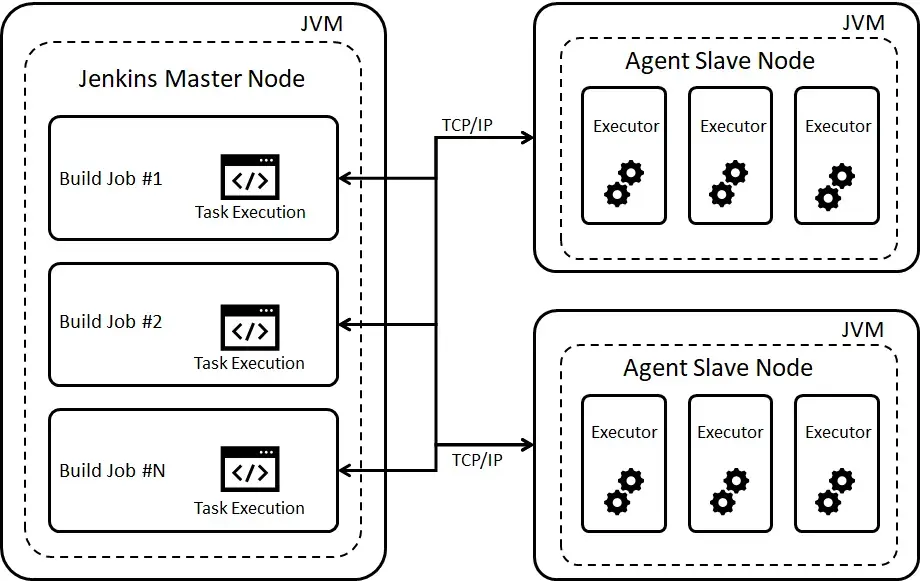
The Jenkins controller is the master node which is able to launch jobs on different nodes (machines)
directed by an Agent. The Agent can the use one or several executors to execute the job(s) depending on
configuration.
Jenkins is using Master/Slave architecture with the following components:
1.1. Jenkins controller/Jenkins master node
The central, coordinating process which stores configuration, loads plugins, and renders the various user interfaces
for Jenkins.
The Jenkins controller is the Jenkins service itself and is where Jenkins is installed. It is a webserver that also acts
as a “brain” for deciding how, when and where to run tasks. Management tasks (configuration, authorization, and
authentication) are executed on the controller, which serves HTTP requests. Files written when a Pipeline executes are
written to the filesystem on the controller unless they are off-loaded to an artifact repository such as Nexus or
Artifactory.
1.2. Nodes
A machine which is part of the Jenkins environment and capable of executing
Pipelines or
jobs. Both the
Controller and
Agents are considered to be Nodes.
Nodes are the “machines” on which build agents run. Jenkins monitors each attached node for disk space, free temp
space, free swap, clock time/sync and response time. A node is taken offline if any of these values go outside the
configured threshold.
The Jenkins controller itself runs on a special built-in node. It is possible to run agents and executors on this
built-in node although this can degrade performance, reduce scalability of the Jenkins instance, and create serious
security problems and is strongly discouraged, especially for production environments.
1.3. Agents
An agent is typically a machine, or container, which connects to a Jenkins controller and executes tasks when directed
by the controller.
Agents manage the task execution on behalf of the Jenkins controller by using executors. An agent is actually a small
(170KB single jar) Java client process that connects to a Jenkins controller and is assumed to be unreliable. An agent
can use any operating system that supports Java. Tools required for builds and tests are installed on the node where the
agent runs; they can be installed directly or in a container (Docker or Kubernetes). Each agent is effectively a process
with its own PID (Process Identifier) on the host machine.
In practice, nodes and agents are essentially the same but it is good to remember that they are conceptually distinct.
1.4. Executors
A slot for execution of work defined by a Pipeline or
job on a Node. A
Node may have zero or more Executors configured which corresponds to how many concurrent Jobs or Pipelines are able to
execute on that Node.
An executor is a slot for execution of tasks; effectively, it is a thread in the agent. The number of executors on a
node defines the number of concurrent tasks that can be executed on that node at one time. In other words, this
determines the number of concurrent Pipeline stages that can execute on that node at one time.
The proper number of executors per build node must be determined based on the resources available on the node and the
resources required for the workload. When determining how many executors to run on a node, consider CPU and memory
requirements as well as the amount of I/O and network activity:
- One executor per node is the safest configuration.
- One executor per CPU core may work well if the tasks being run are small.
- Monitor I/O performance, CPU load, memory usage, and I/O throughput carefully when running multiple executors on a
node.
1.5. Jobs
A user-configured description of work which Jenkins should perform, such as building a piece of software, etc.
2. Jenkins dynamic node
Jenkins has static slave nodes and can trigger the generation of dynamic slave nodes
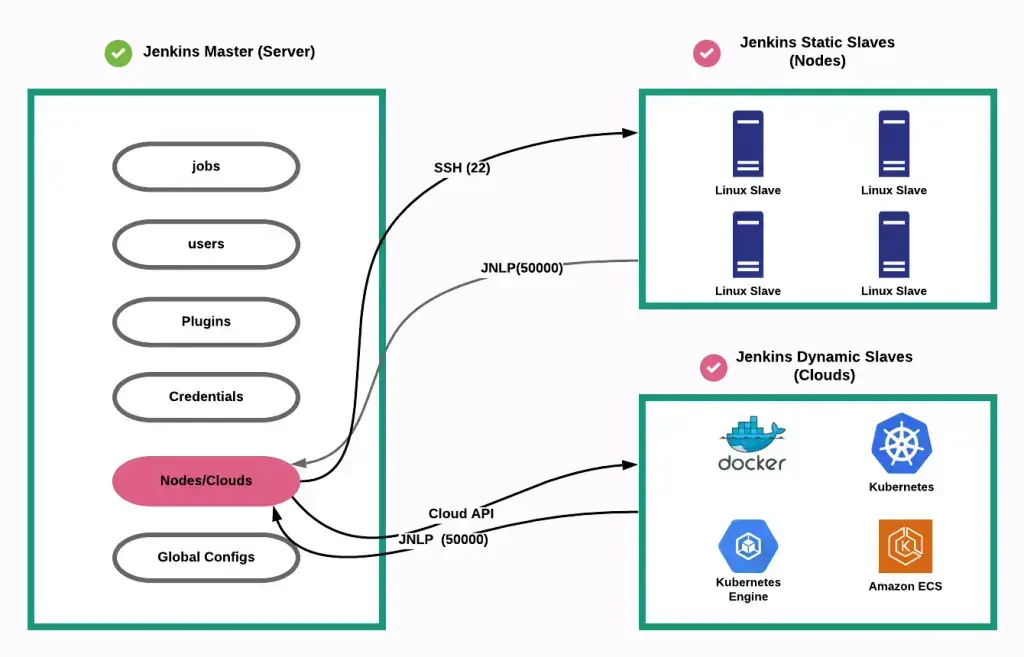
4.1.2 - Jenkins Pipelines
Declarative and scripted pipeline syntax
1. What is a pipeline ?
https://www.jenkins.io/doc/book/pipeline/
Jenkins Pipeline (or simply “Pipeline” with a capital “P”) is a suite of plugins which supports implementing and
integrating continuous delivery pipelines into Jenkins.
A continuous delivery (CD) pipeline is an automated expression of your process for getting software from version
control right through to your users and customers. Every change to your software (committed in source control) goes
through a complex process on its way to being released. This process involves building the software in a reliable and
repeatable manner, as well as progressing the built software (called a “build”) through multiple stages of testing and
deployment.
Pipeline provides an extensible set of tools for modeling simple-to-complex delivery pipelines “as code” via the
Pipeline domain-specific language (DSL) syntax.
View footnote 1
The definition of a Jenkins Pipeline is written into a text file (called a
Jenkinsfile) which in turn can be committed to a project’s
source control repository.
View footnote 2 This is the foundation of
“Pipeline-as-code”; treating the CD pipeline a part of the application to be versioned and reviewed like any other
code.
2. Pipeline creation via UI
it’s not recommended but it’s possible to create a pipeline via the UI.
There are several drawbacks:
- no code revision
- difficult to read, understand
3. Groovy
Scripted and declarative pipelines are using groovy language.
Checkout https://www.guru99.com/groovy-tutorial.html to have a quick
overview of this derived language check Wikipedia
4. Difference between scripted pipeline (freestyle) and declarative pipeline syntax
What are the main differences ? Here are some of the most important things you should know:
- Basically, declarative and scripted pipelines differ in terms of the programmatic approach. One uses a declarative
programming model and the second uses an imperative programming mode.
- Declarative pipelines break down stages into multiple steps, while in scripted pipelines there is no need for this.
Example below
Declarative and Scripted Pipelines are constructed fundamentally differently. Declarative Pipeline is a more recent
feature of Jenkins Pipeline which:
- provides richer syntactical features over Scripted Pipeline syntax, and
- is designed to make writing and reading Pipeline code easier.
- By default automatically checkout stage
Many of the individual syntactical components (or “steps”) written into a Jenkinsfile, however, are common to both
Declarative and Scripted Pipeline. Read more about how these two types of syntax differ in
Pipeline concepts and
Pipeline syntax overview.
5. Declarative pipeline example
Pipeline syntax documentation
 pipeline {
   agent {
     // executed on an executor with the label 'some-label'
     // or 'docker', the label normally specifies:
     // - the size of the machine to use
     //   (eg.: Docker-C5XLarge used for build that needs a powerful machine)
     // - the features you want in your machine
     //   (eg.: docker-base-ubuntu an image with docker command available)
     label "some-label"
   }

   stages {
     stage("foo") {
       steps {
         // variable assignment and Complex global
         // variables (with properties or methods)
         // can only be done in a script block
         script {
           foo = docker.image('ubuntu')
           env.bar = "${foo.imageName()}"
           echo "foo: ${foo.imageName()}"
         }
       }
     }
     stage("bar") {
       steps{
         echo "bar: ${env.bar}"
         echo "foo: ${foo.imageName()}"
       }
     }
   }
 }
6. Scripted pipeline example
Scripted pipelines permit a developer to inject code, while the declarative Jenkins pipeline doesn’t. should be
avoided actually, try to use jenkins library instead
node {

  git url: 'https://github.com/jfrogdev/project-examples.git'

  // Get Artifactory server instance, defined in the Artifactory Plugin
  // administration page.
  def server = Artifactory.server "SERVER_ID"

  // Read the upload spec and upload files to Artifactory.
  def downloadSpec =
       '''{
       "files": [
         {
            "pattern": "libs-snapshot-local/*.zip",
            "target": "dependencies/",
            "props": "p1=v1;p2=v2"
         }
       ]
   }'''

  def buildInfo1 = server.download spec: downloadSpec

  // Read the upload spec which was downloaded from github.
  def uploadSpec =
     '''{
     "files": [
       {
          "pattern": "resources/Kermit.*",
          "target": "libs-snapshot-local",
          "props": "p1=v1;p2=v2"
       },
       {
          "pattern": "resources/Frogger.*",
          "target": "libs-snapshot-local"
       }
      ]
   }'''


  // Upload to Artifactory.
  def buildInfo2 = server.upload spec: uploadSpec

  // Merge the upload and download build-info objects.
  buildInfo1.append buildInfo2

  // Publish the build to Artifactory
  server.publishBuildInfo buildInfo1
}
7. Why Pipeline?
Jenkins is, fundamentally, an automation engine which supports a number of automation patterns. Pipeline adds a powerful
set of automation tools onto Jenkins, supporting use cases that span from simple continuous integration to comprehensive
CD pipelines. By modeling a series of related tasks, users can take advantage of the many features of Pipeline:
- Code: Pipelines are implemented in code and typically checked into source control, giving teams the ability to
edit, review, and iterate upon their delivery pipeline.
- Durable: Pipelines can survive both planned and unplanned restarts of the Jenkins controller.
- Pausable: Pipelines can optionally stop and wait for human input or approval before continuing the Pipeline run.
- Versatile: Pipelines support complex real-world CD requirements, including the ability to fork/join, loop, and
perform work in parallel.
- Extensible: The Pipeline plugin supports custom extensions to its DSL
see jenkins doc and multiple options for integration with
other plugins.
While Jenkins has always allowed rudimentary forms of chaining Freestyle Jobs together to perform sequential tasks,
see jenkins doc Pipeline makes this concept a first-class
citizen in Jenkins.
More information on Official jenkins documentation - Pipeline
4.1.3 - Jenkins Library
Creating and using Jenkins shared libraries
1. What is a jenkins shared library ?
As Pipeline is adopted for more and more projects in an organization, common patterns are likely to emerge. Oftentimes
it is useful to share parts of Pipelines between various projects to reduce redundancies and keep code “DRY”
for more information check pipeline shared libraries
2. Loading libraries dynamically
As of version 2.7 of the Pipeline: Shared Groovy Libraries plugin, there is a new option for loading (non-implicit)
libraries in a script: a library step that loads a library dynamically, at any time during the build.
If you are only interested in using global variables/functions (from the vars/ directory), the syntax is quite simple:
library 'my-shared-library'
Thereafter, any global variables from that library will be accessible to the script.
3. jenkins library directory structure
The directory structure of a Shared Library repository is as follows:
(root)
+- src        # Groovy source files
|   +- org
|       +- foo
|           +- Bar.groovy  # for org.foo.Bar class
|
+- vars       # The vars directory hosts script
              # files that are exposed as a variable in Pipelines
|   +- foo.groovy          # for global 'foo' variable
|   +- foo.txt             # help for 'foo' variable
|
+- resources  # resource files (external libraries only)
|   +- org
|      +- foo
|         +- bar.json      # static helper data for org.foo.Bar
4. Jenkins library
remember that jenkins library code is executed on master node
if you want to execute code on the node, you need to use jenkinsExecutor
usage of jenkins executor
String credentialsId = 'babee6c1-14fe-4d90-9da0-ffa7068c69af'
def lib = library(
    identifier: '[email protected]',
    retriever: modernSCM([
        $class: 'GitSCMSource',
        remote: '[email protected]:fchastanet/jenkins-library.git',
        credentialsId: credentialsId
    ])
)
// this is the jenkinsExecutor instance
def docker = lib.fchastanet.Docker.new(this)
Then in the library, it is used like this:
def status = this.jenkinsExecutor.sh(
  script: "docker pull ${cacheTag}", returnStatus: true
)
5. Jenkins library structure
I remarked that a lot of code was duplicated between all my Jenkinsfiles so I created this library
https://github.com/fchastanet/jenkins-library
(root)
+- doc    # markdown files automatically generated
          # from groovy files by generateDoc.sh
+- src    # Groovy source files
|   +- fchastanet
|       +- Cloudflare.groovy     # zonePurge
|       +- Docker.groovy         # getTagCompatibleFromBranch
                                 # pullBuildPushImage, ...
|       +- Git.groovy            # getRepoURL, getCommitSha,
                                 # getLastPusherEmail,
                                 # updateConditionalGithubCommitStatus
|       +- Kubernetes.groovy     # deployHelmChart, ...
|       +- Lint.groovy           # dockerLint,
                                 # transform lighthouse report
                                 # to Warnings NG issues format
|       +- Mail.groovy           # sendTeamsNotification,
                                 # sendConditionalEmail, ...
|       +- Utils.groovy          # deepMerge, isCollectionOrArray,
                                 # deleteDirAsRoot,
                                 # initAws (could be moved to Aws class)
+- vars   # The vars directory hosts script files that
          # are exposed as a variable in Pipelines
|   +- dockerPullBuildPush.groovy #
|   +- whenOrSkip.groovy          #
6. external resource usage
If you need you check out how I used this repository https://github.com/fchastanet/jenkins-library-resources in
jenkins_library (Linter) that hosts some resources to parse result files.
4.1.4 - Jenkins Best Practices
Best practices and patterns for Jenkins and Jenkinsfiles
1. Pipeline best practices
Official Jenkins pipeline best practices
Summary:
- Make sure to use Groovy code in Pipelines as glue
- Externalize shell scripts from Jenkins Pipeline
- for better jenkinsfile readability
- in order to test the scripts isolated from jenkins
- Avoid complex Groovy code in Pipelines
- Groovy code always executes on controller which means using controller resources(memory and CPU)
- it is not the case for shell scripts
- eg1: prefer using jq inside shell script instead of groovy JsonSlurper
- eg2: prefer calling curl instead of groovy http request
- Reducing repetition of similar Pipeline steps (eg: one sh step instead of severals)
- group similar steps together to avoid step creation/destruction overhead
- Avoiding calls to Jenkins.getInstance
2. Shared library best practices
Official Jenkins shared libraries best practices
Summary:
- Do not override built-in Pipeline steps
- Avoiding large global variable declaration files
- Avoiding very large shared libraries
And:
- import jenkins library using a tag
- like in docker build, npm package with package-lock.json or python pip lock, it’s advised to target a given version
of the library
- because some changes could break
- The missing part: we miss on this library unit tests
- but each pipeline is a kind of integration test
- Because a pipeline can be
resumed, your
library’s classes should implement Serializable class and the following attribute has to be provided:
private static final long serialVersionUID = 1L
4.1.5 - Annotated Jenkinsfiles - Part 1
Detailed Jenkinsfile examples with annotations
Pipeline example
1. Simple one
This build is used to generate docker images used to build production code and launch phpunit tests. This pipeline is
parameterized in the Jenkins UI directly with the parameters:
- branch (git branch to use)
- environment(select with 3 options: build, phpunit or all)
- it would have been better to use simply 2 checkboxes phpunit/build
- project_branch
Here the source code with inline comments:
Annotated jenkinsfile Expand source
// This method allows to convert the branch name to a docker image tag.
// This method is generally used by most of my jenkins pipelines, it's why it has been added to https://github.com/fchastanet/jenkins-library/blob/master/src/fchastanet/Docker.groovy#L31
def getTagCompatibleFromBranch(String branchName) {
    def String tag = branchName.toLowerCase()
    tag = tag.replaceAll("^origin/", "")
    return tag.replaceAll('/', '_')
}

// we declare here some variables that will be used in next stages
def String deploymentBranchTagCompatible = ''

pipeline {
    agent {
        node {
            // the pipeline is executed on a machine with docker daemon
            // available
            label 'docker-ubuntu'
        }
    }

    stages {
        stage ('checkout') {
            steps {
                // this command is actually not necessary because checkout is
                // done automatically when using declarative pipeline
                sh 'echo "pulling ... ${GIT_BRANCH#origin/}"'
                checkout scm

                // this particular build needs to access to some private github
                // repositories, so here we are copying the ssh key
                // it would be better to use new way of injecting ssh key
                // inside docker using sshagent
                // check https://stackoverflow.com/a/66897280
                withCredentials([
                    sshUserPrivateKey(
                      credentialsId: '855aad9f-1b1b-494c-aa7f-4de881c7f659',
                      keyFileVariable: 'sshKeyFile'
                   )
                ]) {
                    // best practice similar steps should be merged into one
                    sh 'rm -f ./phpunit/id_rsa'
                    sh 'rm -f ./build/id_rsa'
                    // here we are escaping '$' so the variable will be
                    // interpolated on the jenkins slave and not the jenkins
                    // master node instead of escaping, we could have used
                    // single quotes
                    sh "cp \$sshKeyFile ./phpunit/id_rsa"
                    sh "cp \$sshKeyFile ./build/id_rsa"
                }
                script {
                    // as actually scm is already done before executing the
                    // first step, this call could have been done during
                    // declaration of this variable
                    deploymentBranchTagCompatible = getTagCompatibleFromBranch(GIT_BRANCH)
                }
            }
        }
        stage("build Build env") {
            when {
                // the build can be launched with the parameter environment
                // defined in the configuration of the jenkins job, these
                // parameters could have been defined directly in the pipeline
                // see https://www.jenkins.io/doc/book/pipeline/syntax/#parameters
                expression { return params.environment != "phpunit"}
            }
            steps {
                // here we could have launched all this commands in the same sh
                // directive
                sh "docker build --build-arg BRANCH=${params.project_branch} -t build build"
                // use a constant for dockerRegistryId.dkr.ecr.eu-west-1.amazonaws.com
                sh "docker tag build dockerRegistryId.dkr.ecr.eu-west-1.amazonaws.com/build:${deploymentBranchTagCompatible}"
                sh "docker push dockerRegistryId.dkr.ecr.eu-west-1.amazonaws.com/build:${deploymentBranchTagCompatible}"
            }
        }
        stage("build PHPUnit env") {
            when {
                // it would have been cleaner to use
                // expression { return params.environment = "phpunit"}
                expression { return params.environment != "build"}
            }
            steps {
                sh "docker build --build-arg BRANCH=${params.project_branch} -t phpunit phpunit"
                sh "docker tag phpunit dockerRegistryId.dkr.ecr.eu-west-1.amazonaws.com/phpunit:${deploymentBranchTagCompatible}"
                sh "docker push dockerRegistryId.dkr.ecr.eu-west-1.amazonaws.com/phpunit:${deploymentBranchTagCompatible}"
            }
        }
    }
}
without seeing the Dockerfile files, we can advise :
- to build these images in the same pipeline where build and phpunit are run
- the images are built at the same time so we are sure that we are using the right version
- apparently the docker build depend on the branch of the project, this should be avoided
- ssh key is used in docker image, that could lead to a security issue as ssh key is still in the history of images
layers even if it has been removed in subsequent layers, check https://stackoverflow.com/a/66897280 for information
on how to use ssh-agent instead
- we could use a single Dockerfile with 2 stages:
- one stage to generate production image
- one stage that inherits production stage, used to execute phpunit
- it has the following advantages :
- reduce the total image size because of the reuse different docker image layers
- only one Dockerfile to maintain
2. More advanced and annotated Jenkinsfiles
4.1.6 - Annotated Jenkinsfiles - Part 2
More annotated Jenkinsfile examples
1. Introduction
This example is missing the use of parameters, jenkins library in order to reuse common code
This example uses :
- post conditions
https://www.jenkins.io/doc/book/pipeline/syntax/#post
- github plugin to set commit status indicating the result of the build
- usage of several jenkins plugins, you can check here to get the full list installed on your server and even
generate code snippets by adding pipeline-syntax/ to your jenkins server url
But it misses:
check Pipeline syntax documentation
2. Annotated Jenkinsfile
// Define variables for QA environment
def String registry_id = 'awsAccountId'
def String registry_url = registry_id + '.dkr.ecr.us-east-1.amazonaws.com'
def String image_name = 'project'
def String image_fqdn_master = registry_url + '/' + image_name + ':master'
def String image_fqdn_current_branch = image_fqdn_master

// this method is used by several of my pipelines and has been added
// to jenkins_library <https://github.com/fchastanet/jenkins-library/blob/master/src/fchastanet/Git.groovy#L156>
void publishStatusToGithub(String status) {
  step([
    $class: "GitHubCommitStatusSetter",
    reposSource: [$class: "ManuallyEnteredRepositorySource", url: "https://github.com/fchastanet/project"],
    errorHandlers: [[$class: 'ShallowAnyErrorHandler']],
    statusResultSource: [
      $class: 'ConditionalStatusResultSource',
      results: [
        [$class: 'AnyBuildResult', state: status]
      ]
    ]
  ]);
}

pipeline {
  agent {
    node {
      // bad practice: try to indicate in your node labels, which feature it
      // includes for example, here we need docker, label could have been
      // 'eks-nonprod-docker'
      label 'eks-nonprod'
    }
  }
  stages {
    stage ('Checkout') {
      steps {
        // checkout is not necessary as it is automatically done
        checkout scm

        script {
          // 'wrap' allows to inject some useful variables like BUILD_USER,
          // BUILD_USER_FIRST_NAME
          // see https://www.jenkins.io/doc/pipeline/steps/build-user-vars-plugin/
          wrap([$class: 'BuildUser']) {
            def String displayName = "#${currentBuild.number}_${BRANCH}_${BUILD_USER}_${DEPLOYMENT}"

            // params could have been defined inside the pipeline directly
            // instead of defining them in jenkins build configuration
            if (params.DEPLOYMENT == 'staging') {
              displayName = "${displayName}_${INSTANCE}"
            }
            // next line allows to change the build name, check addHtmlBadge
            // plugin function for more advanced usage of this feature, you
            // check this jenkinsfile 05-02-Annotated-Jenkinsfiles.md
            currentBuild.displayName = displayName
          }
        }
      }
    }
    stage ('Run tests') {
      steps {
        // all these sh directives could have been merged into one
        // it is best to use a separated sh file that could take some parameters
        // as it is simpler to read and to eventually test separately
        sh 'docker build -t project-test "$PWD"/docker/test'
        sh 'cp "$PWD"/app/config/parameters.yml.dist "$PWD"/app/config/parameters.yml'
        // for better readability and if separated script is not possible, use
        // continuation line for better readability
        sh 'docker run -i --rm -v "$PWD":/var/www/html/ -w /var/www/html/ project-test  /bin/bash -c "composer install -a && ./bin/phpunit -c /var/www/html/app/phpunit.xml --coverage-html /var/www/html/var/logs/coverage/ --log-junit /var/www/html/var/logs/phpunit.xml  --coverage-clover /var/www/html/var/logs/clover_coverage.xml"'
      }
      // Run the steps in the post section regardless of the completion status
      // of the Pipeline’s or stage’s run.
      // see https://www.jenkins.io/doc/book/pipeline/syntax/#post
      post {
        always {
          // report unit test reports (unit test should generate result using
          // using junit format)
          junit 'var/logs/phpunit.xml'
          // generate coverage page from test results
          step([
            $class: 'CloverPublisher',
            cloverReportDir: 'var/logs/',
            cloverReportFileName: 'clover_coverage.xml'
          ])
          // publish html page with the result of the coverage
          publishHTML(
            target: [
              allowMissing: false,
              alwaysLinkToLastBuild: false,
              keepAll: true,
              reportDir: 'var/logs/coverage/',
              reportFiles: 'index.html',
              reportName: "Coverage Report"
            ]
          )
        }
      }
    }
    // this stage will be executed only if previous stage is successful
    stage('Build image') {
      when {
        // this stage is executed only if these conditions returns true
        expression {
          return
            params.DEPLOYMENT == "staging"
            || (
              params.DEPLOYMENT == "prod"
              && env.GIT_BRANCH == 'origin/master'
            )
        }
      }
      steps {
        script {
          // this code is used in most of the pipeline and has been centralized
          // in https://github.com/fchastanet/jenkins-library/blob/master/src/fchastanet/Git.groovy#L39
          env.IMAGE_TAG = env.GIT_COMMIT.substring(0, 7)
          // Update variable for production environment
          if ( params.DEPLOYMENT == 'prod' ) {
              registry_id = 'awsDockerRegistryId'
              registry_url = registry_id + '.dkr.ecr.eu-central-1.amazonaws.com'
              image_fqdn_master = registry_url + '/' + image_name + ':master'
          }

          image_fqdn_current_branch = registry_url + '/' + image_name + ':' + env.IMAGE_TAG
        }

        // As jenkins slave machine can be constructed on demand,
        // it doesn't always contains all docker image cache
        // here to avoid building docker image from scratch, we are trying to
        // pull an existing version of the docker image on docker registry
        // and then build using this image as cache, so all layers not updated
        // in Dockerfile will not be built again (gain of time)
        // It is again a recurrent usage in most of the pipelines
        // so the next 8 lines could be replaced by the call to this method
        // Docker
        // pullBuildPushImage https://github.com/fchastanet/jenkins-library/blob/master/src/fchastanet/Docker.groovy#L46

        // Pull the master from repository (|| true avoids errors if the image
        // hasn't been pushed before)
        sh "docker pull ${image_fqdn_master} || true"

        // Build the image using pulled image as cache
        // instead of using concatenation, it is more readable to use variable interpolation
        // Eg: "docker build --cache-from ${image_fqdn_master} -t ..."
        sh 'docker build \
            --cache-from ' + image_fqdn_master + ' \
            -t ' + image_name + ' \
            -f "$PWD/docker/prod/Dockerfile" \
            .'
      }
    }
    stage('Deploy image (Staging)') {
      when {
          expression { return params.DEPLOYMENT == "staging" }
      }

      steps {
        script {
          // Actually we should always push the image in order to be able to
          // feed the docker cache for next builds
          // Again the method Docker pullBuildPushImage https://github.com/fchastanet/jenkins-library/blob/master/src/fchastanet/Docker.groovy#L46
          // solves this issue and could be used instead of the next 6 lines
          // and "Push image (Prod)" stage

          // If building master, we should push the image with the tag master
          // to benefit from docker cache
          if ( env.GIT_BRANCH == 'origin/master' ) {
              sh label:"Tag the image as master",
                 script:"docker tag ${image_name} ${image_fqdn_master}"
              sh label:"Push the image as master",
                 script:"docker push ${image_fqdn_master}"
          }
        }

        sh label:"Tag the image", script:"docker tag ${image_name} ${image_fqdn_current_branch}"
        sh label:"Push the image", script:"docker push ${image_fqdn_current_branch}"
        // use variable interpolation instead of concatenation
        sh label:"Deploy on cluster", script:" \
          helm3 upgrade project-" + params.INSTANCE + " -i \
            --namespace project-" + params.INSTANCE + " \
            --create-namespace \
            --cleanup-on-fail \
            --atomic \
            -f helm/values_files/values-" + params.INSTANCE + ".yaml \
            --set deployment.php_container.image.pullPolicy=Always \
            --set image.tag=" + env.IMAGE_TAG + " \
            ./helm"
      }
    }
    stage('Push image (Prod)') {
      when {
        expression { return params.DEPLOYMENT == "prod" && env.GIT_BRANCH == 'origin/master'}
      }
      // The method Docker pullBuildPushImage https://github.com/fchastanet/jenkins-library/blob/master/src/fchastanet/Docker.groovy#L46
      // provides a generic way of managing the pull, build, push of the docker
      // images, by managing also a common way of tagging docker images
      steps {
        sh label:"Tag the image as master", script:"docker tag ${image_name} ${image_fqdn_current_branch}"
        sh label:"Push the image as master", script:"docker push ${image_fqdn_current_branch}"
      }
    }
  }
  post {
    always {
      // mark github commit as built
      publishStatusToGithub("${currentBuild.currentResult}")
    }
  }
}
This directive is really difficult to read and eventually debug it
sh 'docker run -i --rm -v "$PWD":/var/www/html/ -w /var/www/html/ project-test /bin/bash -c "composer install -a && ./bin/phpunit -c /var/www/html/app/phpunit.xml --coverage-html /var/www/html/var/logs/coverage/ --log-junit /var/www/html/var/logs/phpunit.xml --coverage-clover /var/www/html/var/logs/clover_coverage.xml"'
Another way to write previous directive is to:
- use continuation line
- avoid ‘&&’ as it can mask errors, use ‘;’ instead
- use ‘set -o errexit’ to fail on first error
- use ‘set -o pipefail’ to fail if eventual piped command is failing
- ‘set -x’ allows to trace every command executed for better debugging
Here a possible refactoring:
sh ''''
  docker run -i --rm \
    -v "$PWD":/var/www/html/ \
    -w /var/www/html/ \
    project-test \
    /bin/bash -c "\
      set -x ;\
      set -o errexit ;\
      set -o pipefail ;\
      composer install -a ;\
      ./bin/phpunit \
        -c /var/www/html/app/phpunit.xml \
        --coverage-html /var/www/html/var/logs/coverage/ \
        --log-junit /var/www/html/var/logs/phpunit.xml  \
        --coverage-clover /var/www/html/var/logs/clover_coverage.xml
    "
'''
Note however it is best to use a separated sh file(s) that could take some parameters as it is simpler to read and to
eventually test separately. Here a refactoring using a separated sh file:
runTests.sh
#!/bin/bash
set -x -o errexit -o pipefail

composer install -a

./bin/phpunit \
  -c /var/www/html/app/phpunit.xml \
  --coverage-html /var/www/html/var/logs/coverage/ \
  --log-junit /var/www/html/var/logs/phpunit.xml \
  --coverage-clover /var/www/html/var/logs/clover_coverage.xml
jenkinsRunTests.sh
#!/bin/bash
set -x -o errexit -o pipefail

docker build -t project-test "${PWD}/docker/test"

docker run -i --rm \
  -v "${PWD}:/var/www/html/" \
  -w /var/www/html/ \
  project-test \
  runTests.sh
Then the sh directive becomes simply
4.1.7 - Annotated Jenkinsfiles - Part 3
Additional Jenkinsfile pattern examples
1. Introduction
This build will:
- pull/build/push docker image used to generate project files
- lint
- run Unit tests with coverage
- build the SPA
- run accessibility tests
- build story book and deploy it
- deploy spa on s3 bucket and refresh cloudflare cache
It allows to build for production and qa stages allowing different instances. Every build contains:
- a summary of the build
- git branch
- git revision
- target environment
- all the available Urls:
2. Annotated Jenkinsfile
// anonymized parameters
String credentialsId = 'jenkinsCredentialId'
def lib = library(
  identifier: '[email protected]',
  retriever: modernSCM([
    $class: 'GitSCMSource',
    remote: '[email protected]:fchastanet/jenkins-library.git',
    credentialsId: credentialsId
  ])
)
def docker = lib.fchastanet.Docker.new(this)
def git = lib.fchastanet.Git.new(this)
def mail = lib.fchastanet.Mail.new(this)
def utils = lib.fchastanet.Utils.new(this)
def cloudflare = lib.fchastanet.Cloudflare.new(this)

// anonymized parameters
String CLOUDFLARE_ZONE_ID = 'cloudflareZoneId'
String CLOUDFLARE_ZONE_ID_PROD = 'cloudflareZoneIdProd'
String REGISTRY_ID_QA  = 'dockerRegistryId'
String REACT_APP_PENDO_API_KEY = 'pendoApiKey'

String REGISTRY_QA  = REGISTRY_ID_QA + '.dkr.ecr.us-east-1.amazonaws.com'
String IMAGE_NAME_SPA = 'project-ui'
String STAGING_API_URL = 'https://api.host'
String INSTANCE_URL = "https://${params.instanceName}.host"
String REACT_APP_API_BASE_URL_PROD = 'https://ui.host'
String REACT_APP_PENDO_SOURCE_DOMAIN = 'https://cdn.eu.pendo.io'

String buildBucketPrefix
String S3_PUBLIC_URL = 'qa-spa.s3.amazonaws.com/project'
String S3_PROD_PUBLIC_URL = 'spa.s3.amazonaws.com/project'

List<String> instanceChoices = (1..20).collect { 'project' + it }

Map buildInfo = [
  apiUrl: '',
  storyBookAvailable: false,
  storyBookUrl: '',
  storyBookDocsUrl: '',
  spaAvailable: false,
  spaUrl: '',
  instanceName: '',
]

// add information on summary page
def addBuildInfo(buildInfo) {
  String deployInfo = ''
  if (buildInfo.spaAvailable) {
    String formatInstanceName = buildInfo.instanceName ?
      " (${buildInfo.instanceName})" : '';
    deployInfo += "<a href='${buildInfo.spaUrl}'>SPA${formatInstanceName}</a>"
  }
  if (buildInfo.storyBookAvailable) {
    deployInfo += " / <a href='${buildInfo.storyBookUrl}'>Storybook</a>"
    deployInfo += " / <a href='${buildInfo.storyBookDocsUrl}'>Storybook docs</a>"
  }
  String summaryHtml = """
    <b>branch : </b>${GIT_BRANCH}<br/>
    <b>revision : </b>${GIT_COMMIT}<br/>
    <b>target env : </b>${params.targetEnv}<br/>
    ${deployInfo}
  """
  removeHtmlBadges id: "htmlBadge${currentBuild.number}"
  addHtmlBadge html: summaryHtml, id: "htmlBadge${currentBuild.number}"
}

pipeline {
  agent {
    node {
      // this image has the features docker and lighthouse
      label 'docker-base-ubuntu-lighthouse'
    }
  }

  parameters {
    gitParameter(
      branchFilter: 'origin/(.*)',
      defaultValue: 'main',
      quickFilterEnabled: true,
      sortMode: 'ASCENDING_SMART',
      name: 'BRANCH',
      type: 'PT_BRANCH'
    )
    choice(
      name: 'targetEnv',
      choices: ['none', 'testing', 'production'],
      description: 'Where it should be deployed to? (Default: none - No deploy)'
    )
    booleanParam(
      name: 'buildStorybook',
      defaultValue: false,
      description: 'Build Storybook (will only apply if selected targetEnv is testing)'
    )
    choice(
      name: 'instanceName',
      choices: instanceChoices,
      description: 'Instance name to deploy the revision'
    )
  }

  stages {
    stage('Build SPA image') {
      steps {
        script {
          // set build status to pending on github commit
          step([$class: 'GitHubSetCommitStatusBuilder'])
          wrap([$class: 'BuildUser']) {
            currentBuild.displayName = "#${currentBuild.number}_${BRANCH}_${BUILD_USER}_${targetEnv}"
          }

          branchName = docker.getTagCompatibleFromBranch(env.GIT_BRANCH)
          shortSha = git.getShortCommitSha(env.GIT_BRANCH)

          if (params.targetEnv == 'production') {
            buildBucketPrefix = GIT_COMMIT
            buildInfo.apiUrl = REACT_APP_API_BASE_URL_PROD
            s3BaseUrl = 's3://project-spa/project'
          } else {
            buildBucketPrefix = params.instanceName
            buildInfo.instanceName = params.instanceName
            buildInfo.spaUrl = "${INSTANCE_URL}/index.html"
            buildInfo.apiUrl = STAGING_API_URL
            s3BaseUrl = 's3://project-qa-spa/project'
            buildInfo.storyBookUrl = "${INSTANCE_URL}/storybook/index.html"
            buildInfo.storyBookDocsUrl = "${INSTANCE_URL}/storybook-docs/index.html"
          }
          addBuildInfo(buildInfo)

          // Setup .env
          sh """
            set -x
            echo "REACT_APP_API_BASE_URL = '${buildInfo.apiUrl}'" > ./.env
            echo "REACT_APP_PENDO_SOURCE_DOMAIN = '${REACT_APP_PENDO_SOURCE_DOMAIN}'" >> ./.env
            echo "REACT_APP_PENDO_API_KEY = '${REACT_APP_PENDO_API_KEY}'" >> ./.env
          """

          withCredentials([
            sshUserPrivateKey(
              credentialsId: 'sshCredentialsId',
              keyFileVariable: 'sshKeyFile')
          ]) {
            docker.pullBuildPushImage(
              buildDirectory:   pwd(),
              // use safer way to inject ssh key during docker build
              buildArgs: "--ssh default=\$sshKeyFile --build-arg USER_ID=\$(id -u)",
              registryImageUrl: "${REGISTRY_QA}/${IMAGE_NAME_SPA}",
              tagPrefix:        "${IMAGE_NAME_SPA}:",
              localTagName:     "latest",
              tags: [
                shortSha,
                branchName
              ],
              pullTags: ['main']
            )
          }
        }
      }
    }

    stage('Linting') {
      steps {
        sh """
          docker run --rm \
            -v ${env.WORKSPACE}:/app \
            -v /app/node_modules \
            ${IMAGE_NAME_SPA} \
            npm run lint
        """
      }
    }

    stage('UT') {
      steps {
        script {
          sh """docker run --rm  \
            -v ${env.WORKSPACE}:/app \
            -v /app/node_modules \
            ${IMAGE_NAME_SPA} \
            npm run test:coverage -- --ci
          """

          junit 'output/junit.xml'

          // https://plugins.jenkins.io/clover/
          step([
            $class: 'CloverPublisher',
            cloverReportDir: 'output/coverage',
            cloverReportFileName: 'clover.xml',
            healthyTarget: [
              methodCoverage: 70,
              conditionalCoverage: 70,
              statementCoverage: 70
            ],
            // build will not fail but be set as unhealthy if coverage goes
            // below 60%
            unhealthyTarget: [
              methodCoverage: 60,
              conditionalCoverage: 60,
              statementCoverage: 60
            ],
            // build will fail if coverage goes below 50%
            failingTarget: [
              methodCoverage: 50,
              conditionalCoverage: 50,
              statementCoverage: 50
            ]
          ])
        }
      }
    }

    stage('Build SPA') {
      steps {
        script {
          sh """
            docker run --rm \
              -v ${env.WORKSPACE}:/app \
              -v /app/node_modules \
              ${IMAGE_NAME_SPA}
          """
        }
      }
    }

    stage('Accessibility tests') {
      steps {
        script {
          // the pa11y-ci could have been made available in the node image
          // to avoid installation each time, the build is launched
          sh '''
            sudo npm install -g serve pa11y-ci
            serve -s build > /dev/null 2>&1 &
            pa11y-ci --threshold 5 http://127.0.0.1:3000
          '''
        }
      }
    }

    stage('Build Storybook') {
      steps {
        whenOrSkip(
          params.targetEnv == 'testing'
          && params.buildStorybook == true
        ) {
          script {
            sh """
              docker run --rm \
                -v ${env.WORKSPACE}:/app \
                -v /app/node_modules \
                ${IMAGE_NAME_SPA} \
                sh -c 'npm run storybook:build -- --output-dir build/storybook \
                  && npm run storybook:build-docs -- --output-dir build/storybook-docs'
            """
            buildInfo.storyBookAvailable = true
          }
        }
      }
    }

    stage('Artifacts to S3') {
      steps {
        whenOrSkip(params.targetEnv != 'none') {
          script {
            if (params.targetEnv == 'production') {
              utils.initAws('arn:aws:iam::awsIamId:role/JenkinsSlave')
            }

            sh "aws s3 cp ${env.WORKSPACE}/build ${s3BaseUrl}/${buildBucketPrefix} --recursive --no-progress"
            sh "aws s3 cp ${env.WORKSPACE}/build ${s3BaseUrl}/project1 --recursive --no-progress"

            if (params.targetEnv == 'production') {
              echo 'project SPA packages have been pushed to production bucket.'
              echo '''You can refresh the production indexes with the CD
              production pipeline.'''
              cloudflare.zonePurge(CLOUDFLARE_ZONE_ID_PROD, [prefixes:[
                "${S3_PROD_PUBLIC_URL}/project1/"
              ]])
            } else {
              cloudflare.zonePurge(CLOUDFLARE_ZONE_ID, [prefixes:[
                "${S3_PUBLIC_URL}/${buildBucketPrefix}/"
              ]])

              buildInfo.spaAvailable = true
              publishChecks detailsURL: buildInfo.spaUrl,
                name: 'projectSpaUrl',
                title: 'project SPA url'
            }
            addBuildInfo(buildInfo)
          }
        }
      }
    }
  }

  post {
    always {
      script {
        git.updateConditionalGithubCommitStatus()
        mail.sendConditionalEmail()
      }
    }
  }
}
4.1.8 - Annotated Jenkinsfiles - Part 4
Complex Jenkinsfile scenarios
1. introduction
The project aim is to create a browser extension available on chrome and firefox
This build allows to:
- lint the project using megalinter and phpstorm inspection
- build necessary docker images
- build firefox and chrome extensions
- deploy firefox extension on s3 bucket
- deploy chrome extension on google play store
2. Annotated Jenkinsfile
def credentialsId = 'jenkinsSshCredentialsId'
def lib = library(
    identifier: 'jenkins_library',
    retriever: modernSCM([
        $class: 'GitSCMSource',
        remote: '[email protected]:fchastanet/jenkins-library.git',
        credentialsId: credentialsId
    ])
)
def docker = lib.fchastanet.Docker.new(this)
def git = lib.fchastanet.Git.new(this)
def mail = lib.fchastanet.Mail.new(this)

def String deploymentBranchTagCompatible = ''
def String gitShortSha = ''
def String REGISTRY_URL = 'dockerRegistryId.dkr.ecr.eu-west-1.amazonaws.com'
def String ECR_BROWSER_EXTENSION_BUILD = 'browser_extension_lint'
def String BUILD_TAG = 'build'
def String PHPSTORM_TAG = 'phpstorm-inspections'
def String REFERENCE_JOB_NAME = 'Browser_extension_deploy'
def String FIREFOX_S3_BUCKET = 'browser-extensions'

// it would have been easier to use checkboxes to avoid 'both'/'none'
// complexity
def DEPLOY_CHROME = (params.targetStore == 'both' || params.targetStore == 'chrome')
def DEPLOY_FIREFOX = (params.targetStore == 'both' || params.targetStore == 'firefox')

pipeline {
  agent {
    node {
      label 'docker-base-ubuntu'
    }
  }
  parameters {
    gitParameter branchFilter: 'origin/(.*)',
      defaultValue: 'master',
      quickFilterEnabled: true,
      sortMode: 'ASCENDING_SMART',
      name: 'BRANCH',
      type: 'PT_BRANCH'

    choice (
      name: 'targetStore',
      choices: ['none', 'both', 'chrome', 'firefox'],
      description: 'Where it should be deployed to? (Default: none, has effect only on master branch)'
    )
  }
  environment {
    GOOGLE_CREDS = credentials('GoogleApiChromeExtension')
    GOOGLE_TOKEN = credentials('GoogleApiChromeExtensionCode')
    GOOGLE_APP_ID = 'googleAppId'
    // provided by https://addons.mozilla.org/en-US/developers/addon/api/key/
    FIREFOX_CREDS = credentials('MozillaApiFirefoxExtension')
    FIREFOX_APP_ID='{d4ce8a6f-675a-4f74-b2ea-7df130157ff4}'
  }

  stages {

    stage("Init") {
      steps {
        script {
          deploymentBranchTagCompatible = docker.getTagCompatibleFromBranch(env.GIT_BRANCH)
          gitShortSha = git.getShortCommitSha(env.GIT_BRANCH)
          echo "Branch ${env.GIT_BRANCH}"
          echo "Docker tag = ${deploymentBranchTagCompatible}"
          echo "git short sha = ${gitShortSha}"
        }
        sh 'echo StrictHostKeyChecking=no >> ~/.ssh/config'
      }
    }

    stage("Lint") {
      agent {
        docker {
          image 'megalinter/megalinter-javascript:v5'
          args "-u root -v ${WORKSPACE}:/tmp/lint --entrypoint=''"
          reuseNode true
        }
      }
      steps {
        sh 'npm install stylelint-config-rational-order'
        sh '/entrypoint.sh'
      }
    }

    stage("Build docker images") {
      steps {
        // whenOrSkip directive is defined in https://github.com/fchastanet/jenkins-library/blob/master/vars/whenOrSkip.groovy
        whenOrSkip(currentBuild.currentResult == "SUCCESS") {
          script {
            docker.pullBuildPushImage(
              buildDirectory:   'build',
              registryImageUrl: "${REGISTRY_URL}/${ECR_BROWSER_EXTENSION_BUILD}",
              tagPrefix:        "${ECR_BROWSER_EXTENSION_BUILD}:",
              tags: [
                "${BUILD_TAG}_${gitShortSha}",
                "${BUILD_TAG}_${deploymentBranchTagCompatible}",
              ],
              pullTags: ["${BUILD_TAG}_master"]
            )
          }
        }
      }
    }

    stage("Build firefox/chrome extensions") {
      steps {
        whenOrSkip(currentBuild.currentResult == "SUCCESS") {
          script {
              sh """
                docker run \
                  -v \$(pwd):/deploy \
                  --rm '${ECR_BROWSER_EXTENSION_BUILD}' \
                  /deploy/build/build-extensions.sh
              """
              // multiple git statuses can be set on a given commit
              // you can configure github to authorize pull request merge
              // based on the presence of one or more github statuses
              git.updateGithubCommitStatus("BUILD_OK")
          }
        }
      }
    }

    stage("Deploy extensions") {
      // deploy both extensions in parallel
      parallel {
        stage("Deploy chrome") {
          steps {
            whenOrSkip(currentBuild.currentResult == "SUCCESS" && DEPLOY_CHROME) {
              // do not fail the entire build if this stage fail
              // so firefox stage can be executed
              catchError(buildResult: 'SUCCESS', stageResult: 'FAILURE') {
                script {
                  // best practice: complex sh files have been created outside
                  // of this jenkinsfile deploy-chrome-extension.sh
                  sh """
                  docker run \
                      -v \$(pwd):/deploy \
                      -e APP_CREDS_USR='${GOOGLE_CREDS_USR}' \
                      -e APP_CREDS_PSW='${GOOGLE_CREDS_PSW}' \
                      -e APP_TOKEN='${GOOGLE_APP_TOKEN}' \
                      -e APP_ID='${GOOGLE_APP_ID}' \
                      --rm '${ECR_BROWSER_EXTENSION_BUILD}' \
                      /deploy/build/deploy-chrome-extension.sh
                  """
                  git.updateGithubCommitStatus("CHROME_DEPLOYED")
                }
              }
            }
          }
        }
        stage("Deploy firefox") {
          steps {
            whenOrSkip(currentBuild.currentResult == "SUCCESS" && DEPLOY_FIREFOX) {
              catchError(buildResult: 'SUCCESS', stageResult: 'FAILURE') {
                script {
                  // best practice: complex sh files have been created outside
                  // of this jenkinsfile deploy-firefox-extension.sh
                  sh """
                    docker run \
                      -v \$(pwd):/deploy \
                      -e FIREFOX_JWT_ISSUER='${FIREFOX_CREDS_USR}' \
                      -e FIREFOX_JWT_SECRET='${FIREFOX_CREDS_PSW}' \
                      -e FIREFOX_APP_ID='${FIREFOX_APP_ID}' \
                      --rm '${ECR_BROWSER_EXTENSION_BUILD}' \
                      /deploy/build/deploy-firefox-extension.sh
                  """
                  sh """
                    set -x
                    set -o errexit
                    extensionVersion="\$(jq -r .version < package.json)"
                    extensionFilename="tools-\${extensionVersion}-an+fx.xpi"

                    echo "Upload new extension \${extensionFilename} to s3 bucket ${FIREFOX_S3_BUCKET}"
                    aws s3 cp "\$(pwd)/packages/\${extensionFilename}" "s3://${FIREFOX_S3_BUCKET}"
                    aws s3api put-object-acl --bucket "${FIREFOX_S3_BUCKET}" --key "\${extensionFilename}" --acl public-read
                    # url is https://tools.s3.eu-west-1.amazonaws.com/tools-2.5.6-an%2Bfx.xpi

                    echo "Upload new version as current version"
                    aws s3 cp "\$(pwd)/packages/\${extensionFilename}" "s3://${FIREFOX_S3_BUCKET}/tools-an+fx.xpi"
                    aws s3api put-object-acl --bucket "${FIREFOX_S3_BUCKET}" --key "tools-an+fx.xpi" --acl public-read
                    # url is https://tools.s3.eu-west-1.amazonaws.com/tools-an%2Bfx.xpi

                    echo "Upload updates.json file"
                    aws s3 cp "\$(pwd)/packages/updates.json" "s3://${FIREFOX_S3_BUCKET}"
                    aws s3api put-object-acl --bucket "${FIREFOX_S3_BUCKET}" --key "updates.json" --acl public-read
                    # url is https://tools.s3.eu-west-1.amazonaws.com/updates.json
                  """
                  git.updateGithubCommitStatus("FIREFOX_DEPLOYED")
                }
              }
            }
          }
        }
      }
    }
  }
  post {
    always {
      script {
        archiveArtifacts artifacts: 'report/mega-linter.log'
        archiveArtifacts artifacts: 'report/linters_logs/*'
        archiveArtifacts artifacts: 'packages/*', fingerprint: true, allowEmptyArchive: true
        // send email to the builder and culprits of the current commit
        // culprits are the committers since the last commit successfully built
        mail.sendConditionalEmail()
        git.updateConditionalGithubCommitStatus()
      }
    }
    success {
      script {
        if (params.targetStore != 'none' && env.GIT_BRANCH == 'origin/master') {
          // send an email to a teams channel so every collaborators knows
          // when a production ready extension has been deployed
          mail.sendSuccessfulEmail('[email protected]')
        }
      }
    }
  }
}
4.1.9 - Annotated Jenkinsfiles - Part 5
Detailed Jenkinsfile examples with annotations
1. introduction
In jenkins library you can create your own directive that allows to generate jenkinsfile code. Here we will use this
feature to generate a complete Jenkinsfile.
2. Annotated Jenkinsfile
library identifier: '[email protected]',
  retriever: modernSCM([
      $class: 'GitSCMSource',
      remote: '[email protected]:fchastanet/jenkins-library.git',
      credentialsId: 'jenkinsCredentialsId'
  ])

djangoApiPipeline repoUrl: '[email protected]:fchastanet/django_api_project.git',
                  imageName: 'django_api'
3. Annotated library custom directive
In the jenkins library just add a file named vars/djangoApiPipeline.groovy with the following content
#!/usr/bin/env groovy

def call(Map args) {
  // content of your pipeline
}
4. Annotated library custom directive djangoApiPipeline.groovy
#!/usr/bin/env groovy

def call(Map args) {

  def gitUtil = new Git(this)
  def mailUtil = new Mail(this)
  def dockerUtil = new Docker(this)
  def kubernetesUtil = new Kubernetes(this)
  def testUtil = new Tests(this)

  String workerLabelNonProd = args?.workerLabelNonProd ?: 'eks-nonprod'
  String workerLabelProd = args?.workerLabelProd ?: 'docker-ubuntu-prod-eks'
  String awsRegionNonProd = workerLabelNonProd == 'eks-nonprod' ? 'us-east-1' : 'eu-west-1'
  String awsRegionProd = 'eu-central-1'
  String regionName = params.targetEnv == 'prod' ? awsRegionProd : awsRegionNonProd
  String teamsEmail = args?.teamsEmail ?: '[email protected]'
  String helmDirectory = args?.helmDirectory ?: './helm'
  Boolean sendCortexMetrics = args?.sendCortexMetrics ?: false
  Boolean skipTests = args?.skipTests ?: false
  List environments = args?.environments ?: ['none', 'qa', 'prod']
  Short skipBuild = 0

  pipeline {
    agent {
      node {
        label params.targetEnv == 'prod' ? workerLabelProd : workerLabelNonProd
      }
    }

    parameters {
      gitParameter branchFilter: 'origin/(.*)',
                    defaultValue: 'main',
                    quickFilterEnabled: true,
                    sortMode: 'ASCENDING_SMART',
                    name: 'BRANCH',
                    type: 'PT_BRANCH'

      choice (
        name: 'targetEnv',
        choices: environments,
        description: 'Where it should be deployed to? (Default: none - No deploy)'
      )

      string (
        name: 'instance',
        defaultValue: '1',
        description: '''The instance ID to define which QA instance it should
        be deployed to (Will only apply if targetEnv is qa).'''
      )

      booleanParam(
        name: 'suspendCron',
        defaultValue: true,
        description: 'Suspend cron jobs scheduling'
      )

      choice (
        name: 'upStreamImage',
        choices: ['latest', 'beta'],
        description: '''Select beta to check if your build works with the
        future version of the upstream image'''
      )
    }

    stages {
      stage('Checkout from SCM') {
        steps {
          script {
            echo "Checking out from origin/${BRANCH} branch"
            gitUtil.branchCheckout(
              '',
              'babee6c1-14fe-4d90-9da0-ffa7068c69af',
              args.repoUrl,
              '${BRANCH}'
            )
            wrap([$class: 'BuildUser']) {
              def String displayName = "#${currentBuild.number}_${BRANCH}_${BUILD_USER}_${targetEnv}"

              if (params.targetEnv == 'qa' || params.targetEnv == 'qe') {
                displayName = "${displayName}_${instance}"
              }

              currentBuild.displayName = displayName
            }

            env.imageName = env.BUILD_TAG.toLowerCase()
            env.buildDirectory = args?.buildDirectory ?
              args.buildDirectory + "/" : ""
            env.runCoverage = args?.runCoverage
            env.shortSha = gitUtil.getShortCommitSha(env.GIT_BRANCH)
            skipBuild = dockerUtil.checkImage(args.imageName, shortSha)
          }
        }
      }

      stage('Build') {
        when {
          expression { return skipBuild != 0 }
        }
        steps {
          script {
            String registryUrl = 'dockerRegistryId.dkr.ecr.' +
              awsRegionNonProd + '.amazonaws.com'
            String buildDirectory = args?.buildDirectory ?: pwd()

            if (params.targetEnv == "prod") {
              registryUrl = 'dockerRegistryId.dkr.ecr.' + awsRegionProd + '.amazonaws.com'
            }

            dockerUtil.pullBuildImage(
              registryImageUrl: "${registryUrl}/${args.imageName}",
              pullTags: [
                "${params.targetEnv}"
              ],
              buildDirectory: "${buildDirectory}",
              buildArgs: "--build-arg UPSTREAM_VERSION=${params.upStreamImage}",
              tagPrefix: "${env.imageName}:",
              tags: [
                "${env.shortSha}"
              ]
            )
          }
        }
      }

      stage('Test') {
        when {
          expression { return skipBuild != 0 && skipTests == false }
        }
        steps {
          script {
            testUtil.execTests(args.imageName)
          }
        }
      }
      stage('Push') {
        when {
          expression { return params.targetEnv != 'none' }
        }
        steps {
          script {
            //pipeline execution starting time for CD part
            Map argsMap = [:]

            if (params.targetEnv == "prod") {
              registryUrl = 'registryIdProd.dkr.ecr.' +
                awsRegionProd + '.amazonaws.com'
            } else {
              registryUrl = 'registryIdNonProd.dkr.ecr.' +
                awsRegionNonProd + '.amazonaws.com'
            }

            argsMap = [
              registryImageUrl: "${registryUrl}/${args.imageName}",
              pullTags: [
                "${env.shortSha}",
              ],
              tagPrefix: "${registryUrl}/${args.imageName}:",
              localTagName: "${env.shortSha}",
              tags: [
                "${params.targetEnv}"
              ]
            ]

            if (skipBuild == 0) {
              dockerUtil.promoteTag(argsMap)
            } else {
              argsMap.remove("pullTags")
              argsMap.put("tagPrefix", "${env.imageName}:")
              argsMap.put("tags", ["${env.shortSha}","${params.targetEnv}"])
              dockerUtil.tagPushImage(argsMap)
            }
          }
        }
      }
      stage("Deploy to Kubernetes") {
        when {
          expression { return params.targetEnv != 'none' }
        }
        steps {
          script {
            if (params.targetEnv == 'prod') {
              // not sure it is a good practice as it forces the operator to
              // wait for build to reach this stage
              timeout(time: 300, unit: "SECONDS") {
                input(
                  message: """Do you want go ahead with ${env.shortSha}
                  image tag for prod helm deploy?""",
                  ok: 'Yes'
                )
              }
            }
            CHART_NAME = (args.imageName).contains("_") ?
              (args.imageName).replaceAll("_", "-") :
              (args.imageName)
            if (params.targetEnv == 'qa' || params.targetEnv == 'qe') {
              helmValueFilePath = "${helmDirectory}" +
                "/value_files/values-" + params.targetEnv +
                params.instance + ".yaml"
              NAMESPACE = "${CHART_NAME}-" + params.targetEnv + params.instance
            } else {
              helmValueFilePath = "${helmDirectory}" +
                "/value_files/values-" + params.targetEnv + ".yaml"
              NAMESPACE = "${CHART_NAME}-" + params.targetEnv
            }
            ingressUrl = kubernetesUtil.getIngressUrl(helmValueFilePath)
            echo "Deploying into k8s.."
            echo "Helm release: ${CHART_NAME}"
            echo "Target env: ${params.targetEnv}"
            echo "Url: ${ingressUrl}"
            echo "K8s namespace: ${NAMESPACE}"
            kubernetesUtil.deployHelmChart(
              chartName: CHART_NAME,
              nameSpace: NAMESPACE,
              imageTag: "${env.shortSha}",
              helmDirectory: "${helmDirectory}",
              helmValueFilePath: helmValueFilePath
            )
          }
        }
      }
    }
    post {
      always {
        script {
          gitUtil.updateGithubCommitStatus("${currentBuild.currentResult}", "${env.WORKSPACE}")
          mailUtil.sendConditionalEmail()
          if (params.targetEnv == 'prod') {
              mailUtil.sendTeamsNotification(teamsEmail)
          }
        }
      }
    }
  }
}
5. Final thoughts about this technique
This technique is really useful when you have a lot of similar projects reusing over and over the same pipeline. It
allows:
- code reuse
- avoid duplicated code
- easier maintenance
However it has the following drawbacks:
- some projects using this generic pipeline could have specific needs
- eg 1: not the same way to run unit tests, to overcome that issue the method
testUtil.execTests is used allowing to
run a specific sh file if it exists - eg 2: more complex way to launch docker environment
- …
- be careful, when you upgrade this jenkinsfile as all the projects using it will be upgraded at once
- it could be seen as an advantage, but it is also a big risk as it could impact all the prod environment at once
- to overcome that issue I suggest to use library versioning when using the jenkins library in your project pipeline
Eg: check Annotated Jenkinsfile
@v1.0 when cloning library project
- I highly suggest to use a unit test framework of the library to avoid at most bad surprises
In conclusion, I’m still not sure it is a best practice to generate pipelines like this.
4.1.10 - Jenkins Recipes and Tips
Useful recipes and tips for Jenkins and Jenkinsfiles
1. Jenkins snippet generator
Use jenkins snippet generator by adding /pipeline-syntax/ to your jenkins pipeline. to allow you to generate jenkins
pipeline code easily with inline doc. It also list the available variables.
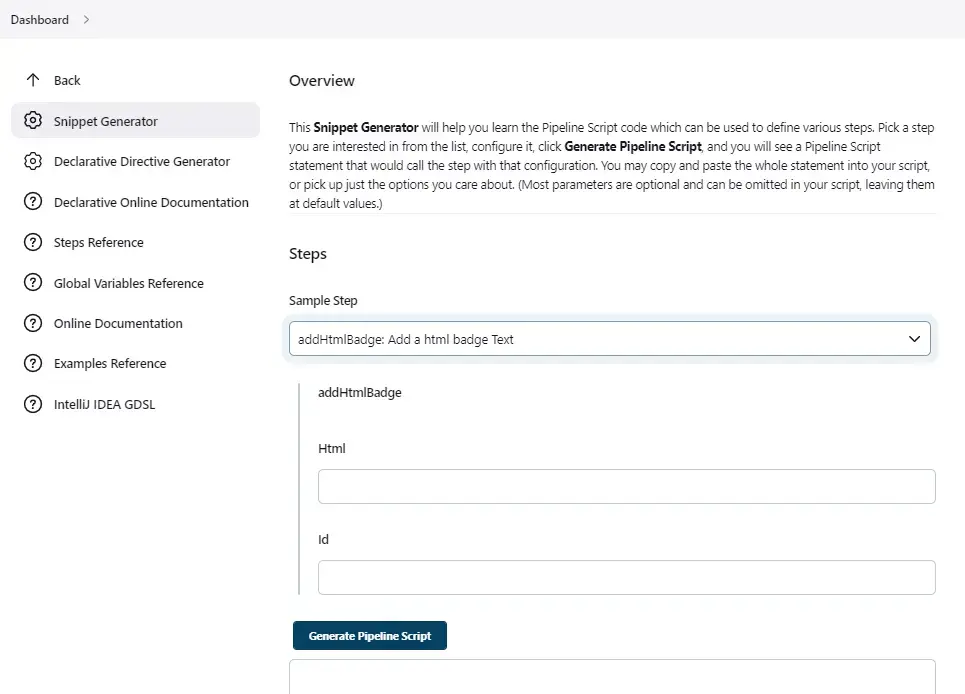
2. Declarative pipeline allows you to restart a build from a given stage
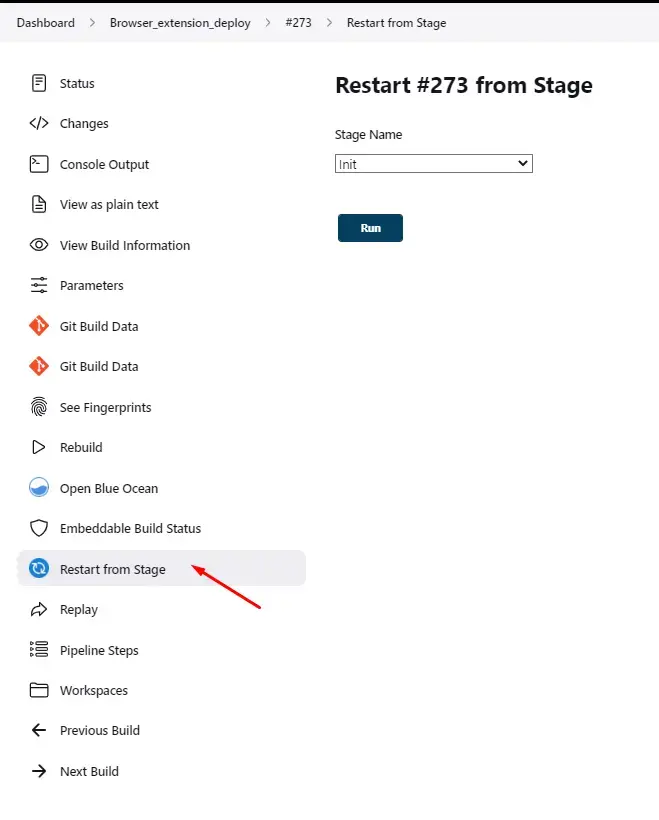
3. Replay a pipeline
Replaying a pipeline allows you to update your jenkinsfile before replaying the pipeline, easier debugging !
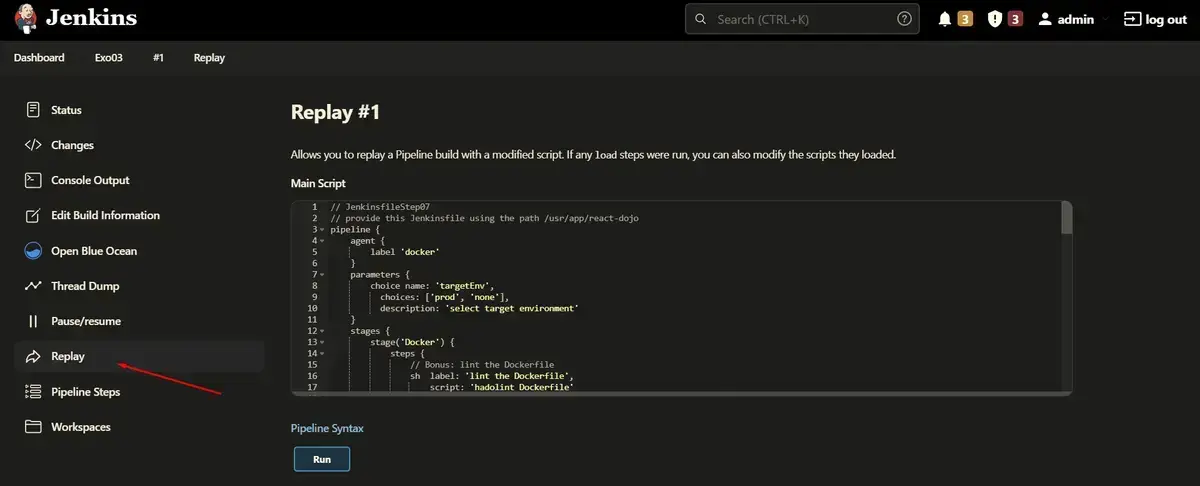
4. VS code Jenkinsfile validation
Please follow this documentation
enable jenkins pipeline linter in vscode
5. How to chain pipelines ?
Simply use the build directive followed by the name of the build to launch
6. Viewing pipelines hierarchy
The downstream-buildview plugin allows to view the full chain of
dependent builds.
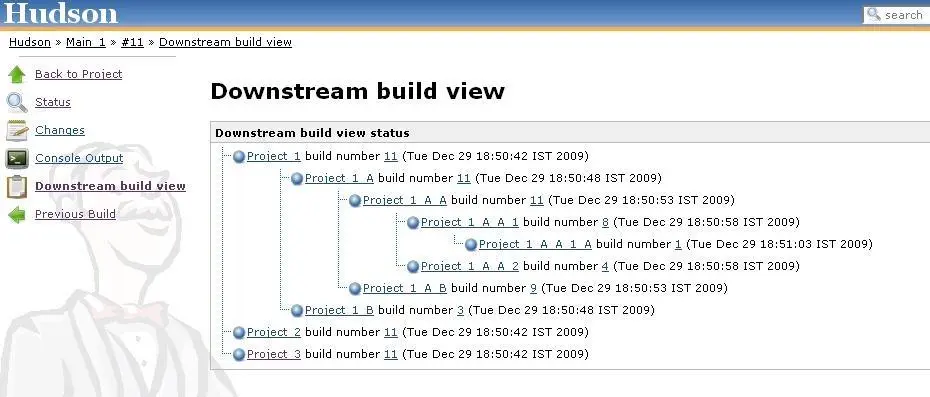
4.2 - How to Write PlantUML
Comprehensive guide to writing PlantUML diagrams, including syntax, best practices, and examples.
1. What You’ll Learn
2. Getting Started
Select a guide from the sidebar to begin.
4.2.1 - Reusable PlantUML Components: Modular Diagram Architecture and Shared Styling
Learn how to create reusable PlantUML components for modular diagram architecture and shared styling across multiple diagrams.
Today, we will explore how to create reusable PlantUML components for modular diagram architecture and shared styling
across multiple diagrams. This approach allows you to maintain consistency and reduce duplication in your PlantUML
diagrams.
1. Database ERD Examples: Music Domain
The database/ directory contains a complete example of MongoDB Entity Relationship Diagrams modeling a music
streaming recommendation system. These examples demonstrate:
- Modular diagram architecture with reusable components
- Subsection inclusion using
!includesub and !startsub - Shared styling across multiple diagrams
- JSON data structures within PlantUML diagrams
1.1. Entity Collections
The music database example includes the following collections:
| File | Description |
|---|
music-db-Playlists_Collections_ERD.puml | Playlist catalog and published playlist instances |
music-db-Moods_Collections_ERD.puml | Music mood taxonomy and user taste preferences |
music-db-Suggestions_Collections_ERD.puml | Playlist suggestion engine based on user moods |
music-db-Logs.puml | API usage logs for AI-generated playlist metadata |
music-db-All_collections.puml | Master diagram combining all collections |
db_theme_standard.puml | Reusable theme providing consistent styling |
1.2. Business Logic Flow
- Playlists are tagged with moods (e.g., “energetic”, “chill”, “melancholic”)
- Users express music preferences through user_tastes (preferred moods)
- The suggestion engine matches playlists to users based on mood similarity
- Vector embeddings enable semantic matching between user tastes and playlist moods
1.3. Complete Database Schema Overview
The following diagram shows all collections and their relationships:
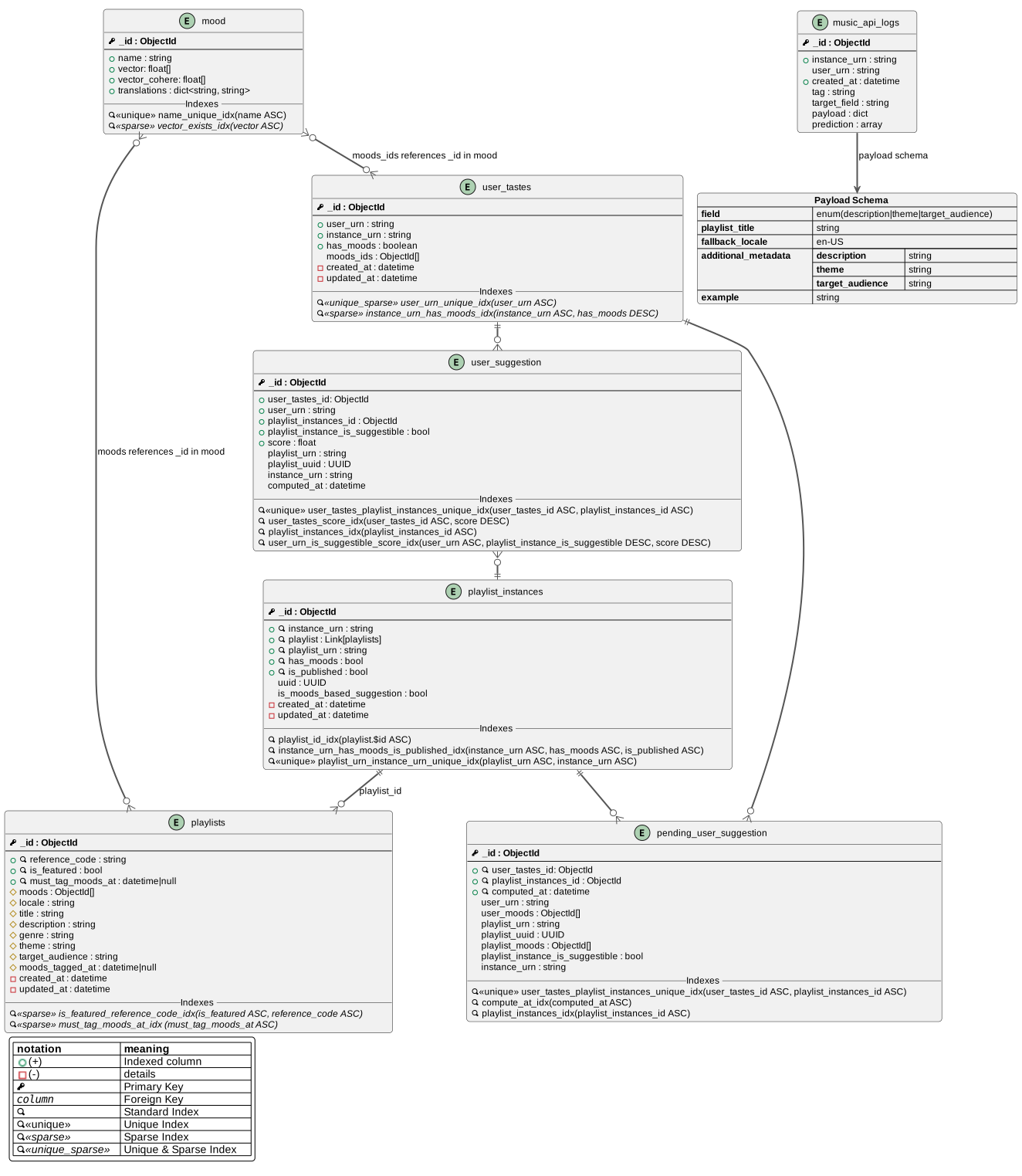
View source on GitHub
View PlantUML source code
@startuml
!pragma layout smetana
!include content/docs/howtos/how-to-write-plantuml/database/db_theme_standard.puml
!includesub content/docs/howtos/how-to-write-plantuml/database/music-db-Playlists_Collections_ERD.puml!PLAYLIST_MODEL
!includesub content/docs/howtos/how-to-write-plantuml/database/music-db-Playlists_Collections_ERD.puml!PLAYLIST_MODEL_DETAILS
!includesub content/docs/howtos/how-to-write-plantuml/database/music-db-Playlists_Collections_ERD.puml!PLAYLIST_INSTANCES_MODEL
!includesub content/docs/howtos/how-to-write-plantuml/database/music-db-Playlists_Collections_ERD.puml!PLAYLIST_INSTANCES_MODEL_DETAILS
!includesub content/docs/howtos/how-to-write-plantuml/database/music-db-Moods_Collections_ERD.puml!MODEL_USER_TASTES
!includesub content/docs/howtos/how-to-write-plantuml/database/music-db-Moods_Collections_ERD.puml!MODEL_USER_TASTES_DETAILS
!includesub content/docs/howtos/how-to-write-plantuml/database/music-db-Moods_Collections_ERD.puml!MODEL_MOOD
!includesub content/docs/howtos/how-to-write-plantuml/database/music-db-Moods_Collections_ERD.puml!MODEL_MOOD_DETAILS
!includesub content/docs/howtos/how-to-write-plantuml/database/music-db-Suggestions_Collections_ERD.puml!MODEL_PENDING_USER_SUGGESTION
!includesub content/docs/howtos/how-to-write-plantuml/database/music-db-Suggestions_Collections_ERD.puml!MODEL_PENDING_USER_SUGGESTION_DETAILS
!includesub content/docs/howtos/how-to-write-plantuml/database/music-db-Suggestions_Collections_ERD.puml!MODEL_USER_SUGGESTION
!includesub content/docs/howtos/how-to-write-plantuml/database/music-db-Suggestions_Collections_ERD.puml!MODEL_USER_SUGGESTION_DETAILS
!includesub content/docs/howtos/how-to-write-plantuml/database/music-db-Logs.puml!MODEL_MUSIC_API_LOGS
@enduml
2. Reusable Styling with db_theme_standard.puml
The db_theme_standard.puml file is a standalone, reusable theme definition that ensures visual consistency across
all database diagrams.
2.1. Why Separate Styling?
Separating styling from content provides several benefits:
- Single source of truth for visual standards
- Easy updates - change once, apply everywhere
- Reduced duplication - no need to copy/paste styling rules
- Clear separation between diagram content and presentation
2.2. What It Defines
The reusable theme file defines:
!include content/docs/howtos/how-to-write-plantuml/database/db_theme_standard.puml
- Visual styling: fonts, colors, line styles, rounded corners
- Notation macros:
PK (primary key), FK (foreign key), IDX (index) - Index types:
UNIQUE, SPARSE, UNIQUE_SPARSE - Legend symbols: explaining all notation used in diagrams
Here’s what the theme styling looks like:
View source on GitHub
View theme source code
@startuml
' ==============================================
' MongoDB Database Diagram Standard Theme
' ==============================================
' This is a REUSABLE style definition file that provides:
' - Consistent visual styling across all database diagrams
' - Standard notation for database elements (PK, FK, indexes)
' - Color-coded legends for different entity types
' - Icon definitions for database constraints
'
' USAGE: Include this file in any database ERD diagram:
'   !include path/to/db_theme_standard.puml
'
' This ensures all diagrams share the same professional appearance
' and use consistent notation conventions.
' ==============================================

skinparam {
    defaultFontName Arial
    defaultFontSize 12
    roundCorner 8
    packageStyle rectangle
    linetype ortho
    BackgroundColor #FFF
    shadowing false
    ArrowColor #555555
    ArrowThickness 2

    entity {
        Margin 20
    }
}

!define ENTITY entity
!define PK <&key><u><b>
!define FK <u><i>
!define IDX <&magnifying-glass>
!define UNIQUE <u><&magnifying-glass><<unique>>
!define SPARSE <i><&magnifying-glass><<sparse>>
!define UNIQUE_SPARSE <u><i><&magnifying-glass><<unique_sparse>>
!define DETAILS -

legend
|= |= Type |
|<back:#FF0000>   </back>| Type A class |
|<back:#00FF00>   </back>| Type B class |
|<back:blue>   </back>| Type C class |
endlegend

legend left
  |= notation |= meaning|
  | <img : https://cdn-0.plantuml.com/public-field.png{scale=1.4}>(+)  | Indexed column  |
  | <img : https://cdn-0.plantuml.com/private-field.png{scale=1.4}>(-) | details |
  | ""<&key>"" | Primary Key |
  | ""<u><i>column"" | Foreign Key |
  | ""<&magnifying-glass>"" | Standard Index |
  | UNIQUE | Unique Index |
  | SPARSE | Sparse Index |
  | UNIQUE_SPARSE | Unique & Sparse Index |
endlegend

@enduml
2.3. Usage Pattern
Every database ERD diagram includes this file:
@startuml
!include content/docs/howtos/how-to-write-plantuml/database/db_theme_standard.puml

ENTITY users {
  PK _id : ObjectId
  --
  + IDX email : string
}
@enduml
This pattern ensures all diagrams share professional, consistent notation.
3. Modular Composition with !startsub and !includesub
PlantUML supports subsection extraction, allowing you to define reusable diagram fragments that can be included
selectively in other diagrams.
3.1. Defining Subsections: !startsub
Use !startsub and !endsub to mark reusable sections:
' Define a reusable playlist entity
!startsub PLAYLIST_MODEL
ENTITY playlists {
  PK _id : ObjectId
  + IDX reference_code : string
}
!endsub

' Define additional detail fields
!startsub PLAYLIST_MODEL_DETAILS
ENTITY playlists {
  # moods : ObjectId[]
  # title : string
  - created_at : datetime
}
!endsub
3.2. Including Subsections: !includesub
Use !includesub to import specific subsections into another diagram:
@startuml
!include db_theme_standard.puml

' Include only the core playlist model (without details)
!includesub music-db-Playlists_Collections_ERD.puml!PLAYLIST_MODEL

@enduml
3.3. Benefits of Subsection Inclusion
- Selective composition - include only what you need
- Multiple levels of detail - show high-level or detailed views
- Avoid duplication - define entities once, reuse everywhere
- Maintainability - update the source, all diagrams reflect changes
3.4. Example: Cross-Diagram References
In music-db-Moods_Collections_ERD.puml:
package "Playlist Collections" <<Only the relevant fields are shown>> #LightGray {
  !includesub content/docs/howtos/how-to-write-plantuml/database/music-db-Playlists_Collections_ERD.puml!PLAYLIST_MODEL
}
This imports the playlists entity definition without duplicating code, showing how moods relate to playlists.
3.4.1. Example Diagrams
Playlists Collections:
View source on GitHub
View PlantUML source code
@startuml Playlists Collections - Entity Relationship Diagram

title MongoDB Collections: playlist_instances and playlists

!include content/docs/howtos/how-to-write-plantuml/database/db_theme_standard.puml

' PLAYLIST_MODEL
!startsub PLAYLIST_MODEL
ENTITY playlists {
  PK _id : ObjectId
  --
  + IDX reference_code : string
  + IDX is_featured : bool
  + IDX must_tag_moods_at : datetime|null
}
!endsub

!startsub PLAYLIST_MODEL_DETAILS
ENTITY playlists {
  # moods : ObjectId[]
  # locale : string
  # title : string
  # description : string
  # genre : string
  # theme : string
  # target_audience : string
  # moods_tagged_at : datetime|null
  - created_at : datetime
  - updated_at : datetime
  __Indexes__
  SPARSE is_featured_reference_code_idx(is_featured ASC, reference_code ASC)
  SPARSE must_tag_moods_at_idx (must_tag_moods_at ASC)
}
!endsub

' PLAYLIST_INSTANCES_MODEL
!startsub PLAYLIST_INSTANCES_MODEL

ENTITY playlist_instances {
  PK _id : ObjectId
  --
  + IDX instance_urn : string
  + IDX playlist : Link[playlists]
  + IDX playlist_urn : string
  + IDX has_moods : bool
  + IDX is_published : bool
}

' Relationships
playlist_instances ||--o{ playlists : "playlist_id"

!endsub

!startsub PLAYLIST_INSTANCES_MODEL_DETAILS
ENTITY playlist_instances {
uuid : UUID
is_moods_based_suggestion : bool
-created_at : datetime
-updated_at : datetime
__Indexes__
IDX playlist_id_idx(playlist.$id ASC)
IDX instance_urn_has_moods_is_published_idx(instance_urn ASC, has_moods ASC, is_published ASC)
UNIQUE playlist_urn_instance_urn_unique_idx(playlist_urn ASC, instance_urn ASC)
}
!endsub


note right of playlists::is_featured_reference_code_idx
  **Index Purpose:**
  Contains playlist data from various music streaming
  platforms. Serves as main source for user suggestions.
end note

note right of playlist_instances::playlist_urn_instance_urn_unique_idx
  **Index Purpose:**
  Featured playlists catalogue with shared
  information across multiple playlist versions.
  Master template for mood tagging reference.
end note

note bottom of playlists
  **Relationship Pattern:**
  One featured_playlist can be associated with multiple playlist records
  playlist_instances.playlist.$id → playlist._id
end note

@enduml
Moods Collections:
View source on GitHub
View PlantUML source code
@startuml Moods Collections - Entity Relationship Diagram

title MongoDB Collections: Moods taxonomy and related collections - Entity Relationship Diagram

!include content/docs/howtos/how-to-write-plantuml/database/db_theme_standard.puml


package "Playlist Collections" <<Only the relevant fields are shown>> #LightGray {
  !includesub content/docs/howtos/how-to-write-plantuml/database/music-db-Playlists_Collections_ERD.puml!PLAYLIST_MODEL
}
!startsub MODEL_USER_TASTES
ENTITY user_tastes {
  PK _id : ObjectId
  --
  + user_urn : string
  + instance_urn : string
  + has_moods : boolean
  moods_ids : ObjectId[]
}
!endsub

!startsub MODEL_USER_TASTES_DETAILS
ENTITY user_tastes {
DETAILS created_at : datetime
DETAILS updated_at : datetime
__Indexes__
UNIQUE_SPARSE user_urn_unique_idx(user_urn ASC)
SPARSE instance_urn_has_moods_idx(instance_urn ASC, has_moods DESC)
}
!endsub

!startsub MODEL_MOOD
ENTITY mood {
PK _id : ObjectId
--
+ name : string
+ vector: float[]
+ vector_cohere: float[]
+ translations : dict<string, string>
}
!endsub

!startsub MODEL_MOOD_DETAILS
ENTITY mood {
__Indexes__
UNIQUE name_unique_idx(name ASC)
SPARSE vector_exists_idx(vector ASC)
}
' Relationships
mood }o--o{ user_tastes : "moods_ids references _id in mood"
mood }o-r-o{ playlists : "moods references _id in mood"
!endsub

note left of mood::name
  The name of the mood in English
  (e.g., "energetic", "chill", "melancholic")
end note
note left of mood::translations
  A dictionary containing translations
  of the mood name in various languages.
  The keys are BCP-47 language (e.g., "fr" for French)
  and the values are the translated mood names.
end note
note right of mood::vector
  A vector representation of the mood.name field,
  generated using amazon.titan-embed-text-v1.
  This field is used for semantic search and
  similarity comparisons between moods.
end note

@enduml
Suggestions Collections:
View source on GitHub
View PlantUML source code
@startuml Suggestions Collections - Entity Relationship Diagram

title MongoDB Collections: Suggestion System - Entity Relationship Diagram
!include content/docs/howtos/how-to-write-plantuml/database/db_theme_standard.puml

package "Playlist Collections" <<Only the relevant fields are shown>> as PC #LightGray {
  !includesub content/docs/howtos/how-to-write-plantuml/database/music-db-Playlists_Collections_ERD.puml!PLAYLIST_MODEL
  !includesub content/docs/howtos/how-to-write-plantuml/database/music-db-Playlists_Collections_ERD.puml!PLAYLIST_INSTANCES_MODEL
}

package "User Collections" <<Only the relevant fields are shown>> as UC #LightGray{
  !includesub content/docs/howtos/how-to-write-plantuml/database/music-db-Moods_Collections_ERD.puml!MODEL_USER_TASTES
}

!startsub MODEL_PENDING_USER_SUGGESTION
ENTITY pending_user_suggestion {
  PK _id : ObjectId
  --
  + IDX user_tastes_id: ObjectId
  + IDX playlist_instances_id : ObjectId
  + IDX computed_at : datetime
  user_urn : string
  user_moods : ObjectId[]
  playlist_urn : string
  playlist_uuid : UUID
  playlist_moods : ObjectId[]
  playlist_instance_is_suggestible : bool
  instance_urn : string
}
!endsub

!startsub MODEL_PENDING_USER_SUGGESTION_DETAILS
ENTITY pending_user_suggestion {
  __Indexes__
  UNIQUE user_tastes_playlist_instances_unique_idx(user_tastes_id ASC, playlist_instances_id ASC)
  IDX compute_at_idx(computed_at ASC)
  IDX playlist_instances_idx(playlist_instances_id ASC)
}
!endsub

!startsub MODEL_USER_SUGGESTION
ENTITY user_suggestion {
  PK _id : ObjectId
  --
  +user_tastes_id: ObjectId
  +user_urn : string
  +playlist_instances_id : ObjectId
  +playlist_instance_is_suggestible : bool
  +score : float
  playlist_urn : string
  playlist_uuid : UUID
  instance_urn : string
  computed_at : datetime
}

' Relationships
user_tastes ||--o{ pending_user_suggestion
playlist_instances ||--o{ pending_user_suggestion
user_tastes ||-d-o{ user_suggestion
playlist_instances ||-u-o{ user_suggestion

!endsub

!startsub MODEL_USER_SUGGESTION_DETAILS
ENTITY user_suggestion {
  __Indexes__
  UNIQUE user_tastes_playlist_instances_unique_idx(user_tastes_id ASC, playlist_instances_id ASC)
  IDX user_tastes_score_idx(user_tastes_id ASC, score DESC)
  IDX playlist_instances_idx(playlist_instances_id ASC)
  IDX user_urn_is_suggestible_score_idx(user_urn ASC, playlist_instance_is_suggestible DESC, score DESC)
}
!endsub
@enduml
4. Master Diagram: music-db-All_collections.puml
The music-db-All_collections.puml file demonstrates diagram composition by
combining all subsections into a complete database schema view.
4.1. How It Works
@startuml
!pragma layout smetana
!include content/docs/howtos/how-to-write-plantuml/database/db_theme_standard.puml

' Include playlist entities
!includesub content/docs/howtos/how-to-write-plantuml/database/music-db-Playlists_Collections_ERD.puml!PLAYLIST_MODEL
!includesub content/docs/howtos/how-to-write-plantuml/database/music-db-Playlists_Collections_ERD.puml!PLAYLIST_MODEL_DETAILS

' Include mood entities
!includesub content/docs/howtos/how-to-write-plantuml/database/music-db-Moods_Collections_ERD.puml!MODEL_MOOD
!includesub content/docs/howtos/how-to-write-plantuml/database/music-db-Moods_Collections_ERD.puml!MODEL_MOOD_DETAILS

' ... and so on for all collections
@enduml
4.2. Advantages
- Single comprehensive view of the entire database
- No code duplication - entities defined once in source files
- Automatic updates - changes propagate from source diagrams
- Flexible composition - easily add/remove collections
This pattern is perfect for creating both detailed individual diagrams and high-level overview diagrams from the
same source.
4.2.1. Master Diagram View
View source on GitHub
View complete PlantUML source code
@startuml
!pragma layout smetana
!include content/docs/howtos/how-to-write-plantuml/database/db_theme_standard.puml
!includesub content/docs/howtos/how-to-write-plantuml/database/music-db-Playlists_Collections_ERD.puml!PLAYLIST_MODEL
!includesub content/docs/howtos/how-to-write-plantuml/database/music-db-Playlists_Collections_ERD.puml!PLAYLIST_MODEL_DETAILS
!includesub content/docs/howtos/how-to-write-plantuml/database/music-db-Playlists_Collections_ERD.puml!PLAYLIST_INSTANCES_MODEL
!includesub content/docs/howtos/how-to-write-plantuml/database/music-db-Playlists_Collections_ERD.puml!PLAYLIST_INSTANCES_MODEL_DETAILS
!includesub content/docs/howtos/how-to-write-plantuml/database/music-db-Moods_Collections_ERD.puml!MODEL_USER_TASTES
!includesub content/docs/howtos/how-to-write-plantuml/database/music-db-Moods_Collections_ERD.puml!MODEL_USER_TASTES_DETAILS
!includesub content/docs/howtos/how-to-write-plantuml/database/music-db-Moods_Collections_ERD.puml!MODEL_MOOD
!includesub content/docs/howtos/how-to-write-plantuml/database/music-db-Moods_Collections_ERD.puml!MODEL_MOOD_DETAILS
!includesub content/docs/howtos/how-to-write-plantuml/database/music-db-Suggestions_Collections_ERD.puml!MODEL_PENDING_USER_SUGGESTION
!includesub content/docs/howtos/how-to-write-plantuml/database/music-db-Suggestions_Collections_ERD.puml!MODEL_PENDING_USER_SUGGESTION_DETAILS
!includesub content/docs/howtos/how-to-write-plantuml/database/music-db-Suggestions_Collections_ERD.puml!MODEL_USER_SUGGESTION
!includesub content/docs/howtos/how-to-write-plantuml/database/music-db-Suggestions_Collections_ERD.puml!MODEL_USER_SUGGESTION_DETAILS
!includesub content/docs/howtos/how-to-write-plantuml/database/music-db-Logs.puml!MODEL_MUSIC_API_LOGS
@enduml
5. JSON Data Structures in PlantUML
PlantUML supports embedding JSON notation directly in diagrams, useful for documenting:
- API request/response structures
- Database document schemas (MongoDB)
- Configuration examples
- Data transformation flows
5.1. Example from music-db-Logs.puml
json payload as "**Payload Example**" {
  "**field**": "title",
  "**value**": "Summer Vibes Mix",
  "**fallback_locale**": "en-US"
}
music_api_logs -r-> payload: payload
This creates a formatted JSON box linked to an entity, showing exactly what data structure is used.
5.2. Complete Document Example
The logs diagram also shows a complete MongoDB document:
json complete_example as "**Complete Document Example**" {
    "**_id**": "698ddd946f3bad1915a67e87",
    "**instance_urn**": "urn:music:spotify",
    "**user_urn**": "urn:music:spotify:user/...",
    "**tag**": "music-ai.playlist_metadata.generate",
    "**payload**": {
        "**field**": "description",
        "**playlist_title**": "Acoustic Coffee House",
        "**additional_metadata**": { "..." }
    },
    "**prediction**": ["..."]
}
5.3. Benefits
- Precise schema documentation alongside ERD diagrams
- Visual clarity - readers see exact data structures
- Version control - schema examples tracked with diagrams
- Testing reference - developers can use examples for test data
5.4. Complete Logs Diagram Example
Here’s the complete logs diagram showing JSON structures and their relationships:
View source on GitHub
View PlantUML source code
@startuml
title MongoDB Collections: Music API Logs - Entity Relationship Diagram
!include content/docs/howtos/how-to-write-plantuml/database/db_theme_standard.puml
!startsub MODEL_MUSIC_API_LOGS
ENTITY music_api_logs {
PK _id : ObjectId
--
+ instance_urn : string
user_urn : string
+ created_at : datetime
tag : string
target_field : string
payload : dict
prediction : array
}
json payload_schema as "**Payload Schema**" {
"**field**": "enum(description|theme|target_audience)",
"**playlist_title**": "string",
"**fallback_locale**": "en-US",
"**additional_metadata**": {
"**description**": "string",
"**theme**": "string",
"**target_audience**": "string"
},
"**example**": "string"
}
music_api_logs --> payload_schema: payload schema
!endsub
!startsub MODEL_MUSIC_API_LOGS_DETAILS
ENTITY music_api_logs {
__Indexes__
IDX ttl_idx_90(created_at ASC)
IDX instance_urn_created_at_idx(instance_urn ASC, created_at DESC)
}
note left of music_api_logs::ttl_idx_90
**Index Purpose:**
Automatically delete documents after a certain
period (e.g., 90 days) to manage storage and
ensure data relevance.
**expireAfterSeconds:** 7776000 (90 days)
end note
json payload as "**Payload Example**" {
"**field**": "title",
"**value**": "Summer Vibes Mix",
"**fallback_locale**": "en-US"
}
music_api_logs -r-> payload: payload
json prediction as "**Prediction Example**" {
[
"Feel-Good Summer Playlist",
"Sunshine & Good Times",
"Ultimate Summer Anthems"
]
}
music_api_logs -d-> prediction: prediction
json complete_example as "**Complete Document Example**" {
"**_id**": "698ddd946f3bad1915a67e87",
"**instance_urn**": "urn:music:spotify",
"**user_urn**": "urn:music:spotify:user/DB991B65-1B6F-A942-32BD-4558C0ED7AF4",
"**tag**": "music-ai.playlist_metadata.generate",
"**target_field**": "description",
"**payload**": {
"**field**": "description",
"**playlist_title**": "Acoustic Coffee House",
"**fallback_locale**": "en-US",
"**additional_metadata**": {
"**description**": "Warm acoustic sounds perfect for your morning coffee. Featuring indie folk, singer-songwriter gems **(truncated...)**",
"**theme**": null,
"**target_audience**": null
},
"**example**": "ex: Discover fresh indie folk tracks to elevate your coffee ritual **(truncated...)**"
},
"**prediction**": [
"Cozy acoustic melodies and indie folk favorites to accompany your coffee break **(truncated...)**"
],
"**created_at**": "2026-02-12T14:03:00.928Z"
}
music_api_logs --> complete_example
!endsub
@enduml
4.3 - How to Write Dockerfiles
Best practices for writing efficient and secure Dockerfiles
1. Dockerfile best practices
Follow official best practices and you can
follow these specific best practices
But The worst so-called “best practice” for Docker
Backup, explains why you should actually also use
apt-get upgrade
Use hadolint
Use ;\ to separate each command line
- some Dockerfiles are using
&& to separate commands in the same RUN instruction (I was doing it too ;-), but I
strongly discourage it because it breaks the checks done by set -o errexit set -o errexit makes the whole RUN instruction to fail if one of the commands has failed, but it is not the same
when using &&
One package by line, packages sorted alphabetically to ease readability and merges
Always specify the most exact version possible of your packages (to avoid to get major version that would break your
build or software)
do not usage docker image with latest tag, always specify the right version to use
2. Basic best practices
2.1. Best Practice #1: Merge the image layers
in a Dockerfile each RUN command will create an image layer.
2.1.1. Bad practice #1
Here a bad practice that you shouldn’t follow
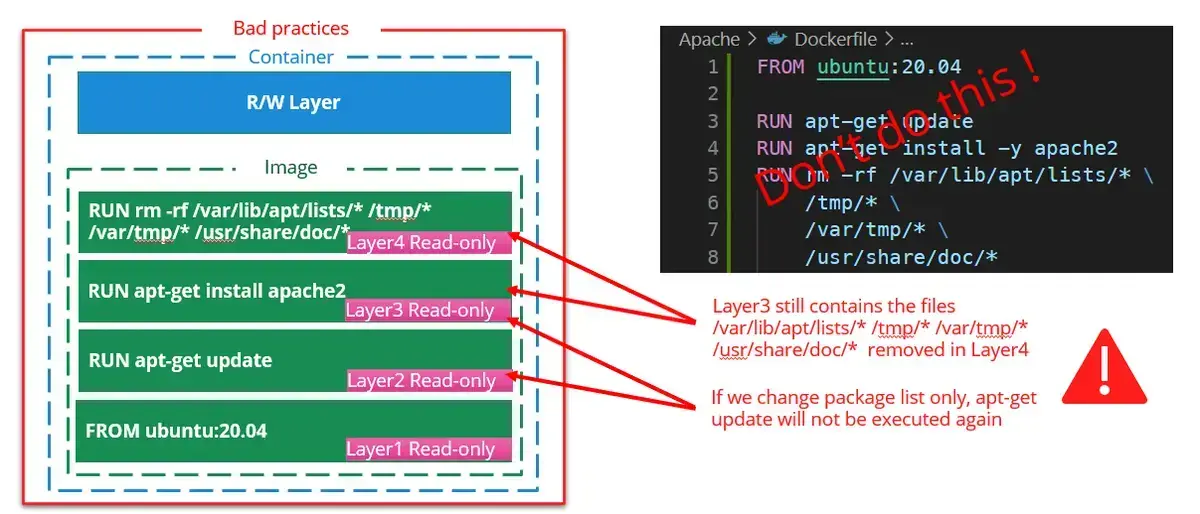
2.1.2. Best practice #1
Best practice #1 merge the RUN layers to avoid cache issue and gain on total image size
FROM ubuntu:20.04
RUN apt-get update \
&& apt-get install -y apache2 \
&& rm -rf \
/var/lib/apt/lists/* \
/tmp/* \
/var/tmp/* \
/usr/share/doc/*
2.2. Best Practice #2: trace commands and fail on error
from previous example we want to trace each command that is executed
2.2.1. Bad practice #2
when building complex layer and one of the command fails, it’s interesting to know which command makes the build to fail
FROM ubuntu:20.04
RUN apt-get update \
&& [ -d badFolder ] \
&& apt-get install -y apache2 \
&& rm -rf \
/var/lib/apt/lists/* \
/tmp/* \
/var/tmp/* \
/usr/share/doc/*
docker build . gives the following log output(partly truncated):
...
#5 [2/2] RUN apt-get update
&& [ -d badFolder ]
&& apt-get install -y apache2
&& rm -rf
/var/lib/apt/lists/*
/tmp/*
/var/tmp/*
/usr/share/doc/*
#5 3.818 Get:1 http://archive.ubuntu.com/ubuntu focal InRelease [265 kB]
...
#5 6.252 Fetched 25.6 MB in 6s (4417 kB/s)
#5 6.252 Reading package lists...
#5 ERROR: process "/bin/sh -c apt-get update
&& [ -d badFolder ]
&& apt-get install -y apache2
&& rm -rf
/var/lib/apt/lists/*
/tmp/*
/var/tmp/*
/usr/share/doc/*"
did not complete successfully: exit code: 1
------
> [2/2] RUN apt-get update
&& [ -d badFolder ]
&& apt-get install -y apache2
&& rm -rf
/var/lib/apt/lists/*
/tmp/*
/var/tmp/*
/usr/share/doc/*:
#5 5.383 Get:10 http://archive.ubuntu.com/ubuntu focal/main amd64 Packages [1275 kB]
...
------
Dockerfile1:3
--------------------
2 |
3 | >>> RUN apt-get update \
4 | >>> && [ -d badFolder ] \
5 | >>> && apt-get install -y apache2 \
6 | >>> && rm -rf \
7 | >>> /var/lib/apt/lists/\* \
8 | >>> /tmp/\* \
9 | >>> /var/tmp/\* \
10 | >>> /usr/share/doc/\*
11 |
--------------------
ERROR: failed to solve: process "/bin/sh -c apt-get update
&& [ -d badFolder ]
&& apt-get install -y apache2
&& rm -rf
/var/lib/apt/lists/*
/tmp/*
/var/tmp/*
/usr/share/doc/*
did not complete successfully: exit code: 1
Not easy here to know that the command [ -d badFolder ] makes the build failing
Without the best practice #2, the following code build successfully
FROM ubuntu:20.04
RUN set -x ;\
apt-get update ;\
[ -d badFolder ] ;\
ls -al
2.2.2. Best Practice #2
Best Practice #2: Override SHELL options of the RUN command and use ;\ instead of &&
The following options are set on the shell to override the default behavior:
set -o pipefail: The return status of a pipeline is the exit status of the last command, unless the pipefail option
is enabled.- If pipefail is enabled, the pipeline’s return status is the value of the last (rightmost) command to exit with a
non-zero status, or zero if all commands exit successfully.
- without it, a command failure could be masked by the command piped after it
set -o errexit (same as set -e): Exit immediately if a pipeline (which may consist of a single simple command), a
list, or a compound command (see SHELL GRAMMAR above), exits with a non-zero status.set -o xtrace(same as set -x): After expanding each simple command, for command, case command, select
command, or arithmetic for command, display the expanded value of PS4, followed by the command and its expanded
arguments or associated word list.
Those options are not mandatory but are strongly advised. Although there are some workaround to know:
- if a command can fail and you want to ignore it, you can use
- commandThatCanFail || true
These options can be used with /bin/sh as well.
Also it is strongly advised to use ;\ to separate commands because it could happen that some errors are ignored when
&& is used in conjunction with ||
FROM ubuntu:20.04
# The SHELL instructions will be applied to all the subsequent RUN instructions
SHELL ["/bin/bash", "-o", "pipefail", "-o", "errexit", "-o", "xtrace", "-c"]
RUN apt-get update ;\
[ -d badFolder ] ;\
apt-get install -y apache2 ;\
rm -rf \
/var/lib/apt/lists/* \
/tmp/* \
/var/tmp/* \
/usr/share/doc/*
docker build . gives the following log output(partly truncated):
...
#5 [2/2] RUN apt-get update ;
[ -d badFolder ] ;
apt-get install -y apache2 ;
rm -rf
/var/lib/apt/lists/*
/tmp/*
/var/tmp/*
/usr/share/doc/*
#5 0.318 + apt-get update
#5 3.522 Get:1 http://archive.ubuntu.com/ubuntu focal InRelease [265 kB]
...
#5 5.310 Fetched 25.6 MB in 5s (5141 kB/s)
#5 5.310 Reading package lists...
#5 6.172 + '[' -d badFolder ']'
#5 ERROR: process "/bin/bash -o pipefail -o errexit -o xtrace -c
apt-get update ;
[ -d badFolder ] ;
apt-get install -y apache2 ;
rm -rf
/var/lib/apt/lists/*
/tmp/*
/var/tmp/*
/usr/share/doc/*
did not complete successfully: exit code: 1
------
> [2/2] RUN apt-get update ;
[ -d badFolder ] ;
apt-get install -y apache2 ;
rm -rf
/var/lib/apt/lists/*
/tmp/*
/var/tmp/*
/usr/share/doc/\*:
#5 4.228 Get:11 http://archive.ubuntu.com/ubuntu focal-updates/main amd64 Packages [3014 kB]
...
#5 6.172 + '[' -d badFolder ']'
------
Dockerfile1:4
--------------------
3 | SHELL ["/bin/bash", "-o", "pipefail", "-o", "errexit", "-o", "xtrace", "-c"]
4 | >>> RUN apt-get update ;\
5 | >>> [ -d badFolder ] ;\
6 | >>> apt-get install -y apache2 ;\
7 | >>> rm -rf \
8 | >>> /var/lib/apt/lists/\* \
9 | >>> /tmp/\* \
10 | >>> /var/tmp/\* \
11 | >>> /usr/share/doc/\*
12 |
--------------------
ERROR: failed to solve: process "/bin/bash -o pipefail -o errexit -o xtrace -c
apt-get update ; [ -d badFolder ] ; apt-get install -y apache2 ; rm -rf
/var/lib/apt/lists/* /tmp/* /var/tmp/* /usr/share/doc/*"
did not complete successfully: exit code: 1
Here the command line displayed just above the error indicates clearly from where the error comes from:
#5 6.172 + '[' -d badFolder ']'
2.3. Best practice #3: packages ordering and versions
Best Practice #3: order packages alphabetically, always specify packages versions, ensure non interactive
From previous example we want to install several packages
2.3.1. Bad practice #3
let’s add some packages on our previous example (errors removed)
The following docker has the following issues:
- it doesn’t set the package versions
- the installation will install also the recommended packages
- it’s using apt instead of apt-get (hadolint warning DL3027 Do not
use apt as it is meant to be a end-user tool, use
apt-get or apt-cache instead) - the packages are not ordered alphabetically
FROM ubuntu:20.04
SHELL ["/bin/bash", "-o", "pipefail", "-o", "errexit", "-o", "xtrace", "-c"]
RUN apt update ;\
apt install -y php7.4 apache2 php7.4-curl redis-tools ;\
rm -rf \
/var/lib/apt/lists/* \
/tmp/* \
/var/tmp/* \
/usr/share/doc/*
2.3.2. Best Practice #3
Best Practice #3: order packages alphabetically, always specify packages versions, ensure non interactive
2.3.2.1. Order packages alphabetically and one package by line
one package by line allows packages to be simpler ordered alphabetically
one package by line and ordering alphabetically allows :
- to merge branches changes more easily
- to detect redundancies more easily
- to improve readability
2.3.2.2. Always specify packages versions
over the time your build’s dependencies could be updated on the remote repositories and your packages be unattended
upgraded to the latest version making your software breaks because it doesn’t manage the changes of the new package.
It happens several times for me, for example, in 2021, xdebug has been automatically upgraded on one of my docker image
from version 2.8 to 3.0 making all the dev environments broken. It happens also on a build pipeline with a version of
npm gulp that has been upgraded to latest version. In both cases we resolved the issue by downgrading the version to the
one we were using.
2.3.2.3. Ensure non interactive
some apt-get packages could ask for interactive questions, you can avoid this using the env variable
DEBIAN_FRONTEND=noninteractive
Note: ARG instruction allows to set env variable available only during build time
FROM ubuntu:20.04
SHELL ["/bin/bash", "-o", "pipefail", "-o", "errexit", "-o", "xtrace", "-c"]
ARG DEBIAN_FRONTEND=noninteractive
RUN apt-get update ;\
apt-get install -y -q --no-install-recommends \
# Mind to use quotes to avoid shell to try to expand * with some files
apache2='2.4.*' \
php7.4='7.4.*' \
php7.4-curl='7.4.*' \
# Notice the ':'(colon)
redis-tools='5:5.*' \
;\
# cleaning
apt-get autoremove -y ;\
apt-get -y clean ;\
rm -rf \
/var/lib/apt/lists/* \
/tmp/* \
/var/tmp/* \
/usr/share/doc/*
# use the following command to know the current version of the packages
# using another RUN instead of using previous one will avoid the whole
# previous layer to be rebuilt
# RUN apt-cache policy \
# apache2 \
# php7.4 \
# php7.4-curl \
# redis-tools
# Gives the following output
#6 0.387 + apt-cache policy apache2
#6 0.399 apache2:
#6 0.399 Installed: 2.4.41-4ubuntu3.14
#6 0.399 Candidate: 2.4.41-4ubuntu3.14
#6 0.399 Version table:
#6 0.399 *** 2.4.41-4ubuntu3.14 100
#6 0.399 100 /var/lib/dpkg/status
#6 0.400 + apt-cache policy php7.4
#6 0.409 php7.4:
#6 0.409 Installed: 7.4.3-4ubuntu2.18
#6 0.409 Candidate: 7.4.3-4ubuntu2.18
#6 0.409 Version table:
#6 0.409 *** 7.4.3-4ubuntu2.18 100
#6 0.409 100 /var/lib/dpkg/status
#6 0.409 + apt-cache policy php7.4-curl
#6 0.420 php7.4-curl:
#6 0.420 Installed: 7.4.3-4ubuntu2.18
#6 0.420 Candidate: 7.4.3-4ubuntu2.18
#6 0.420 Version table:
#6 0.420 *** 7.4.3-4ubuntu2.18 100
#6 0.421 100 /var/lib/dpkg/status
#6 0.421 + apt-cache policy redis-tools
#6 0.431 redis-tools:
#6 0.431 Installed: 5:5.0.7-2ubuntu0.1
#6 0.431 Candidate: 5:5.0.7-2ubuntu0.1
#6 0.431 Version table:
#6 0.431 *** 5:5.0.7-2ubuntu0.1 100
#6 0.432 100 /var/lib/dpkg/status
2.4. Best practice #4: ensure image receives latest security updates
from previous example we want to ensure the image receives the latest security updates
2.4.1. Bad practice #4
registry image are not always updated and latest apt security updates are not installed
FROM ubuntu:20.04
SHELL ["/bin/bash", "-o", "pipefail", "-o", "errexit", "-o", "xtrace", "-c"]
ARG DEBIAN_FRONTEND=noninteractive
RUN apt-get update ;\
apt-get install -y -q --no-install-recommends \
apache2='2.4.*' \
php7.4='7.4.*' \
php7.4-curl='7.4.*' \
redis-tools='5:5.*' \
;\
# cleaning
apt-get autoremove -y ;\
apt-get -y clean ;\
rm -rf \
/var/lib/apt/lists/* \
/tmp/* \
/var/tmp/* \
/usr/share/doc/*
2.4.2. Best Practice #4
be sure to apply latest security updates, to install the
latest security updates in the image, keep sure to call apt-get upgrade -y
Here the updated Dockerfile:
FROM ubuntu:20.04
SHELL ["/bin/bash", "-o", "pipefail", "-o", "errexit", "-o", "xtrace", "-c"]
ARG DEBIAN_FRONTEND=noninteractive
RUN apt-get update ;\
# be sure to apply latest security updates
# https://pythonspeed.com/articles/security-updates-in-docker/
apt-get upgrade -y ;\
apt-get install -y -q --no-install-recommends \
apache2='2.4.*' \
php7.4='7.4.*' \
php7.4-curl='7.4.*' \
redis-tools='5:5.*' \
;\
# cleaning
apt-get autoremove -y ;\
apt-get -y clean ;\
rm -rf \
/var/lib/apt/lists/* \
/tmp/* \
/var/tmp/* \
/usr/share/doc/*
2.5. Conclusion: image size comparison
from previous example we want to ensure the image receives the latest security updates
2.5.1. Dockerfile without best practices
FROM ubuntu:20.04
ARG DEBIAN_FRONTEND=noninteractive
RUN apt-get update
RUN apt-get install -y apache2 php7.4 php7.4-curl redis-tools
# cleaning
RUN apt-get autoremove -y ;\
apt-get -y clean ;\
rm -rf \
/var/lib/apt/lists/* \
/tmp/* \
/var/tmp/* \
/usr/share/doc/*
2.5.2. Dockerfile with all optimizations
FROM ubuntu:20.04
SHELL ["/bin/bash", "-o", "pipefail", "-o", "errexit", "-o", "xtrace", "-c"]
ARG DEBIAN_FRONTEND=noninteractive
RUN apt-get update ;\
apt-get upgrade -y ;\
apt-get install -y -q --no-install-recommends \
apache2='2.4.*' \
php7.4='7.4.*' \
php7.4-curl='7.4.*' \
redis-tools='5:5.*' \
;\
# cleaning
apt-get autoremove -y ;\
apt-get -y clean ;\
rm -rf \
/var/lib/apt/lists/* \
/tmp/* \
/var/tmp/* \
/usr/share/doc/*
3. Docker Buildx best practices
3.1. Optimize image size
Source:
https://askubuntu.com/questions/628407/removing-man-pages-on-ubuntu-docker-installation
Let’s consider this example
3.1.1. Dockerfile not optimized
FROM ubuntu:20.04 as stage1
ARG DEBIAN_FRONTEND=noninteractive
SHELL ["/bin/bash", "-o", "pipefail", "-o", "errexit", "-o", "xtrace", "-c"]
RUN \
apt-get update ;\
apt-get install -y -q --no-install-recommends \
htop
FROM stage1 as stage2
SHELL ["/bin/bash", "-o", "pipefail", "-o", "errexit", "-o", "xtrace", "-c"]
RUN \
# here we just test that the ARG DEBIAN_FRONTEND has been inherited from
# previous stage (it is the case)
echo "DEBIAN_FRONTEND=${DEBIAN_FRONTEND}"
Now let’s build and check the image size, the best way to do this is to export the image to a file
docker build and save:
docker build -f Dockerfile1 -t test1 .
docker save test1 -o test1.tar
Now we will optimize this image by removing man pages (you can still find man pages on the web) and removing apt cache
3.1.2. Dockerfile optimized
FROM ubuntu:20.04 as stage1
ARG DEBIAN_FRONTEND=noninteractive
COPY 01-noDoc /etc/dpkg/dpkg.cfg.d/
COPY 02-aptNoCache /etc/apt/apt.conf.d/
SHELL ["/bin/bash", "-o", "pipefail", "-o", "errexit", "-o", "xtrace", "-c"]
RUN \
# remove apt cache and man/doc
rm -rf /var/cache/apt/archives /usr/share/{doc,man,locale}/ ;\
\
apt-get update ;\
apt-get install -y -q --no-install-recommends \
htop \
;\
# clean apt packages
apt-get autoremove -y ;\
ls -al /var/cache/apt ;\
rm -rf /var/lib/apt/lists/* /tmp/* /var/tmp/* /usr/share/doc/*
FROM stage1 as stage2
SHELL ["/bin/bash", "-o", "pipefail", "-o", "errexit", "-o", "xtrace", "-c"]
RUN \
echo "DEBIAN_FRONTEND=${DEBIAN_FRONTEND}"
Here the content of /etc/dpkg/dpkg.cfg.d/01-noDoc, it will tell apt to not install man docs and translations
# /etc/dpkg/dpkg.cfg.d/01_nodoc
# Delete locales
path-exclude=/usr/share/locale/*
# Delete man pages
path-exclude=/usr/share/man/*
# Delete docs
path-exclude=/usr/share/doc/*
path-include=/usr/share/doc/*/copyright
Here the content of /etc/apt/apt.conf.d/02-aptNoCache, it will instruct apt to not store any cache (note that apt-get
clean will not work after that change but you don’t need to use it anymore)
Dir::Cache "";
Dir::Cache::archives "";
Now let’s build and check the image size, the best way to do this is to export the image to a file
docker build and save:
docker build -f Dockerfile2 -t test2 .
docker save test2 -o test2.tar
Here the size of the files
test1.tar 117 020 672 bytes
test2.tar 76 560 896 bytes
We passed from ~117MB to ~76MB so we gain ~41MB Please note also that we used --no-install-recommends option in both
example that allows us to save some other MB
4.4 - How to Write Docker Compose Files
Guide to writing and organizing Docker Compose files
as not everyone is using the same environment (some are using MacOS for example which is targeting arm64 instead of
amd64), it is advised to add this option to target the right architecture
docker-compose platform:
services:
serviceName:
platform: linux/x86_64
# ...
2. Wait for a service to be healthy before starting another one
If you have a service that depends on another one, it is important to wait for the dependent service to be healthy
before starting the dependent one. This can be achieved using the depends_on option with the
condition: service_healthy condition.
Here is an example where serviceB depends on serviceA being healthy before it starts:
services:
serviceA:
# ...
healthcheck:
test: [CMD, curl, -f, http://localhost:8080/health]
interval: 30s
timeout: 10s
retries: 3
serviceB:
# ...
depends_on:
serviceA:
condition: service_healthy
In this example, api service will wait for the db service to be healthy before it starts. The health check for the
db service is defined to check if the MySQL server is responding to ping requests.
version: '2.1'
services:
api:
build: .
container_name: api
ports:
- 8080:8080
depends_on:
db:
condition: service_healthy
db:
container_name: db
image: mysql
ports:
- '3306'
environment:
MYSQL_ALLOW_EMPTY_PASSWORD: yes
MYSQL_USER: user
MYSQL_PASSWORD: password
MYSQL_DATABASE: database
healthcheck:
test: [CMD, mysqladmin, ping, -h, localhost]
timeout: 20s
retries: 10
4.5 - Saml2Aws Setup
Guide to setting up and using Saml2Aws for AWS access
Configure saml2aws accounts
saml2aws configure \
--idp-account='<account_alias>' \
--idp-provider='AzureAD' \
--mfa='Auto' \
--profile='<profile>' \
--url='https://account.activedirectory.windowsazure.com' \
--username='<username>@microsoft.com' \
--app-id='<app_id>' \
--skip-prompt
<app_id> is a unique identifier for the application we want credentials for (in this case an AWS environment).<account_alias> serves as a name to identify the saml2aws configuration (see your ~/.saml2aws file<profile> serves as the name of the aws cli profile that will be created when you log in.
This will automatically identify your tenant ID based on the AppID and will create a configuration based on the provided
information. Configuration will be created in ~/.saml2aws
Run saml2aws login to add or refresh your profile for the aws cli.
saml2aws login -a ${account_alias}
Follow the prompts to enter your SSO credentials and complete the multi-factor authentication step.
Note: if you are part of multiple roles you can use –role flag to configure the required role.
Above steps have been taken from below GitHub Repo. They have been tried in MacOS, Windows, Linux and Windows WSL
https://github.com/Versent/saml2aws
2. Kubernetes connection
Adding a newly created Technology Convergence EKS cluster to your ~/.kube/config:
Add EKS Cluster to ~/.kube/config
aws eks update-kubeconfig --name $clusterName --region us-east-1
3. Common issues
This is very likely because you changed your account password. Reenter your password when prompted at saml2aws login
3.2. Error - error authenticating to IdP: unable to locate SAMLRequest URL
This is very likely because you do not have access to this AWS account.
Multifactor authentication asks for a number, but the terminal doesn’t provide a number.
Solution 1: We’ve found that going to your
Microsoft account security info and deleting and re-adding the sign-in
method seems to fix the issue. You should then be able to just enter a Time-based one-time password from your Microsoft
Authenticator app.
Solution 2: You can change the MFA option for your saml2aws config either with PhoneAppOTP, PhoneAppNotification, or
OneWaySMS. Something like this in your ~/.saml2aws file
name = tc-dev
app_id = 83cffb56-1d1b-400c-ad47-345c58e378dc
url = https://account.activedirectory.windowsazure.com
username = <>@microsoft.com
provider = AzureAD
mfa = OneWaySMS
skip_verify = false
timeout = 0
aws_urn = urn:amazon:webservices
aws_session_duration = 3600
aws_profile = dev
resource_id =
subdomain =
role_arn =
region =
http_attempts_count =
http_retry_delay =
credentials_file =
saml_cache = false
saml_cache_file =
target_url =
disable_remember_device = false
disable_sessions = false
prompter =
for more reference, follow this page
https://github.com/Versent/saml2aws/blob/master/doc/provider/aad/README.md#configure
4.6 - Debug Hugo
Debug Hugo: Quick guide to locate Hugo templates, use templateMetrics, override priorities, and fix common Docsy/Hugo template issues for faster debugging.
1. Finding Which Template is Being Used
Method 1: Template Metrics (Recommended)
hugo server -D --templateMetrics --templateMetricsHints
This shows which templates are executed and execution times. Look for the page you’re debugging in the output.
Method 2: Add Debug Comments to Templates Add this at the top of any template to verify it’s being used:
<!-- DEBUG: Using template layouts/docs/list.html -->
{{ warnf "TEMPLATE DEBUG: Rendering %s with %s" .RelPermalink .Layout }}
Then check the HTML source or terminal output.
Method 3: Template Path in HTML (Temporary) Add to your template for debugging:
<!-- Template: {{ .Layout }} | Kind: {{ .Kind }} | Type: {{ .Type }} -->
{{ printf "
<!-- File: %s -->
" .File.Path }}
Remove after debugging to keep HTML clean.
2. Hugo Template Lookup Order
For _index.md files (list pages):
content/docs/bash-scripts/_index.md (with type: docs)
↓
1. layouts/docs/list.html ← Create this for docs sections with comments
2. layouts/docs/section.html
3. layouts/_default/list.html
4. layouts/_default/section.html
5. themes/docsy/layouts/docs/list.html
6. themes/docsy/layouts/_default/list.html
For regular .md files (single pages):
content/docs/bash-scripts/page.md (with type: docs)
↓
1. layouts/docs/single.html ← Docsy uses baseof.html with blocks
2. layouts/_default/single.html
3. layouts/partials/_td-content.html ← This is where content is rendered in Docsy
4. themes/docsy/layouts/docs/baseof.html
For blog posts:
content/blog/post.md
↓
1. layouts/blog/single.html
2. layouts/_default/single.html
3. layouts/blog/_td-content.html ← Override this for blog-specific changes
3. Common Template Debugging Commands
# Verify template exists in lookup path
find . -name "list.html" -o -name "single.html"
# Check if shared layouts are mounted correctly
hugo mod graph
# List all available templates (with jq installed)
hugo config --format json | jq '.module.mounts'
# Rebuild with verbose output
hugo server -D --logLevel debug --disableFastRender
4. Template Override Priority
- Local
layouts/ directory (highest priority) - repo-specific overrides - Mounted
shared/layouts/ from my-documents via Hugo modules - Docsy theme
themes/docsy/layouts/ (lowest priority)
| Template | Purpose | Used For |
|---|
shared/layouts/docs/list.html | Docs section index pages | _index.md with type: docs |
shared/layouts/blog/_td-content.html | Blog post content wrapper | Blog posts |
shared/layouts/_td-content.html | Regular page content wrapper | Regular docs pages |
shared/layouts/partials/giscus-comments.html | Giscus comment widget | Included in above templates |
6. Common Issues and Solutions
Issue: Comments not showing on _index.md pages
Solution: Create layouts/docs/list.html (not section.html - wrong name!)
Issue: Changes to shared/layouts/ not appearing
Solution: Run hugo mod clean && hugo mod get -u to refresh modules
Issue: Template works locally but not in CI
Solution: Check Hugo modules are committed in go.mod and go.sum
Issue: Wrong template being used
Solution: Check frontmatter type: field - it controls template lookup path
Issue: Print out the full value of a variable in Hugo Solution:
{{ printf "%#v" $pages }}<pre>{{ debug.Dump .Params }}</pre>- Use the
templates.Current function to visually mark template
execution boundaries or to display the template call stack.
7. Understanding Docsy’s Template Structure
Docsy uses a block-based template system:
baseof.html defines the overall page structure{{ block "main" }} is where content goes_td-content.html partial is called by most layouts- Override
_td-content.html to customize content rendering globally
8. Quick Debug Workflow
- Identify the page type: Regular page, section index, blog post?
- Check frontmatter: Look for
type: field (e.g., type: docs) - Find template: Use template lookup order above
- Verify template exists: Check
shared/layouts/[type]/[kind].html - Add debug output: Temporarily add
{{ warnf }} to verify - Test locally:
hugo server -D --templateMetrics --disableFastRender - Remove debug code: Clean up before committing
5 - Artificial Intelligence
In-depth tutorials and guides on artificial intelligence topics
1. Available Guides
- Better AI Usage - Comprehensive documentation on how to effectively use AI for learning and productivity
2. Getting Started
Select a guide from the sidebar to begin.
5.1 - Optimize Dockerfiles for Speed and Efficiency
AI Skill for optimizing Dockerfiles, including best practices for reducing image size and improving build performance.
This AI Docker Skill
provides personalized recommendations for optimizing your Docker images and improving build performance using an AI
Copilot Agent. It covers various aspects of Dockerfile optimization, including:
- Using multi-stage builds to reduce image size
- Choosing the right base image for your application
- Minimizing the number of layers in your Dockerfile
- Leveraging caching effectively to speed up builds
- Implementing best practices for security and maintainability
Example of transforming a Dockerfile using the AI Docker Skill:
# Original Dockerfile
FROM node:20-alpine
WORKDIR /app
COPY package.json ./
RUN npm install
COPY . .
RUN npm run build
CMD ["npm", "start"]
1. Q&A with AI
I asked AI using Docker Skill with Claude Sonnet 4.5 AI Model:
Here Q&A with AI:
Do you want a development stage for local development with hot-reloading and dev dependencies?
Yes - Include dev stage with hot-reload support
Should the Dockerfile include a test stage for running unit tests, integration tests, or pre-commit hooks?
Yes - Run tests during build
Do you want security scanning (Trivy, Snyk, etc.) integrated into the build process?
No - Skip security scanning
Should images be signed for verification (using Cosign, Notary, or Docker Content Trust)?
No - Skip image signing
What are the deployment environments? Local - Local development, Staging - Staging environment,
Production - Production environment
Are there specific base image requirements?
node:20-slim - Recommended: Debian-based minimal image
Do you want advanced image size optimization (adds complexity)?
NPM cache optimization - Disable npm cache
2. Resulting Dockerfile
Result: AI automatically generates the optimized Dockerfile based on the provided answers:
# =============================================================================
# Stage Diagram:
#
# base (node:20-slim)
# ├─> development (with hot-reload, dev dependencies)
# ├─> dependencies (production dependencies only)
# │ └─> build (compile application)
# │ └─> test (run tests, validation)
# │ └─> production (minimal runtime image)
#
# =============================================================================
# =============================================================================
# Stage: base
# Purpose: Common base configuration for all stages
# =============================================================================
FROM node:20-slim AS base
SHELL ["/bin/bash", "-o", "pipefail", "-o", "errexit", "-o", "xtrace", "-c"]
# Environment Variables - Build-time Configuration
# Description: Prevent interactive prompts during apt operations
# Required: Yes (for automated builds)
ARG DEBIAN_FRONTEND=noninteractive
# Environment Variables - Runtime Configuration
# Description: Node environment (development, staging, production)
# Default: production
# Example: development, staging, production
# Required: No
ENV NODE_ENV=production
# Description: Enable verbose logging for debugging
# Default: false
# Example: true, false
# Required: No
ENV DEBUG=false
# Description: Application port for the Node.js server
# Default: 3000
# Example: 3000, 8080
# Required: No
ENV PORT=3000
# Description: Prevent npm from creating package-lock updates
# Default: off
# Required: No
ENV NPM_CONFIG_UPDATE_NOTIFIER=off
# Description: Disable npm cache to reduce image size
# Default: false
# Example: true (for production), false (for dev)
# Required: No
ENV NPM_CONFIG_CACHE=/tmp/npm-cache
WORKDIR /app
# Install security updates and minimal system dependencies
# If you need an IMMUTABLE IMAGE, comment out the upgrade
RUN <<EOF
apt-get update
apt-get upgrade -y
apt-get install -y -q --no-install-recommends \
'ca-certificates=20*' \
'curl=7.*' \
'tini=0.19.*'
apt-get autoremove -y
apt-get clean
rm -rf /var/lib/apt/lists/* /var/cache/apt/archives /tmp/* /var/tmp/* /usr/share/{doc,man,locale}/
EOF
# =============================================================================
# Stage: development
# Purpose: Development environment with hot-reload and dev tools
# =============================================================================
FROM base AS development
SHELL ["/bin/bash", "-o", "pipefail", "-o", "errexit", "-o", "xtrace", "-c"]
ENV NODE_ENV=development
ENV NPM_CONFIG_CACHE=/home/node/.npm
# Copy dependency files for caching optimization
COPY --chown=node:node package*.json ./
# Install ALL dependencies (including devDependencies)
RUN <<EOF
npm ci
npm cache clean --force
EOF
# Copy source code
COPY --chown=node:node . .
USER node
EXPOSE 3000
# Health check for development
HEALTHCHECK --interval=30s --timeout=3s --start-period=5s --retries=3 \
CMD curl -f http://localhost:3000/health || exit 1
# Use nodemon or npm run dev for hot-reload (adjust based on your package.json)
CMD ["npm", "run", "dev"]
# =============================================================================
# Stage: dependencies
# Purpose: Install production dependencies only (optimized caching)
# =============================================================================
FROM base AS dependencies
SHELL ["/bin/bash", "-o", "pipefail", "-o", "errexit", "-o", "xtrace", "-c"]
# Copy dependency files for caching optimization
COPY package*.json ./
# Install production dependencies only (no dev dependencies)
RUN <<EOF
npm ci --only=production --no-cache
npm cache clean --force
EOF
# =============================================================================
# Stage: build
# Purpose: Build the application from source
# =============================================================================
FROM base AS build
SHELL ["/bin/bash", "-o", "pipefail", "-o", "errexit", "-o", "xtrace", "-c"]
# Copy dependency files for caching optimization
COPY package*.json ./
# Install ALL dependencies (including devDependencies for build)
RUN <<EOF
npm ci --no-cache
npm cache clean --force
EOF
# Copy source code
COPY . .
# Build the application
RUN <<EOF
npm run build
EOF
# =============================================================================
# Stage: test
# Purpose: Run tests to validate the build
# =============================================================================
FROM build AS test
SHELL ["/bin/bash", "-o", "pipefail", "-o", "errexit", "-o", "xtrace", "-c"]
# Run tests (adjust command based on your package.json)
RUN <<EOF
npm run test
touch /tmp/tests-passed
EOF
# =============================================================================
# Stage: production
# Purpose: Minimal production runtime image
# =============================================================================
FROM base AS production
SHELL ["/bin/bash", "-o", "pipefail", "-o", "errexit", "-o", "xtrace", "-c"]
# Create non-root user with specific UID/GID for security
RUN <<EOF
groupadd -r -g 1001 appuser
useradd -r -u 1001 -g appuser -s /sbin/nologin -c "Application User" appuser
mkdir -p /app/logs /app/tmp
chown -R appuser:appuser /app
EOF
# Copy production dependencies from dependencies stage
COPY --from=dependencies --chown=appuser:appuser /app/node_modules ./node_modules
# Copy built application from build stage
COPY --from=build --chown=appuser:appuser /app/dist ./dist
COPY --from=build --chown=appuser:appuser /app/package*.json ./
# Copy test marker to ensure tests passed
COPY --from=test /tmp/tests-passed /tmp/tests-passed
# Switch to non-root user
USER appuser
# Document exposed port
EXPOSE 3000
# Health check for production
HEALTHCHECK --interval=30s --timeout=3s --start-period=10s --retries=3 \
CMD curl -f http://localhost:${PORT}/health || exit 1
# Use tini as init system for proper signal handling
ENTRYPOINT ["/usr/bin/tini", "--"]
# Start the application
CMD ["node", "dist/index.js"]
During the process, AI automatically generates a package.jso in order to be able to build the image and test it.
The resulting Dockerfile is optimized for both development and production environments, with separate stages for
dependencies, build, testing, and production runtime. It incorporates best practices for image size reduction, caching
optimization, security hardening, and maintainability.
But Never trust AI blindly - Always review the generated Dockerfile and test it thoroughly to ensure it meets your
specific requirements and follows best practices for your application.
Anyway here my review comments about this generated Dockerfile:
- The
COPY --chown=node:node . . in development stage is not necessarily because most of the time we are mounting the
source code in development. USER node in development stage is hard to use because of the permissions issues when mounting volumes, we should use
root user in development stage.- The stage inheritance is wrong while the dependency schema at the beginning of the Dockerfile has not been respected:
- the build stage is inheriting from base and use npm ci in development mode
- The production stage inherit from base but copy the node_modules from dependencies stage (it is why AI puts this
wrong inheritance)
- as only production stage need the dependencies, it is better to have the RUN npm ci –only=production in the
production stage-
a clearer diagram could be:
# =============================================================================
# Stage Diagram:
#
# base (node:20-slim)
# ├─> development (with hot-reload, dev dependencies)
# ├─> dependencies (production dependencies only)
# ├─> build (compile application)
# │ └─> test (run tests, validation)
# └─> production (minimal runtime image)
# <-- depends on (dependencies, build, test)
#
# =============================================================================
4. Conclusion
OK I agree it is more complex to read but it is more optimized and secured that the original one.
Stay tuned as I will continuously improve this skill with new features and optimizations based on the latest Docker best
practices and user feedback!
📢 What do you think about this generated Dockerfile? Do you have any 💡 feedbacks ? Let me know in the 💬 comments!
5.2 - Crafting Effective AI Prompts for MongoDB Optimization
Craft precise AI prompts to optimize MongoDB: phased analysis, index tuning, and actionable query recommendations.
1. Overview
This guide shares practical lessons from using AI to analyze and optimize MongoDB databases across multiple Python
repositories. By following these techniques, you’ll learn how to craft prompts that produce accurate, actionable
analysis instead of generic recommendations.
Key Takeaway: Precise, well-structured prompts dramatically improve the quality and usefulness of AI-generated
database analysis.
2. Context
This guide is based on analyzing two interconnected Python repositories that share a single MongoDB database.
Repository Roles:
| Component | Responsibility |
|---|
api_python | Database schema, migrations, and Beanie ORM models (source of truth) |
kafka-consumer | Consuming Kafka events and updating MongoDB collections |
Technology Used:
- MongoDB for data storage
- Beanie ORM for Python-MongoDB integration
- Python as the programming language
3. The Challenge
Creating an effective prompt proved unexpectedly difficult. Initial attempts to fit all requirements into a single
prompt resulted in timeouts and no output. This is a common problem when asking AI to handle large, complex analysis
tasks in one go.
4. Phase 1: Testing a Comprehensive Prompt
The first approach was to create a single detailed prompt that would handle all analysis at once:
---
name: fc-optimize-mongodb
description: Analyze the MongoDB usage in the API and its Kafka Consumer, identify all the CRUD queries that
are made to MongoDB in both projects, and propose optimizations.
---
As a Senior specialist of documentDB and MongoDB optimization, you have been tasked to analyze the MongoDB usage
in the API and its Kafka Consumer. Your goal is to identify all the CRUD queries that are made to MongoDB in both
repositories, and propose optimizations.
**CRITICAL** Analyze all the files **ONLY** in the directories `api_python` and `kafka-consumer`.
But ignore files in `api_python/admin/database/migrations/`.
These 2 projects are separated but they use the same MongoDB database but with different Beanie models definitions.
`api_python` is the project that is responsible for the database schema and migrations.
While `kafka-consumer` is responsible for consuming the Kafka events and updating the MongoDB collections accordingly.
So consider `api_python` as source of truth.
You will analyze current MongoDB schema (api_python/admin/database/indexes/definition.py, api_python/odm/models.py).
**CRITICAL** Don't update source code, just analyze and generate a report in
`docs/ai/{date:YYYY-mm-dd}-mongodbAnalysis/mongodbAnalysis.md` where you will list all the CRUD queries that are made
to MongoDB (normally all the queries are done through Beanie ORM) in both projects.
**CRITICAL** Don't invent any query, just list the queries accurately as they are in the codebase.
When you will have the full view:
- indicate branch name and commit hash of each repositories.
- for each query write
- the equivalent MongoDB query that could be done through mongosh
- the file location and line where the query is done
- the Beanie query that is done in the code
- global recommendations
- List all the tables and indexes that are used
- check if all the required indexes are present
- propose missing indexes creation
- propose indexes that should be removed
- indicate as well when an index could be replaced by a lighter index
- Compound Indexes
- Partial Indexes
- Sparse Indexes
- Partial indexes with filter expressions
- ...
- Propose also optimizations to the queries themselves if you see any
- Propose to improve the indexes with projections.
- List inconsistencies in the kafka-consumer
- **CRITICAL** take into consideration property order in the indexes.
- Propose queries that could be done on production to analyze the query planner behavior and the index
usage for the most critical queries.
- for each suggestion propose code snippets of how the query or the index should be updated.
- Propose schema improvements if you see any.
- if you see any other recommendations put them in another section
- generate a plantuml diagram of the current schema in `docs/ai/{date:YYYY-mm-dd}-mongodbAnalysis/mongodbSchema.puml`
and another one with the proposed schema in `docs/ai/{date:YYYY-mm-dd}-mongodbAnalysis/mongodbProposedSchema.puml`
where you will ignore obsolete tables.
- add at the start of the report a summary of the main findings and recommendations.
use askQuestions tool for any question.
if folder `kafka-consumer` doesn't exist use askQuestions to propose the user to create
a symlink using `ln -s ../kafka-consumer kafka-consumer`.
use askQuestions to ask if the user think about using updated branches before starting the analysis.
4.1. First Results and the Limits of Comprehensive Prompts
The first prompt produced a solid report and revealed 3 critical issues that weren’t previously known. This success led
to adding more requirements for even deeper analysis. However, the expanded prompt failed with a timeout error—producing
no output at all.
5. Phase 2: Why Comprehensive Prompts Fail
5.1. The Timeout Problem
Attempting to add schema consistency checks (validating that all fields updated in kafka-consumer exist in
api_python models) caused a timeout with no output.
The fundamental issue: AI has a practical processing time limit of 10-15 minutes per request. Asking for complete
analysis of multiple complex topics at once exceeds this limit. The solution is to break large tasks into smaller,
manageable phases.
Task Decomposition Strategy:
Instead of: One comprehensive prompt covering everything
Try this: Multiple focused prompts in sequence
Break analysis into phases:
- Inventory (What exists?)
- Analysis (What’s suboptimal?)
- Planning (How to fix it?)
- Documentation (Summarize findings)
Each phase completes in 3-5 minutes instead of timeout.
6. Phase 3: Breaking Work Into Manageable Pieces
To solve the timeout problem, the solution split the large task into distinct phases, each with specific, limited
objectives and intermediate checkpoints.
6.1. Planning the Phased Approach
Before redesigning, key decisions were made using interactive questions:
6.1.1. Decision 1: Execution Model
- Approach: Single skill with manual phase progression
- Rationale: User controls when each phase runs, can review results before continuing
6.1.2. Decision 2: Output Volume
- Approach: Moderate detail (phase summaries with key findings)
- Rationale: Balance between useful information and processing speed
6.1.3. Decision 3: Phase Duration
- Approach: 3-5 minutes per phase
- Rationale: Short enough to avoid timeouts, long enough for meaningful analysis
6.1.4. Decision 4: Analysis Focus
- Priorities: Missing indexes, index optimization opportunities
- De-prioritized: Schema consistency checks (can be added later)
- Rationale: Address most critical performance issues first
6.2. Phase-Based Prompt Structure
The refined prompt introduces a phase parameter to guide execution:
### 6.3. Execution Workflow
The analysis is broken into **4 independent phases** (3-5 minutes each). Each phase:
- ✅ Checks for previous phase data in session memory
- 📊 Processes its specific scope
- 💾 Saves results to `/memories/session/mongodb-analysis-{phase}.json`
- 📝 Shows a summary of findings
- ➡️ Indicates next phase to run
**How to use:**
1. Run: `@workspace /optimize-mongodb` (or with `phase=1`)
2. Review phase summary
3. Continue: `@workspace /optimize-mongodb phase=2`
4. Repeat until Phase 4 generates the final report
**Recovery:** If interrupted, just restart from the last completed phase. All previous work is preserved in session memory.
And this part, which is included in the prompt to guide the AI through the execution of each phase:
## 7. Processing Workflow
**Follow this systematic approach :**
### 7.1. For Each Phase Execution:
1. **Phase Validation**
- Determine which phase to run (from user input or default to 1)
- Check for prerequisite phase data in /memories/session/
- If missing prerequisites, show error + command to run
2. **Data Loading**
- Load all prerequisite phase data from session memory
- Validate JSON structure and completeness
- Show brief recap of loaded data
3. **Phase Execution**
- Execute phase-specific analysis (see phase details above)
- Show progress indicators for long operations
- Build phase output data structure
4. **Data Persistence**
- Save phase results to `/memories/session/mongodb-analysis-phase{N}.json`
- Validate saved data is complete
- Show data save confirmation
5. **Summary Display**
- Show phase completion message
- Display key metrics and findings
- Indicate next phase command
It’s important to note that the AI will not automatically run the next phase, but it will indicate to the user to
run the next phase command. This way, the user has control over when to proceed to the next phase and can review the
findings of each phase before moving on.
Finally, for my usage, I grouped phase 1 and phase 2 together and then phase 3 and phase 4 together. So I slightly
changed the workflow above to this one:
...
+ **CRITICAL** Group phase 1 and phase 2 and then phase 3 and phase 4 together.
...
- - Indicate next phase command
+ - If phase 1 or phase 3
+ - continue yourself with phase 2 without asking the user to run the command
+ - Else
+ - Indicate next phase command if any
The
Full fc-optimize-mongodb skill
is available for reference, showcasing the phased execution structure and detailed prompt techniques.
7.2. Best Practices for Effective Database Analysis Prompts
Based on this experience, here are essential techniques:
- ✅ Define clear role and expertise level
- ✅ Establish explicit scope boundaries with CRITICAL markers
- ✅ Prevent AI hallucination by prohibiting invented data
- ✅ Control output format and structure with specific requirements
- ✅ Prevent unintended code changes by setting “do no harm” boundaries
- ✅ Use phased execution for complex analysis to avoid timeouts
- ✅ Request validation data to create an audit trail
7.2.1. Define Clear Role and Expertise Level
Instead of: “Analyze MongoDB” Write: “As a Senior MongoDB performance specialist with 5+ years optimizing large-scale
databases…”
This calibrates the AI’s response depth and technical accuracy. You would have a totally different output if you ask it
to act as a child of 3 years old.
7.2.2. Establish Explicit Scope Boundaries
Use CRITICAL markers to highlight non-negotiable constraints:
**CRITICAL** Analyze ONLY these directories: api_python, kafka-consumer
**CRITICAL** Ignore migration files: api_python/admin/database/migrations/
**CRITICAL** Treat api_python as the source of truth
This prevents AI from straying beyond the defined scope.
7.2.3. Prevent AI Hallucination (Important!)
Hallucination occurs when AI invents data that doesn’t exist (like queries not in your codebase).
Solution: Explicitly forbid invented data:
**CRITICAL** Do not invent queries. List ONLY queries from actual code.
Reference exact file locations and line numbers for every query.
While this won’t eliminate hallucinations entirely, AI will self-check because of this explicit instruction.
❌ Vague: “Provide recommendations”
✅ Precise: “Generate report with sections: Summary, Query Inventory, Index Analysis. For each query: (a) MongoDB
equivalent, (b) file location, (c) Beanie ORM code”
Specific output formats make results reliable and actionable.
Prevent Unintended Code Changes
Be clear about what should not happen:
Do not modify source code. Generate recommendations and code snippets separately.
I will review all suggestions before implementing any changes.
This keeps humans in control of code changes.
7.2.5. Use Phased Execution for Complex Analysis
❌ Unreliable: One comprehensive prompt covering everything
✅ Reliable: Multiple focused phases executed in sequence
Phase structure:
- Phase 1: Inventory (what exists?)
- Phase 2: Analysis (what’s suboptimal?)
- Phase 3: Planning (how to fix it?)
- Phase 4: Documentation (summarize findings)
Target 3-5 minutes per phase to avoid timeouts.
Save Intermediate Results
Instrumented AI to save results to session memory after each phase. Benefits:
- Resilience: If interrupted, restart from last phase (no progress lost)
- Audit trail: Review exactly what each phase discovered
- Flexibility: Modify scope mid-analysis or skip phases as needed
7.2.6. Request Validation Data
Ask AI to document:
- Repository branch name and commit hash
- Date of analysis
- Scope confirmation (which files analyzed, which were ignored)
- Output file locations with timestamps (e.g.,
mongodb-analysis-{date:YYYY-mm-dd}.md)
This creates an audit trail for verification.
7.3. What Each Phase Produces
With proper phase separation, you reliably get:
- Phase 1: Complete catalog of all MongoDB queries
- Benefits: Understand what’s currently happening
- Phase 2: Equivalent mongosh queries, optimization opportunities
- Benefits: See where improvements are possible
- Phase 3: Current indexes, missing indexes, optimization suggestions
- Benefits: Identify performance bottlenecks
- Phase 4: Executive summary, code snippets, schema diagrams
- Benefits: Ready to implement or discuss with team
8. Key Takeaways
| Principle | Why It Matters |
|---|
| Structure beats length | A clear, focused prompt outperforms a comprehensive but confused one |
| Phase work into chunks | 3-5 minute phases avoid timeouts and allow progress review |
| Use explicit boundaries | Clear “do” and “don’t” instructions reduce hallucinations |
| Ask clarifying questions | Interactive Q&A reveals priorities and prevents false assumptions |
| Document everything | Audit trails let you verify recommendations and track analysis quality |
| Keep humans in control | Always review AI recommendations before making code changes |
9. Applying These Techniques to Your Work
To analyze your own MongoDB database:
- Clarify first — Use interactive questions to establish priorities and scope
- Design phases — Break analysis into 4-5 distinct phases with limited scope each
- Validate findings — Cross-check AI recommendations against your actual codebase
- Implement carefully — Apply recommendations incrementally with thorough testing
- Document progress — Record what worked, what failed, and lessons learned for future analysis
10. Conclusion
The full implementation of these techniques is available in the
FC-optimize-mongodb skill on GitHub.
Next time I will craft an AI prompt on a big project, I will probably simplify this kind of prompt by simply asking AI
to save the intermediate results in session memory and just tell it that the user can ask to start from any phase and
that it should check the session memory for the previous phase results before starting to execute the current phase.
This way, in worst case scenario, the prompt fails with a timeout but the user can just restart from last phase without
losing the previous work.
Also probably, I gave too much details in the prompt, I will probably try to give less details and let more freedom to
AI.
Using these techniques, even large database analyzes become manageable, reliable, and resilient to interruptions.
5.3 - Better AI Usage for Learning
Comprehensive documentation on how to effectively use AI for learning and productivity
I watched the French YouTube video La Fabrique à Idiots, which
explores how AI affects learning and critical thinking. The speaker, Micode, explains that over-reliance on AI for
answers can reduce our efficiency and critical thinking skills, as it may discourage us from engaging deeply with
material. Using numerous examples and research, he argues that treating AI as a crutch can weaken our ability to learn
and think independently, turning us into passive consumers rather than active learners. He suggests that AI should be
used as a professor or guide, not just a problem solver, to help maintain and develop our cognitive abilities.
In this youtube video at 25:24, Micode propose to use AI as a
personal professor instead as using it as a problem solver.
Here an example of a prompt to use AI as a professor:
# Prompt to use AI as a professor
I'm a Senior developer specialized in many development areas.
I want you to act as a professor for the questions I have.
Please provide explanations, examples, and exercises to help me understand the material.
I want to engage in a dialogue where I can ask questions using `ask_questions` tool and
you can guide me through the learning process.
Let's start with the basics and gradually move to more advanced concepts.
Please encourage me to think critically and apply what I learn.
- **Clarification Process**: Ask specific questions using `ask_questions` tool
- **Question Format**: One question at a time with count indicator (e.g., "1/3")
- **Decision Points**: Use human input for option selection when multiple approaches exist
- **Quizzes and Exercises**: Provide exercises and quizzes to test my understanding
- **Provide documentation sources**: Recommend relevant documentation and resources for further reading
- **Do not solve exercises for me**: Encourage me by asking questions to solve
exercises on my own and provide hints if I get stuck.
6 - Tooling
In-depth tutorials and guides on tooling topics
1. Available Guides
- Prek - a replacement for pre-commit, with a focus on speed and ease of use
2. Getting Started
Select a guide from the sidebar to begin.
6.1 - Use plantuml pre-commit hook to automatically generate diagrams
Comprehensive documentation on how to use the PlantUML pre-commit hook to automatically generate diagrams, with a focus on speed and ease of use
1. Overview
The PlantUML pre-commit hook from bash-tools-framework
automatically generates image files (SVG and PNG) from PlantUML (.puml) files whenever they are committed. This
ensures diagrams stay synchronized with their source files and eliminates manual export steps.
Helpful advice for doing things better or more easily. All PlantUML diagrams in this repository are generated
automatically using this hook. For examples of how to create reusable PlantUML components, see the
Reusable PlantUML Components guide.
2. Configuration
2.1. Basic Setup
Add the PlantUML hook to your .pre-commit-config.yaml file:
repos:
- repo: https://github.com/fchastanet/bash-tools-framework
rev: master # or a specific tag/commit (e.g., v6.2.10)
hooks:
- id: plantuml
This configuration will:
- Generate both PNG and SVG files by default
- Place generated images in the same directory as the source
.puml file - Only process changed
.puml files (not all files on every commit) - Run during the
pre-commit stage
2.2. Hook Configuration Details
The PlantUML hook has the following characteristics:
| Property | Value | Description |
|---|
| ID | plantuml | Hook identifier for configuration |
| Entry Point | bin/plantuml | Script that handles conversion |
| Default Args | --ci --same-dir -f png -f svg | Generate PNG and SVG in same directory |
| File Types | file, non-executable, plantuml, text | Targets .puml files |
| Pass Filenames | true | Only processes changed files |
| Stages | pre-commit, manual | Runs automatically or on demand |
2.3. Customizing Arguments
You can customize the hook behavior by overriding the default arguments:
repos:
- repo: https://github.com/fchastanet/bash-tools-framework
rev: master
hooks:
- id: plantuml
args: [--ci, --same-dir, -f, svg] # Only generate SVG
repos:
- repo: https://github.com/fchastanet/bash-tools-framework
rev: master
hooks:
- id: plantuml
args: [--ci, --same-dir, -f, png] # Only generate PNG
2.3.2. Output Directory Options
repos:
- repo: https://github.com/fchastanet/bash-tools-framework
rev: master
hooks:
- id: plantuml
args: [--ci, -f, svg, -o, diagrams/] # Output to specific directory
2.4. Available Arguments
| Argument | Description |
|---|
--ci | CI mode - fail fast on errors without interactive prompts |
--same-dir | Generate images in the same directory as source .puml files |
-f FORMAT | Output format: png, svg, pdf, etc. (can be repeated) |
-o DIR | Output directory for generated images (overrides --same-dir) |
3. Usage Workflow
3.1. Automatic Generation on Commit
Edit your .puml file:
vim content/docs/architecture/system-diagram.puml
Stage the file:
git add content/docs/architecture/system-diagram.puml
Commit - the hook runs automatically:
git commit -m "docs: update system diagram"
The hook will:
- Detect the changed
.puml file - Generate
system-diagram.svg and system-diagram.png - if a new file is generated or an existing file is updated, it will automatically stop the commit
- Stage the modified files
- Complete the commit with all files included
3.2. Manual Generation
Run the hook manually without committing:
pre-commit run plantuml --all-files # Process all .puml files
pre-commit run plantuml --files path/to/diagram.puml # Process specific file
3.3. Skipping the Hook
If you need to commit .puml files without regenerating images:
git commit --no-verify -m "WIP: diagram in progress"
4. Integration with PlantUML Best Practices
This hook works seamlessly with modular PlantUML architecture:
- Reusable components - hooks process included files correctly
- Theme files - changes to shared themes trigger regeneration
- Master diagrams - composite diagrams update when subsections change
For comprehensive examples of creating modular, reusable PlantUML diagrams, see:
5. Advanced Configuration
5.1. Skip Specific Files
Use the exclude pattern to skip certain .puml files:
repos:
- repo: https://github.com/fchastanet/bash-tools-framework
rev: master
hooks:
- id: plantuml
# Skip files in scratch/ and drafts/
exclude: ^scratch/|^drafts/
5.2. Multiple Output Configurations
If you need different formats for different directories:
repos:
- repo: https://github.com/fchastanet/bash-tools-framework
rev: master
hooks:
- id: plantuml
name: plantuml-docs
files: ^content/docs/.*\.puml$
args: [--ci, --same-dir, -f, svg] # Docs use SVG only
- id: plantuml
name: plantuml-presentations
files: ^presentations/.*\.puml$
args: [--ci, --same-dir, -f, png] # Presentations use PNG
6. Benefits
- Automation: No manual export steps required
- Consistency: All diagrams generated with same settings
- Version Control: Generated images automatically tracked with sources
- Developer Experience: Edit
.puml files in any editor, images update on commit - CI/CD Ready: Works in automated pipelines with
--ci flag
7. See Also
6.2 - Prek an alternative to pre-commit
Comprehensive documentation on how to use Prek, a replacement for pre-commit, with a focus on speed and ease of use
Prek is a modern alternative to pre-commit, designed to be faster and easier to use. It provides a streamlined
experience for managing and running pre-commit hooks, with a focus on performance and simplicity.
From the author:
pre-commit is a framework to run hooks written in many languages, and it manages the language toolchain and
dependencies for running the hooks. prek is a reimagined version of pre-commit, built in Rust. It is designed to be a
faster, dependency-free and drop-in alternative for it, while also providing some additional long-requested features.
1. Key Features of Prek
- Speed: Prek is optimized for speed, allowing you to run hooks quickly and efficiently.
- Ease of Use: With a simple configuration and intuitive commands, Prek makes it easy to set up and manage your
pre-commit hooks.
- Compatibility: Prek is compatible with existing pre-commit configurations, making it easy to switch without losing
your current setup.
- Extensibility: Prek supports custom hooks and integrations, allowing you to tailor it to your specific needs.
2. Getting Started with Prek
2.1. Install Prek
# Install Prek
pip install prek
2.2. Initialize Prek in Your Repository
# Initialize Prek in your repository
prek sample-config -f .pre-commit-config.yaml --format yaml
# Run Prek to execute pre-commit and pre-push hooks
prek install --install-hooks -t pre-push -t pre-commit --overwrite
2.3. Initialize Prek on a repository that was using pre-commit
# Install prek hooks, it will overwrite your existing pre-commit configuration with a Prek configuration
prek install --install-hooks
# by default prek will keep existing pre-commit hooks, to remove them you can use the --overwrite flag
prek install --install-hooks -t pre-push -t pre-commit --overwrite
2.4. Run Prek
# Run Prek to execute pre-commit and pre-push hooks on all files (staged or not)
prek run -a
Happier Developers, Faster Teams: Why Prek Beats Pre-commit
Backup page of the above article
4. Conclusion
Prek is a powerful and efficient alternative to pre-commit, offering improved performance and a more user-friendly
experience. Whether you’re looking to speed up your pre-commit hooks or simplify your workflow, Prek is a great choice
for modern development teams. Give it a try and see the difference it can make in your development process!
Prek GitHub Repository
7 - Presentations
Interactive presentations and slide decks on various topics
1. Available Presentations
1.1. Marp demo
Marp Demo Presentation |
PPTX |
Marp source code
A demonstration of Marp’s capabilities for creating presentations from Markdown.
Topics: Marp features, Markdown syntax for presentations
1.2. Artificial Intelligence
Understanding AI and Machine Learning |
PPTX |
Marp source code
A comprehensive journey from AI fundamentals to Large Language Models
Topics: AI basics, machine learning, vectors, transformers, RAG systems
2. How to View
- HTML Version: Click the title link to view the interactive presentation in your browser
- Use arrow keys or click to navigate slides
- Press ‘F’ for fullscreen mode
- Press ‘P’ for presenter notes
- PPTX Version: Download the PowerPoint file to edit or present offline
3. About These Presentations
All presentations are created using Marp, a markdown-based presentation ecosystem that allows us
to:
- Write slides in simple Markdown syntax
- Version control presentations alongside our documentation
- Generate both web and PowerPoint formats from the same source
- Include code snippets with syntax highlighting
- Embed diagrams and visualizations
8 - Reference Lists
Curated reference lists and collections
1. Available Lists
- Test Tools - Testing frameworks and tools
- Web Tools - Web analysis and OSINT tools
2. Browse Lists
Select a list from the sidebar to explore resources.
Articles in this section
| Title | Description | Updated |
|---|
| Web Tools | Reference list of web analysis and OSINT tools | 2026-02-22 08:00:00 +0100 +0100 |
| Test | Reference list of testing tools and frameworks | 2026-02-17 08:00:00 +0100 +0100 |
8.1 - Test
Reference list of testing tools and frameworks
1. TestContainers
TestContainers
Unit tests with real dependencies
TestContainers is an open source framework for providing throwaway, lightweight instances of databases, message brokers,
web browsers, or just about anything that can run in a Docker container.
Test dependencies as code
No more need for mocks or complicated environment configurations. Define your test dependencies as code, then simply run
your tests and containers will be created and then deleted.
With support for many languages and testing frameworks, all you need is Docker.
Supported languages: python, nodejs, …
Supported modules: redis, mysql, …
8.2 - Web Tools
Reference list of web analysis and OSINT tools
What Are Open Source Intelligence (OSINT) Tools? Open-source intelligence software, abbreviated as OSINT software, are
tools that allow the collection of information that is publicly available or open-source. The goal of using OSINT
software is mainly to learn more about an individual or a business.
1.1. Lissy93/web-check
All-in-one OSINT tool for analyzing any website Comprehensive, on-demand open source intelligence for any website
github project Lissy93/web-check
9 - Docker related articles
In-depth articles and comparisons related to Docker, including image optimization and performance analysis.
1. Getting Started
Select an article from the sidebar to begin.
9.1 - Alpine vs Ubuntu Image: Performance Comparison for Docker Builds
A detailed comparison between Alpine and Ubuntu Docker images, focusing on performance differences in build times and test execution.
1. Alpine vs Ubuntu Docker Image
After checking several forums, I decided to migrate to an Ubuntu-based image. The slowness could be because Alpine uses
musl instead of glibc (used by Ubuntu) as C standard library. Note that the musl library is not always slower than
glibc, but musl is designed to be lightweight.
Here are the results for my specific case. I tested npm install/ci/build/test on my local machine using different Docker
images. | Distribution | Node Version | npm ci/install time | Jest time |
Below is a detailed comparison table of different Node.js Docker images (Ubuntu vs Alpine) for key performance metrics:
| Distribution | Image
Size | Memory usage
React watch mode | npm ci
duration | npm install
duration | npm run build
duration | jest
duration |
|---|
| Ubuntu node:20.9.0 | 924MB | 1.54GB | 02:53 | 00:13 | 00:40 | 00:47 |
| Ubuntu node:23 | 905MB | 1.54GB | 01:31 | 00:25 | 00:31 | 00:31 |
| Alpine node:20.9.0-alpine3.18 | 883MB | 1.37GB | 02:10 | 01:56 | 02:01 | 01:00 |
| Alpine node:23-alpine3.20 | 902MB | 1.37GB | 01:56 | 00:33 | 01:28 | 00:33 |
Please note that npm ci/install time is highly dependent on the network, and the results are quite similar. More tests
would be required to have a better overview of the performance. We could also compare with Yarn (I noticed on some
personal projects that Yarn is faster than npm).
The image size is quite similar, practically identical between Ubuntu node:23 and Alpine node:23. So, the argument of
image size is not always a good comparison point to choose between Alpine and Ubuntu.
Where we can see a real difference is in the build time, where Ubuntu is clearly the winner. Also, upgrading from Node
20 to Node 23 shows a noticeable performance boost. We went from ~1 minute to ~30 seconds to run Jest on Alpine,
and a boost also occurs for Ubuntu..
Node 23 makes following warning disappear:
(node:9) MaxListenersExceededWarning: Possible EventEmitter memory leak detected. 11 close listeners added to [TLSSocket].Use emitter.setMaxListeners() to increase limit
Finally, here is the difference between the pipeline using Ubuntu or Alpine: OK, test and build are still running quite
slowly on Jenkins, probably due to the machine used and maybe version of docker used. But it takes about 4 minutes less
to test and build Storybook using the Ubuntu-based image.
As a conclusion, ubuntu is not always the winner, and the choice between Alpine and Ubuntu should be part of our
performance tests. Alpine is often considered more secure due to its smaller attack surface, but on the other hand,
Ubuntu has a larger community and more resources dedicated to security and patching.
Also, have a look to
some best practices you should apply when creating a Dockerfile.
Do not hesitate to use my new
AI Docker Skill to
get personalized recommendations for optimizing your Docker images and improving build performance using an AI Copilot
Agent.
10 - Other Projects
Related documentation sites
Links to related documentation and projects in this documentation suite.
11 - Work
Documentation related to work projects, including guides, best practices, and project-specific information.
1. Getting Started
Select a documentation topic from the sidebar to begin.
11.1 - Alternatives to Innovation Week: Engaging Team Activities for Continuous Improvement
A guide to various team activities that foster innovation and continuous improvement, providing alternatives to traditional Innovation Week events.
1. Introduction
Innovation Week or similar events is important for several reasons:
Fosters Creativity - This is the foundational purpose of Innovation Week, providing dedicated time for thinking
outside the box without daily work constraints.
Generates Value - Direct business impact through development of new features, improvements, or products that add
tangible value to the company.
Promotes a Culture of Innovation - Long-term strategic benefit that signals company values and willingness to
invest in innovation, creating lasting organizational change.
Encourages Collaboration - Brings together cross-functional teams and diverse skill sets, promoting knowledge
sharing and breaking down silos.
Drives Business Growth - The ultimate outcome - innovations that drive competitive advantage and business growth
in the market.
2. Innovation week
There are pro and cons to this format
Pros:
- Dedicated time for creativity and innovation.
- Encourages cross-team collaboration.
- Can lead to valuable prototypes or features.
- Boosts morale and engagement.
- Signals company commitment to innovation.
Cons:
- May favor flashy demos over sustainable solutions.
- Can be exhausting; not all team members enjoy the pace.
- Sometimes ideas are not followed up after the event.
- May not be inclusive for all roles or skill levels.
- Can create a temporary disruption to regular work.
- As it is a one-time event, some people may not be able to participate due to scheduling conflicts.
Some people are not comfortable with this concept, let them the choice to participate or not.
Alternative Ways to Do It:
Innovation Days (Distributed Model): Instead of a full week, allocate one day per sprint dedicated to innovation.
Form cross-team groups that work together on that day across 5-6 sprints, culminating in a final demonstration. This
allows management to follow ideas throughout the development process, provides continuity, reduces disruption to
regular work, and enables better mentoring of ideas from conception to completion.
Innovation Fridays (Continuous Model): Reserve every Friday afternoon (or one Friday per month) for innovation
time. Team members can work on any improvement, prototype, or learning activity. No formal demos required, but teams
share progress in monthly showcases. This creates a sustainable innovation rhythm without the “all-or-nothing”
pressure of a full week, and allows ideas to mature organically over time.
3. Alternatives to Innovation Week
While Innovation Week is a popular format, there are several alternatives that can also foster innovation and continuous
improvement within teams. Here are some engaging activities that can be implemented as alternatives.
3.1. Hackathon (Themed or Open)
Description: A time-boxed event where teams work on new ideas, features, or improvements, often with a competitive
element.
Detail: Hackathons are typically 1-3 day intensive events where participants form teams to work on innovative ideas
from scratch. Unlike Innovation Week, Hackathons are usually more competitive with judging and prizes involved. They can
be themed (e.g., “AI integration,” “customer experience improvement”) or open-ended. Teams pitch ideas at the start,
form around the most compelling concepts, and race to create a working prototype or proof of concept by the deadline.
The key difference from Innovation Week is the competitive element and the emphasis on rapid execution. Hackathons
encourage teams to think big and move fast, often resulting in creative solutions that wouldn’t emerge through normal
processes. However, the time pressure means code quality may be sacrificed for speed, and many prototypes never make it
to production. The competitive aspect can be motivating for some but stressful for others.
Pros:
- Fosters creativity and rapid prototyping.
- Encourages cross-team collaboration.
- Can generate valuable prototypes or features.
- Competitive element drives energy and engagement.
- Time-boxed format prevents scope creep.
Cons:
- May favor flashy demos over sustainable solutions.
- Can be exhausting; not all team members enjoy the pace.
- Sometimes ideas are not followed up after the event.
- Competitive pressure may exclude less assertive team members.
- Code quality often sacrificed for speed.
Alternative Ways to Do It:
Micro-Hackathons (Half-Day Sprints): Run 4-hour focused Hackathons during regular work hours, perhaps monthly.
Teams work on small, well-scoped challenges (“Fix our slowest API endpoint,” “Improve error messages in module X”).
Less exhausting than multi-day events, easier to schedule, allows more frequent innovation cycles, and produces more
immediately actionable results. Lower stakes make it more inclusive.
Async Hackathon (Week-Long, Part-Time): Spread the Hackathon across a full week where participants dedicate 2-3
hours daily instead of intensive full days. Teams coordinate in different timezones, document progress
asynchronously, and demo at week’s end. This accommodates different work styles, allows for deeper thinking between
sessions, reduces burnout, and is more inclusive for those with caregiving responsibilities or who don’t thrive under
time pressure.
3.2. Cross-Functional Sprint (Feature Sprint)
Description: A regular sprint where teams are intentionally mixed (dev, QA, PO, integration) to deliver a feature
end-to-end.
Detail: Cross-Functional Sprints differ significantly from Innovation Week in that they operate within the normal
sprint cadence and focus on delivering production-ready features rather than experimental prototypes. The key innovation
here is team composition: instead of each team working in their usual silos, you deliberately mix developers from
different teams, QA engineers, product owners, and integration specialists into temporary squads.
These squads take ownership of a feature from conception to deployment, experiencing the entire delivery pipeline. For
example, a frontend developer might pair with a backend developer they’ve never worked with, guided by a PO from a
different product area, with QA integrated from day one rather than at the end. This creates empathy (“Now I understand
why integration takes so long!”) and knowledge transfer (“I didn’t know we could use that library!”).
Unlike Innovation Week, which is often a break from regular work, Cross-Functional Sprints ARE regular work—just
reorganized to break silos. The goal is continuous improvement through collaboration rather than one-off innovation
events. Features delivered must meet production standards, which means less room for wild experimentation but more
sustainable long-term impact.
Pros:
- Promotes knowledge sharing and empathy between roles.
- Delivers real, production-ready value.
- Breaks down silos and improves communication.
- Builds understanding of the full delivery pipeline.
- Creates lasting cross-team relationships.
- Can be repeated regularly without disrupting work.
Cons:
- Requires careful planning to balance skills.
- May slow down delivery if team members are unfamiliar with each other.
- Not as “fun” or creative as a Hackathon.
- Needs strong facilitation to prevent confusion.
- May face resistance from teams comfortable with their routines.
Alternative Ways to Do It:
Quarterly Team Rotation (2-Week Swaps): Each quarter, team members swap to a different team for 2 weeks to work
on that team’s priorities. A backend developer joins the frontend team, a QA engineer works with DevOps, etc. This
creates deep, sustained cross-team understanding rather than brief sprint-based interaction. Team members return with
new perspectives and lasting relationships. Requires careful planning but creates profound empathy and knowledge
transfer.
Pairing Fridays (Skill-Focused): Every Friday, randomly pair developers from different teams for pair programming
sessions on each other’s work. Rotate pairs weekly. Lower commitment than full sprint reorganization, builds
relationships gradually, allows for continuous knowledge sharing, and developers learn by teaching. Can be opt-in to
start, then expand as culture develops.
3.3. Learning Days / Tech Exchange
Description: Dedicated days for team members to teach each other new skills, tools, or technologies.
Detail: Learning Days are recurring events (e.g., one day per month or quarter) where teams pause their regular work
to focus entirely on knowledge sharing and skill development. Unlike Innovation Week’s focus on creating new products,
Learning Days emphasize building the team’s collective capabilities and expertise.
The format typically includes workshops, presentations, pair programming sessions, and hands-on tutorials. For example,
a senior developer might run a workshop on testing strategies, a DevOps engineer could teach Docker best practices, or
someone who attended a recent conference could share key takeaways. The emphasis is on peer-to-peer learning rather than
external training.
What makes this different from Innovation Week is the absence of pressure to produce deliverables. There’s no demo at
the end, no competition, and no expectation that you’ll ship something. Instead, the goal is to upskill the team, share
tribal knowledge, and expose everyone to tools and techniques they might not encounter in their daily work. This makes
it more inclusive for junior team members and those who find Hackathon-style events intimidating.
The format can be structured (scheduled sessions) or unstructured (open space for people to teach what they want), but
it requires good facilitation to ensure engagement and prevent it from becoming passive lecture time.
Pros:
- Builds collective expertise.
- Encourages mentorship and continuous learning.
- Low pressure, inclusive for all skill levels.
- Preserves and spreads institutional knowledge.
- Can improve team practices and standards over time.
- Less stressful than competitive formats.
Cons:
- Less focus on delivering tangible products.
- May be seen as less exciting.
- Needs good organization to avoid being too passive.
- Harder to measure direct business impact.
- Requires buy-in that learning time is valuable.
Alternative Ways to Do It:
Continuous Learn Series: Every week or bi-weekly, host 30-45 minute sessions where someone shares knowledge on a
topic. Topics are crowdsourced from team interests. Record sessions for those who can’t attend live. Lower barrier
than full-day events, sustainable long-term, creates a library of tribal knowledge, and allows for both deep dives
(multi-week series) and quick tips. Can become part of company culture rather than special events.
Peer Mentoring Program (Structured Knowledge Transfer): Pair experienced team members with those wanting to learn
specific skills (e.g., senior backend dev with frontend dev wanting to learn backend patterns). Set 3-month mentoring
goals with regular check-ins. More personalized than group sessions, builds strong relationships, ensures knowledge
transfer happens, and creates accountability. Mentors also benefit by deepening their own understanding through
teaching.
Sprint mandatory learning exchange: During each sprint, dedicate half a day for the team to prepare a short
presentation on a topic they recently learned or want to share. This creates a regular cadence of knowledge sharing
and encourages everyone to contribute.
3.4. Problem-Solving Workshops (Bug Bash, Pain Point Day)
Description: Teams focus on fixing bugs, addressing technical debt, or solving known pain points.
Detail: Problem-Solving Workshops take a different approach from Innovation Week by focusing on existing problems
rather than new ideas. The format typically starts with a democratic process where team members submit and vote on their
biggest pain points—whether that’s annoying bugs, technical debt, slow processes, or poorly documented systems.
A “Bug Bash” variant involves the entire team (including non-developers) testing the product intensively for a day,
logging every issue they find, then immediately triaging and fixing as many as possible. A “Pain Point Day” is broader,
tackling anything that frustrates the team: slow CI/CD pipelines, outdated dependencies, missing documentation, or
confusing code that everyone avoids touching.
The key difference from Innovation Week is the focus on improvement rather than innovation. Instead of creating
something new, you’re making existing things better. This can be incredibly motivating because teams get to tackle
problems that have been bothering them for months. There’s immediate, tangible impact: a faster build, a fixed bug,
clearer documentation.
However, it requires careful framing to avoid feeling like “chore day.” The excitement comes from empowerment—team
members get to fix what annoys them most—and the collaborative problem-solving across teams. Cross-functional
participation is valuable here: QA can fix flaky tests, developers can improve deployment scripts, and POs can help
clarify ambiguous requirements.
Pros:
- Directly improves product quality.
- Gives everyone a voice in prioritizing issues.
- Can be very motivating if pain points are real.
- Immediate, measurable impact.
- Reduces future friction and frustration.
- Can improve team morale by addressing long-standing issues.
Cons:
- Less room for creativity.
- May feel like “just more work” if not framed well.
- Needs clear scope to avoid chaos.
- Risk of opening too many issues without finishing them.
- May focus on symptoms rather than root causes.
Alternative Ways to Do It:
Continuous Improvement Board (Always-On): Create a physical or digital board where anyone can add pain points
anytime. Weekly, teams vote on top issues to tackle in their upcoming sprint. Dedicate 10-20% of each sprint to
addressing highest-voted items. This makes improvement continuous rather than event-based, ensures regular progress
on technical debt, gives everyone ongoing voice in priorities, and prevents problems from accumulating until a
special event.
Bug Squad Rotation (Dedicated Team): Form a rotating squad (1-2 people per team) that spends one sprint focused
entirely on bugs and technical debt, then rotates to next group. This ensures consistent attention to quality,
spreads the “cleanup work” fairly, allows focused deep dives into problem areas, and prevents the “we’ll fix it
later” mentality. Squad members become experts in specific system areas and can mentor others.
3.5. Customer Journey Mapping / Empathy Sessions
Description: Mixed teams map out user journeys, identify friction points, and brainstorm improvements.
Detail: Customer Journey Mapping sessions bring together cross-functional teams (developers, QA, PO, design,
support, sales) to deeply understand the user experience from the customer’s perspective. Unlike Innovation Week’s
emphasis on building, these sessions focus on understanding before building.
The typical format involves mapping out a complete user journey—for example, “A new customer trying to make their first
purchase” or “An existing user trying to resolve a support issue.” Teams walk through every step: What does the user
see? What are they trying to accomplish? Where do they get confused or frustrated? What happens behind the scenes? What
could go wrong?
This exercise often reveals surprising insights. Developers might discover that a feature they built isn’t being used as
intended. Support team members can explain recurring pain points that never made it into tickets. Sales can share why
prospects drop off at certain stages. The collaborative nature breaks down silos by creating shared understanding.
The output isn’t code—it’s empathy, insights, and a prioritized list of improvements. Sessions often lead to follow-up
work: fixing confusing UI flows, improving error messages, automating manual processes, or reconsidering feature
priorities. The value comes from aligning the entire team around user needs rather than technical features.
This differs from Innovation Week in that it’s more strategic and research-focused rather than execution-focused. It’s
about deciding what to build/fix rather than building it, though teams may create quick prototypes to test ideas that
emerge.
Pros:
- Deepens understanding of user needs.
- Encourages holistic thinking.
- Can inspire impactful changes.
- Aligns team around user value rather than technical tasks.
- Surfaces hidden issues and assumptions.
- Creates empathy across roles.
Cons:
- May not produce immediate deliverables.
- Needs facilitation to be effective.
- Some developers may find it less engaging.
- Requires customer data/feedback to be most effective.
- May reveal problems too large to tackle immediately.
Alternative Ways to Do It:
- Monthly Empathy Forum (Cross-Functional Dialog): Once a month, bring together support, sales, customer success,
and engineering for structured conversations. Support shares top 5 customer issues, sales explains why deals are won/
lost, customer success discusses churn risks, and engineering asks clarifying questions. Dedicate last 30 minutes to
collaborative brainstorming on highest-impact improvements. More frequent than quarterly sessions, creates regular
feedback loop, and builds ongoing cross-department relationships.
3.6. Internal Product Pitch Day
Description: Anyone can pitch an idea for a new tool, process, or feature; teams form around the best pitches to
develop a proof of concept.
Detail: Internal Product Pitch Day transforms everyone into potential innovators by giving them a platform to pitch
ideas. Unlike Innovation Week where teams might form organically, this format starts with a formal pitch session where
anyone—from junior developers to QA engineers to support staff—can present an idea for a new internal tool, process
improvement, or product feature.
The format typically follows a startup pitch model: each person gets 3-5 minutes to present their idea, explain the
problem it solves, and why it matters. After all pitches, the audience votes on their favorites (or leadership selects
based on strategic fit). Winning pitches then recruit teams to develop a proof of concept over the following days or
weeks.
This approach democratizes innovation and often surfaces ideas from unexpected sources. The support team might propose
tooling that saves them hours daily. A junior developer might suggest a process change that eliminates bottlenecks.
Someone might pitch a feature that customers have been requesting but never made it to the backlog.
The key difference from Innovation Week is the pitched-based team formation and the emphasis on anyone being able to
lead. Instead of pre-formed teams deciding what to work on, individuals pitch ideas and others choose to join. This can
uncover leadership potential in people who don’t normally lead projects and ensures teams form around compelling
problems rather than social relationships.
However, it requires psychological safety (people must feel safe to pitch potentially “bad” ideas) and follow-through
(winning pitches must get real support). Without follow-through, it becomes demotivating theater.
Pros:
- Surfaces hidden talent and ideas.
- Gives everyone a chance to lead.
- Can result in high-impact innovations.
- Democratizes the innovation process.
- Often reveals customer/operational insights that don’t reach leadership.
- Builds confidence and presentation skills.
Cons:
- Risk of popularity contest.
- Not all ideas will be feasible.
- Needs follow-up to implement good ideas.
- Requires psychological safety for honest pitching.
- May create disappointment if favorite pitches aren’t selected.
- Can favor those with strong presentation skills over those with strong ideas.
Alternative Ways to Do It:
Idea Marketplace (Always-On Platform): Create an internal platform where anyone can submit ideas anytime with
lightweight templates (problem, proposed solution, impact). Others can vote, comment, and volunteer to help.
Quarterly reviews identify top ideas for staffing and support. This removes pressure of live pitching, allows ideas
to mature through discussion, enables asynchronous collaboration across timezones, and creates a persistent
repository of innovation. Ideas can gain momentum organically rather than in a single pitch moment.
Monthly Micro-Pitches (Low-Stakes Practice): Hold 30-minute monthly sessions where 3-4 people give 5-minute
pitches for small improvements or tools. No formal team formation or implementation commitment—just idea sharing and
feedback. This builds pitching skills gradually, creates safe practice environment, surfaces smaller ideas that don’t
warrant big pitch days, and can feed into larger pitch events. Those who receive positive feedback can develop ideas
further for future implementation.
Example of a feedback form
12 - Backup Pages
Archive of external reference material preserved for long-term access
1. Backup Pages Currently Archived
The following pages have been archived:
2. About Backup Pages
Backup pages are archived copies of valuable technical content from external sources. They serve as a reference library
in case the original website becomes unavailable or moves.
2.1. Why Backup Pages?
- Preservation: Valuable content doesn’t disappear
- Attribution: Original authors are properly credited
- Access: Works even if original source goes down
- Reference: Build a comprehensive knowledge base
- Fair Use: Protected through proper archival practices
2.2. How It Works
Each backup page:
- ✅ Clearly indicates it’s a backup with a prominent notice
- 🔒 Blocks search engine indexing via
robots: noindex meta tag - 🔗 Links to the original source for proper attribution
- 👤 Credits the original author with a direct link when available
- 📅 Shows the original publication date and backup date
2.3. Copyright & Fair Use
Backup pages use fair use for archival purposes:
- Original author is credited with links
- Search engines are blocked from indexing
- Original source links are prominent
- Content is preserved without modification
- Purpose is archival, not competition
3. Search Engine Protection
All backup pages include:
<meta content="noindex, noarchive, nocache, nofollow, nosnippet, notranslate, noimageindex" name="robots"/>
This ensures:
- 🛑 any Search engine won’t index the page
- 🛑 Internet Archive won’t create snapshots
- ✅ Respects original content creators’ rights
- ✅ Maintains fair use for archival purposes
4. Backup Notice
Every backup page displays a prominent notice showing:
📦 This is a Backup Copy
This page is a backup archive of external reference material.
It is preserved to ensure continued access to valuable information
in case the original source becomes unavailable.
Original Source: [link to original]
Original Author: [author with link if available]
Original Date: [publication date]
Backed Up On: [backup date]
⚠️ Search engines are blocked from indexing this page
to respect original content creators' rights.
5. FAQ
Q: Is this legal? A: Yes, when done properly with attribution and search engine blocking, archival falls under fair
use.
Q: Will my backup appear in Google? A: No, the noindex meta tag prevents search engine indexing.
Q: Do I need to ask permission? A: Fair use principles and proper attribution usually cover this, but check the
original license.
Q: Can I modify the content? A: Preserve original content as-is. Note modifications clearly if needed.
Q: What if the original disappears? A: That’s the purpose of backup pages—to preserve valuable information.
Q: How often should I update backups? A: Archive doesn’t change. Update only if original changes significantly and
you want to mirror the update.
12.1 - Happier Developers, Faster Teams: Why Prek Beats Pre-commit
A Rust-powered alternative to pre-commit that scale from small repos to massive projects.
1. A Rust-powered alternative to pre-commit that scale from small repos to massive projects

Benito Martin
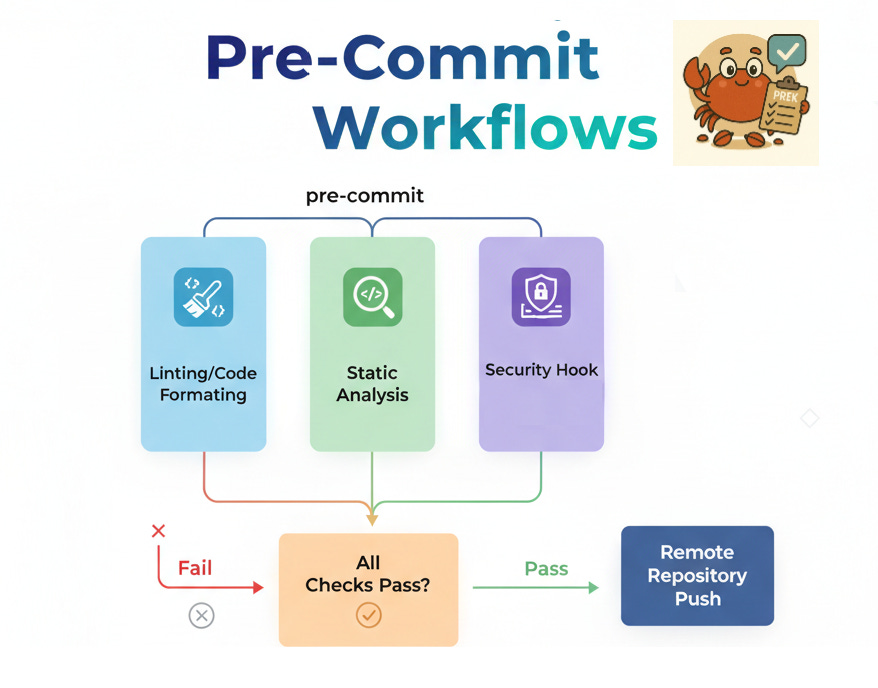
Pre-Commit Workflows
If you’ve been using pre-commit in your Python projects, you know the drill: you make a small change, hit commit, and
then… wait. And wait. While pre-commit has become the de facto standard for managing git hooks in the Python
ecosystem, its performance characteristics leave much to be desired, especially in modern development workflows where
speed matters.
But now there’s a new player: prek, a Rust-based reimplementation of the pre-commit
framework that promises to deliver the same functionality with dramatically better performance. But does it actually
deliver? I ran benchmarks to find out, and the results are striking enough that they might change how you think about
git hooks entirely.
1.1. The Problem with Pre-commit
Before diving into the comparison, let’s acknowledge what pre-commit does well. It’s mature, battle-tested, and has an
extensive ecosystem of hooks. For years, it’s been the go-to solution for enforcing code quality checks before commits
reach your repository.
However, pre-commit has a fundamental performance bottleneck: it’s written in Python and relies on creating isolated
virtual environments for each hook. This architecture, while robust, introduces significant overhead, especially during
the initial setup phase.
In modern development, where CI/CD pipelines run frequently and developer productivity depends on fast feedback loops,
this overhead adds up. Every second spent waiting for hooks to install or run is a second taken away from actual
development work.
1.2. Enter Prek: The Rust Alternative
Prek reimagines the pre-commit workflow with performance as a first-class concern. Built in Rust, it leverages the
language’s speed and efficient concurrency model to deliver dramatic improvements in both installation and execution
time.
The key insight behind prek is that you shouldn’t have to compromise between comprehensive code quality checks and
developer velocity. By rewriting the core framework in Rust and optimizing the environment management strategy, prek
aims to be a drop-in replacement that simply works faster.
1.3. The Benchmark: Real Numbers
I ran a controlled benchmark comparing both tools on a personal repository with 6 hooks in the YAML configuration.
Here’s the testing methodology:
- Multiple runs for each tool to account for variance
- Measured both installation time (cold start with no cache) and execution time (warm steady state)
- Same hardware, same repository, same hooks
- Used hyperfine for precise benchmarking
To make the results reproducible, here’s the exact script I used:
#!/usr/bin/env bash
set -euo pipefail
INSTALL_RUNS=10 # more runs for install
RUNTIME_RUNS=5 # fewer runs for runtime
echo "Starting benchmarks..."
echo
echo "Tool versions:"
prek --version || true
pre-commit --version || true
echo
# -------------------------------
# INSTALL BENCHMARK (COLD)
# -------------------------------
# Measures how long it takes to install hooks when no cache is present.
# --prepare: clears prek, pre-commit, and uv caches before each run
# --cleanup: clears caches after all runs for each command
# --runs: repeat exactly $INSTALL_RUNS times for each tool
# Export: results go to install_benchmark.md in Markdown table format.
echo "=== Install benchmark (cold) ==="
hyperfine \
--runs $INSTALL_RUNS \
--prepare 'prek clean && pre-commit clean && uv cache clean' \
--cleanup 'prek clean && pre-commit clean && uv cache clean' \
'pre-commit install --install-hooks' \
'prek install --install-hooks' \
--export-markdown install_benchmark.md
# -------------------------------
# RUNTIME BENCHMARK (WARM STEADY STATE)
# -------------------------------
# Measures steady-state runtime performance.
# --warmup 3: discard the first 3 runs to fill caches
# --runs: measure $RUNTIME_RUNS actual runs
# --cleanup: clean caches at the end
# Export: results go to runtime_warm_benchmark.md
echo
echo "=== Runtime benchmark (warm, steady state) ==="
hyperfine \
--warmup 3 \
--runs $RUNTIME_RUNS \
--cleanup 'prek clean && pre-commit clean && uv cache clean' \
'pre-commit run --all-files' \
'prek run --all-files' \
--export-markdown runtime_warm_benchmark.md
echo
echo "Benchmarks completed."
echo "Results saved to:"
echo " install_benchmark.md"
echo " runtime_warm_benchmark.md"
2. Benchmark Results
Install benchmark (cold)
=== Install benchmark (cold) ===
Benchmark 1: pre-commit install --install-hooks
Time (mean ± σ): 40.141 s ± 2.420 s [User: 37.105 s, System: 8.164 s]
Range (min … max): 38.442 s … 46.782 s 10 runs
Benchmark 2: prek install --install-hooks
Time (mean ± σ): 22.790 s ± 0.225 s [User: 9.053 s, System: 5.426 s]
Range (min … max): 22.496 s … 23.220 s 10 runs
Summary
‘prek install --install-hooks’ ran
1.76 ± 0.11 times faster than ‘pre-commit install --install-hooks’
**Runtime benchmark (warm, steady state)**
=== Runtime benchmark (warm, steady state) ===
Benchmark 1: pre-commit run --all-files
Time (mean ± σ): 176.7 ms ± 9.3 ms [User: 112.6 ms, System: 40.1 ms]
Range (min … max): 168.6 ms … 191.6 ms 5 runs
Benchmark 2: prek run --all-files
Time (mean ± σ): 26.3 ms ± 1.7 ms [User: 33.7 ms, System: 22.8 ms]
Range (min … max): 24.4 ms … 28.2 ms 5 runs
Summary
‘prek run --all-files’ ran
6.72 ± 0.56 times faster than ‘pre-commit run --all-files’
The results speak for themselves: prek consistently outperforms pre-commit across both installation and execution
phases.
Pre-commit Performance:
- Average Install Time: 40.1 seconds
- Average Run Time: 176.7 milliseconds
Prek Performance:
- Average Install Time: 22.8 seconds
- Average Run Time: 26.3 milliseconds
Let’s break down what these numbers mean in practice.
2.1. Installation Time
The installation phase, where hooks are set up and dependencies are installed, shows significant improvement. Prek
completes installation in 22.8 seconds compared to pre-commit’s 40.1 seconds—that’s 1.76 times faster, saving over
17 seconds per installation.
This improvement comes from prek’s more efficient environment management and parallel processing capabilities. Where
pre-commit sets up each hook’s environment sequentially, prek parallelizes much of the work, fully leveraging modern
multi-core CPUs.
These savings hit you every time you clone a fresh repository, onboard a new teammate, rebuild your development
environment, or spin up a clean CI/CD job. In practice, these are some of the most time-sensitive moments in
development: the first impression when a new contributor joins, or the critical “green build” loop in CI.
2.2. Execution Time
The run-time comparison is even more striking. Prek executes all hooks in 26.3 milliseconds versus pre-commit’s 176.7
milliseconds—nearly 7 times faster.
For something that happens on every commit, this difference transforms the development experience. With pre-commit, you
notice the delay. With prek, the hooks feel nearly instantaneous.
This performance gap exists because of lower startup overhead (Rust binaries start faster than Python processes),
efficient process spawning (prek minimizes the cost of launching hook processes), and optimized parallelization with
better concurrent execution of independent hooks.
2.3. When Speed Actually Matters
You might be thinking: “Does shaving off seconds really matter?” The answer becomes clear when you scale up the
impact.
For small and medium repositories like mine, prek already makes a meaningful difference: installs are about 2×
faster, and hook execution is nearly 7× faster. That means less waiting when you first set up, and almost instant
feedback every time you commit.
But the benefits become even more dramatic in larger projects. In the Apache Airflow
benchmarks published by the prek authors, installation time dropped from 187
seconds with pre-commit to just 18 seconds with prek—a full order of magnitude faster. For projects with dozens of
hooks and contributors, that kind of improvement changes the entire onboarding and CI experience.
Even beyond raw install times, the biggest impact is on everyday commits. Developers interact with pre-commit
constantly, and even sub-second delays add friction. Prek crosses an important psychological threshold: hooks feel
instantaneous, which means you stop noticing them. That reduces context switching, helps maintain flow, and removes the
temptation to skip checks because they feel “too slow.”
In open source projects, where contributors might clone fresh repositories often and CI jobs rebuild environments from
scratch, these savings add up across the community. For teams running frequent pipelines, the shorter runtimes directly
reduce compute costs and feedback latency.
Put simply: whether you’re working on a small repo or a massive open source project, prek makes pre-commit checks feel
like they should have all along—fast, seamless, and invisible.
2.4. What This Means for Your Workflow
These performance improvements have cascading effects throughout the development lifecycle:
- For Individual Developers: Commits feel responsive rather than sluggish, with less context switching while waiting
for hooks.
- For Teams: Faster CI/CD pipelines, reduced compute costs from shorter-running jobs, and better developer
satisfaction overall.
- For Large Repositories: More hooks can be added without degrading the user experience, and onboarding new
contributors becomes significantly faster.
2.5. Compatibility: Drop-in Replacement
One of prek’s strongest features is its compatibility with the existing pre-commit ecosystem. Your
.pre-commit-config.yaml file works as-is. The hooks you’ve already configured continue to function identically.
This means adoption is trivial:
# Install prek
pip install prek
# Use it exactly like pre-commit
prek install --install-hooks
prek run --all-files
No configuration changes. No hook migrations. No breaking your team’s workflow. You get the performance benefits
immediately without any of the typical migration pain.
2.6. The Trade-offs
In the interest of balanced assessment, it’s worth noting that prek is newer and less battle-tested than pre-commit. The
ecosystem maturity difference means:
- Pre-commit has more extensive documentation and community resources.
- Edge cases and obscure configurations may be better handled by pre-commit.
- Some organizations may prefer the stability of the more established tool.
However, for the vast majority of use cases, standard Python projects with common hooks like Black, Ruff, MyPy, and
isort, prek works flawlessly while being dramatically faster.
Prek is part of a larger trend of performance-critical Python tooling being rewritten in Rust. We’ve seen this with:
- Ruff: The lightning-fast Python linter and formatter
- Polars: The high-performance DataFrame library
- Pydantic V2: Rewritten core with a Rust foundation
- uv: An extremely fast Python package installer
The pattern is clear: when performance is crucial and Python’s overhead becomes a bottleneck, Rust offers a compelling
path forward while maintaining Python ecosystem compatibility.
3. Conclusion
After running these benchmarks, the case for prek is compelling. With faster installation and run times—all while
maintaining full compatibility with existing pre-commit configurations—prek represents a significant improvement in the
git hooks workflow.
The numbers tell a clear story: prek doesn’t just incrementally improve on pre-commit, it fundamentally transforms the
experience. Installation goes from noticeable to negligible, and execution crosses the threshold from “slight delay” to
“essentially instant.” For teams that value developer velocity and responsive tooling, these improvements compound over
time into meaningful productivity gains.
The migration path is trivial, the benefits are immediate, and the performance gains speak for themselves. Whether
you’re a solo developer tired of waiting for hooks or leading a team where those seconds multiply into hours of lost
productivity, prek delivers exactly what modern development workflows demand: speed without compromise.
The age of waiting for git hooks is over. Give prek a try—your future self (and your teammates) will thank you.